How to Find Which Plugin Loads a Heavy Elementor Script
Free-first · Practical Elementor tutorial
A large script filename is a clue, not a removal instruction. It may power a form or menu that visitors need. ElementsBoost Free combines plugin profiling, PageDNA and asset usage evidence to help connect a request to its owner and purpose.
What you will achieve
Identify an asset owner and decide whether the file is needed.
Free: Plugin Profiler, PageDNA, Asset Usage Map and addon findings.
Pro: Pro Lean Mode becomes relevant only after finding a supported unnecessary per-page asset.
1. Choose one expensive request
Open the public page with the browser Network panel and reload. Identify one script with substantial transfer or execution cost. Record its URL and initiator where available. Compressed download size and execution time describe different costs, so avoid ranking files by filename alone.
2. Match it in the Free tools
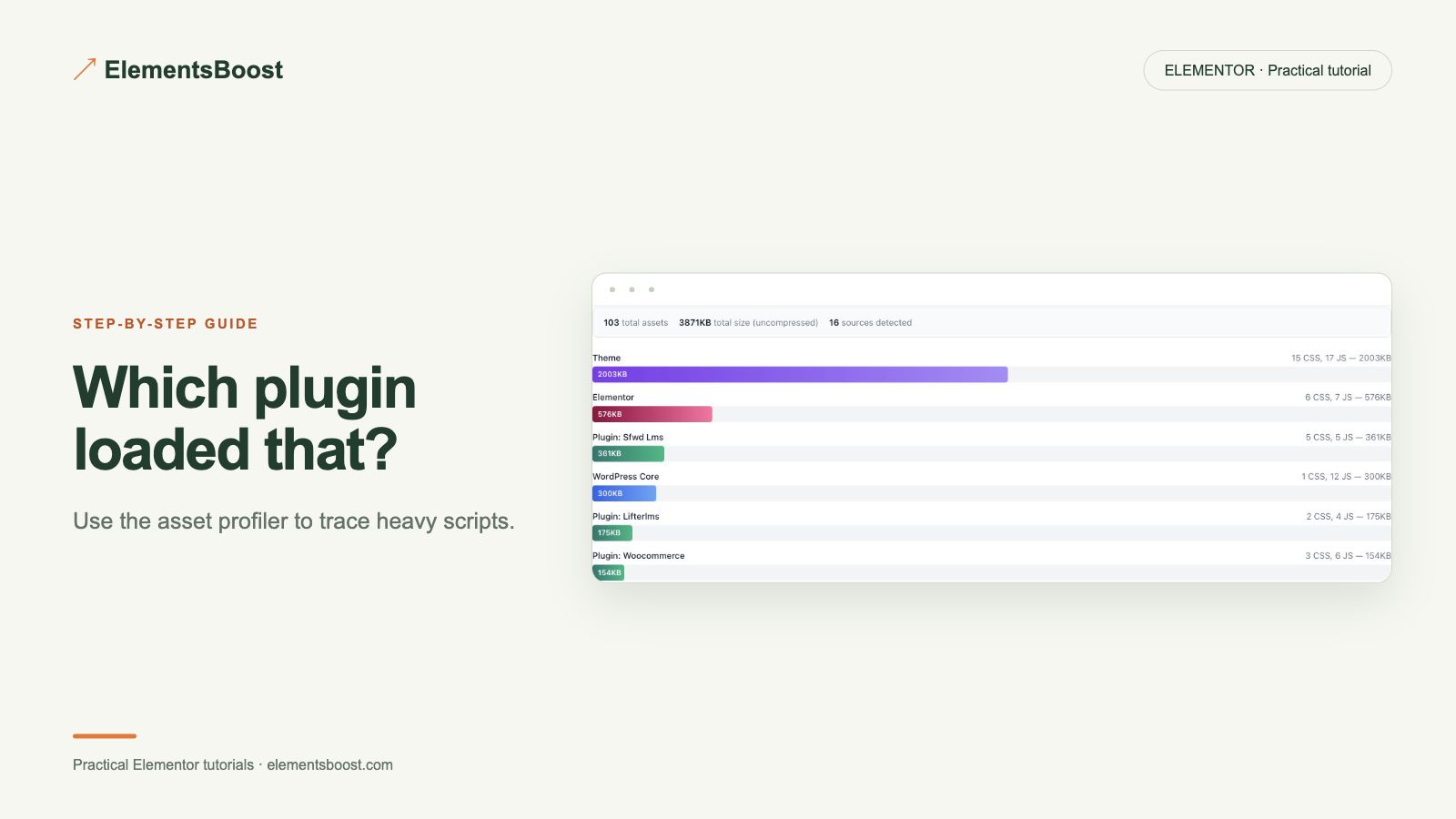
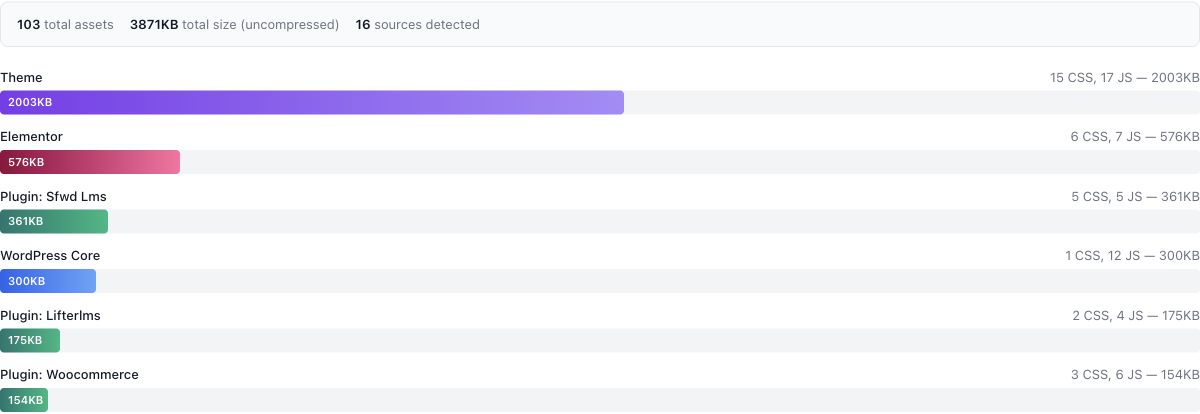
Open Plugin Profiler or the relevant PageDNA/Asset Usage Map view. Look for the matching handle, path or addon owner. Treat ownership detection as evidence to verify, especially when a cache plugin combines files or a CDN rewrites URLs.
3. Find the component that uses it
Search the page, header, footer and popups for widgets belonging to that plugin. Open interactive components and check responsive states. A script can be needed for a menu or form even when it appears unused during the first second of loading.
4. Choose keep, replace or selectively remove
Keep the asset if it provides necessary behavior. If an unused widget is responsible, remove that widget through the page editor and retest. If the file is still loaded unnecessarily and supported by the rule engine, Pro Lean Mode offers a per-page path. Diagnosis itself remains available in Free.
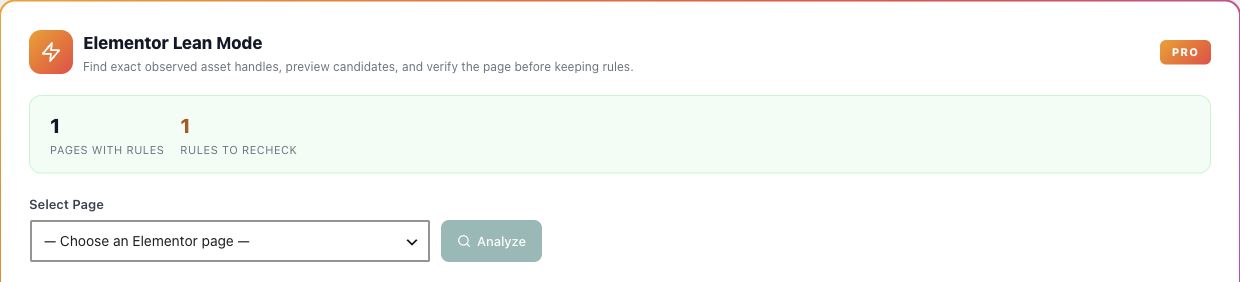
5. Verify the decision
Compare the request and the associated interaction after the change. Check another page that genuinely uses the addon. Keep the owner, reason and tested scope in your notes so a later plugin update can be investigated without starting from scratch.
If the result is different
If ownership is unclear, inspect the request path and initiator rather than disabling plugins in bulk. Combined files may require a controlled staging test with the cache configuration documented. A profiler result is a starting point for a decision, not proof that a plugin is unnecessary.
For supported frontend changes, follow the testing and recovery guide. Persistent content and image changes need their own backups; private Test Mode output cannot be measured by a public scanner.
Choose the next step that fits your page
Find the script owner with Free. Consider Pro Lean Mode only for a supported unnecessary per-page asset.
When Pro is the useful next step
Find the asset owner with Free. Pro Lean Mode lets you act on supported per-page findings without treating every page the same.
See Pro plans and included features →
Choose the license for the number of sites you manage. Check the feature comparison and license terms before buying.