
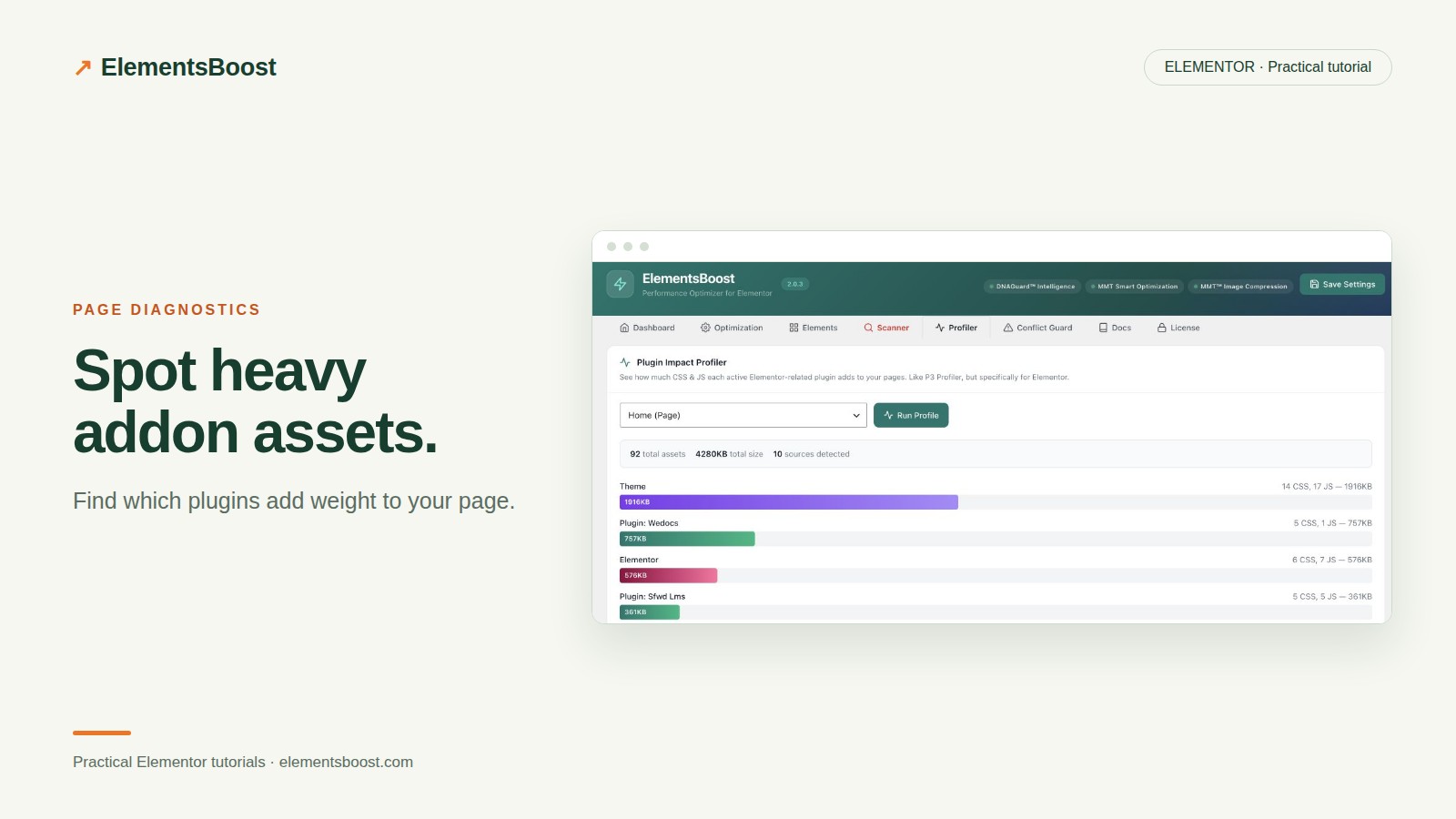
How to Find and Reduce Elementor Addon Asset Bloat
Content reviewed September 26, 2026 · Free 2.0.6 feature scope; Pro availability depends on the installed version and supported action.
You may use one widget from an Elementor addon pack while several of its frontend files load on the page. That is a reason to inspect the requests, not an automatic reason to remove the pack. The widget you need may share a library with other components.
The aim is to keep the design and remove only the work that the tested page does not require.
Workflow illustration: the steps to follow, not measured test results.
1. Identify the addon requests
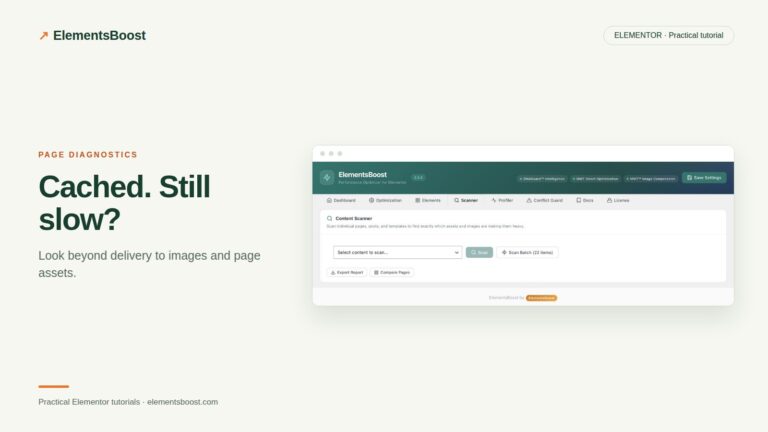
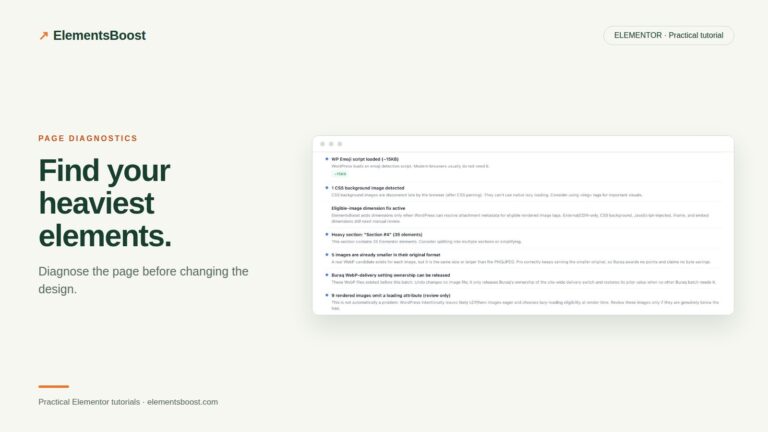
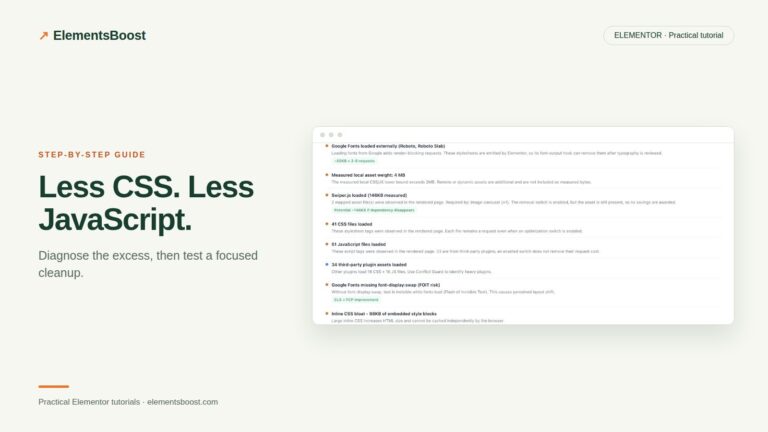
Scan the page with ElementsBoost and inspect Plugin Profiler or asset guidance. Match the reported files to the browser network panel. Record the addon directory, file URLs and the actual widgets on that page. Do not confuse a large file with an unnecessary one.
2. Include templates and hidden states
Check the header, footer, popup templates and responsive widgets. A page with no visible slider may still open a slider inside a popup. Repeat this review on a second representative page that uses the addon more heavily; the contrast helps establish where a rule should apply.
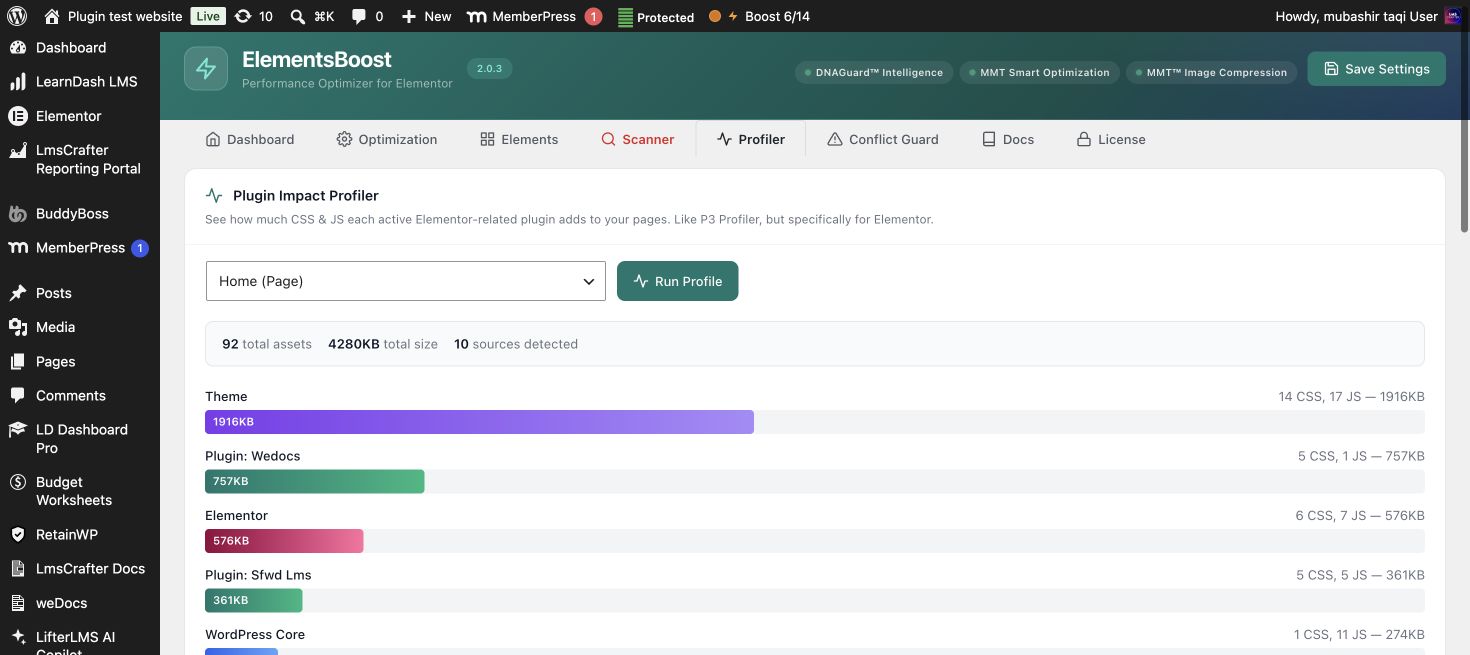
3. Check the addon’s own controls first
Some addon packs provide widget or module switches. Disable only a module you have confirmed is unused within its scope, then inspect whether its assets actually disappear. A disabled widget setting and a removed frontend request are different outcomes.
4. Apply a supported Pro page rule
When a shared addon remains necessary elsewhere, use supported Lean Mode or advanced addon rules with Safe Preview. Inspect the dependency information and preview the target page’s interactions before publishing. Keep the rule narrow and record the reason for it so a future redesign does not inherit an unexplained removal.
5. Recheck after updates or design changes
Publish the reviewed rule, clear relevant caches and verify the exact request and functionality logged out. Revisit the rule when the addon changes its asset names or someone adds a new widget. A once-safe rule can become inappropriate after the content changes.
Before you call this fixed
- The required addon widgets still work.
- Shared popups and templates were included.
- Only intended pages receive the removal.
- The rule has a documented reason and recovery path.
Further reading: Chrome DevTools documentation for CSS and JavaScript coverage.
2 Comments