How to Lazy-Load a YouTube Video in Elementor
Free-first · Practical Elementor tutorial
An embedded video can make the browser load a player before anyone presses Play. For a video halfway down a page, that work may be unnecessary during the first screen. ElementsBoost Free includes a supported YouTube content action; this tutorial explains how to check its scope and preserve playback.
What you will achieve
Keep a video usable without loading its full player immediately.
Free: Supported YouTube lazy-load content action and scoped undo.
Pro: No upgrade is needed for this supported video action. Pro is relevant only if a separate image or asset problem remains.
1. Find the exact video
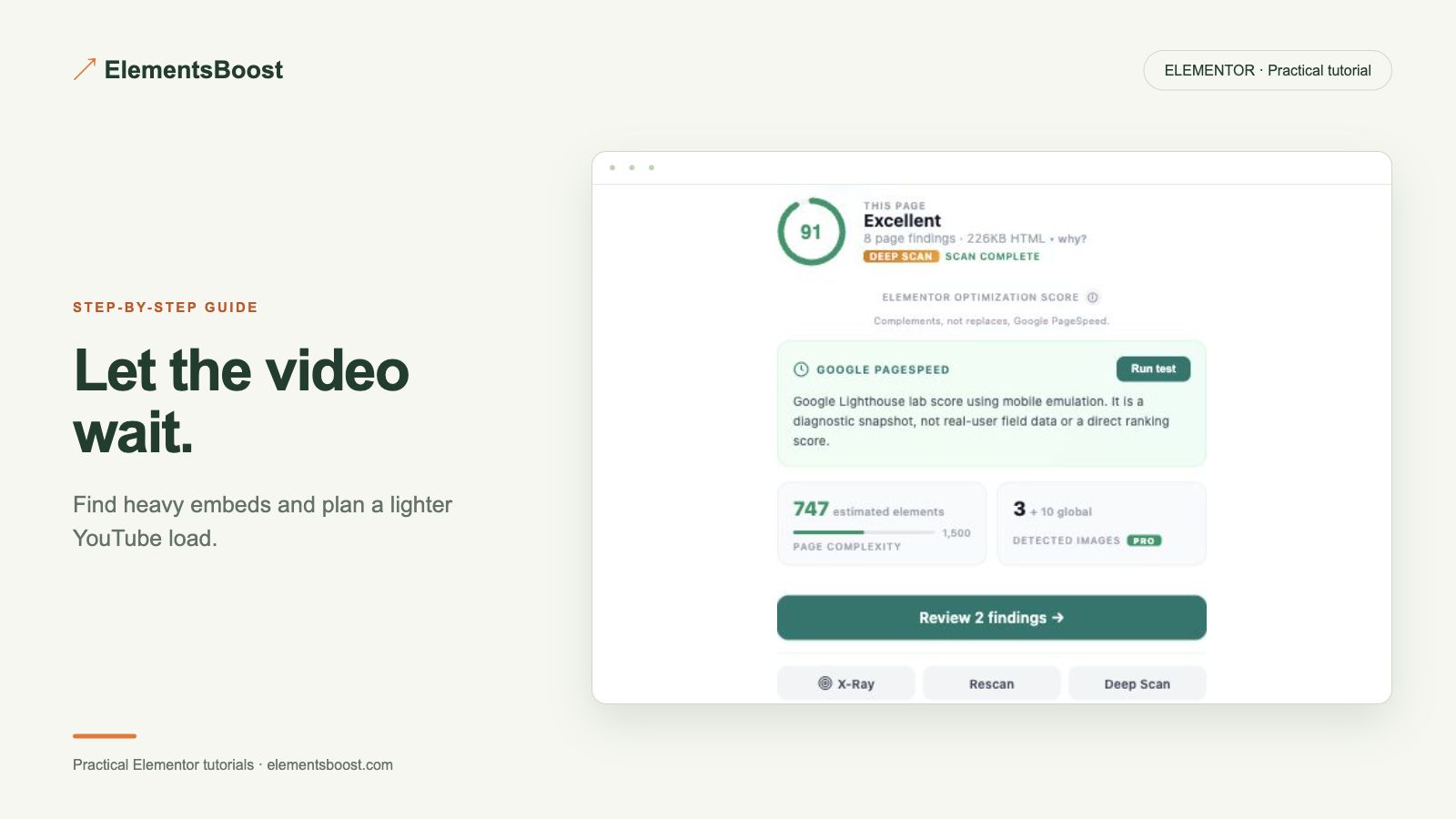
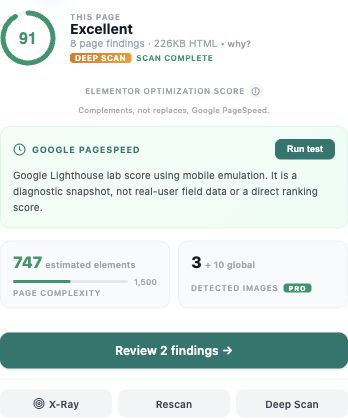
Open the page in Elementor and run the ElementsBoost/Buraq scan. Match the YouTube finding to the correct video widget. Record the video URL and current widget settings. If the page has several embeds, start with one below the fold. Keep a page revision or backup because a content action changes saved content.
2. Review the Free action
Open the finding and read the proposed lazy-load action before applying it. Use it only for an eligible YouTube widget. A Vimeo embed, custom iframe or background video may require a different workflow. Do not treat a missing action as permission to replace the entire widget with unrelated code.
3. Apply and test the first click
Apply the supported action, save the page when required, and open its public preview. The poster should look intentional and keep the player area at the right aspect ratio. Press Play and confirm that the expected video loads, audio works after interaction, and fullscreen is available where supported.
4. Check keyboard and consent behavior
Reach the player with Tab and activate its control with the keyboard. Test on a phone as well. If the site uses a consent manager, repeat the test both before and after consent using test choices. Lazy loading is a performance technique; it is not a replacement for your site’s consent behavior.
5. Verify loading and recovery
In the browser Network panel, compare the initial page load with the state after Play. Record what actually waits for interaction; a poster request may still happen early. Test the supported scoped undo on your sample and confirm the original widget returns. Reapply only after playback and layout checks pass.
If the result is different
If Play does nothing, restore the last change and check competing video facades, consent blockers and delayed scripts. Keep one tool responsible for replacing the player. Free is sufficient for this supported action; Pro is only relevant to a separate diagnosed asset or image problem.
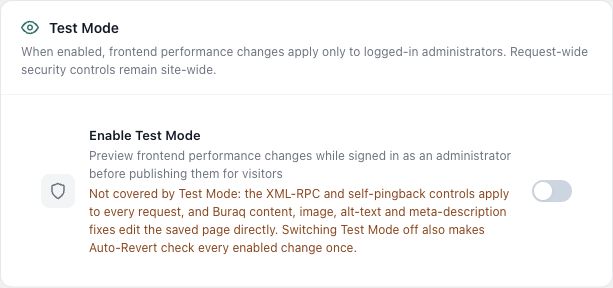
For supported frontend changes, follow the testing and recovery guide. Persistent content and image changes need their own backups; private Test Mode output cannot be measured by a public scanner.
Choose the next step that fits your page
Fix an eligible YouTube embed with ElementsBoost Free.
When Pro is the useful next step
Keep the video fix in Free. If the same page also has heavy images or unnecessary addon assets, compare Pro’s local image tools and Lean Mode.
See Pro plans and included features →
Choose the license for the number of sites you manage. Check the feature comparison and license terms before buying.