How to Delay JavaScript Without Breaking Elementor Menus or Forms
Pro-first · Practical Elementor tutorial
Delaying a script can reduce initial work, but visitors still need menus, forms and consent controls immediately when they interact. ElementsBoost Free helps identify candidates; Pro adds supported dependency-aware delay/defer and exclusions.
What you will achieve
Defer a genuinely non-critical script while keeping interactions functional.
Free: Free profiler helps identify candidate scripts and dependencies.
Pro: Dependency-aware JavaScript delay/defer and exclusions.
1. Pick a non-critical candidate
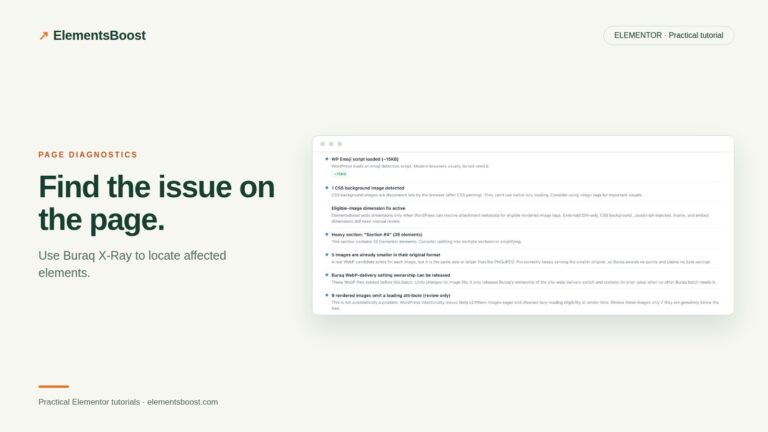
Use the Free profiler and browser evidence to identify a script that does not need to run for the first screen. Record its owner and dependencies. Do not start with the main navigation, a payment flow, authentication or a consent manager. A small non-essential enhancement is a better trial.
2. Distinguish delay from defer
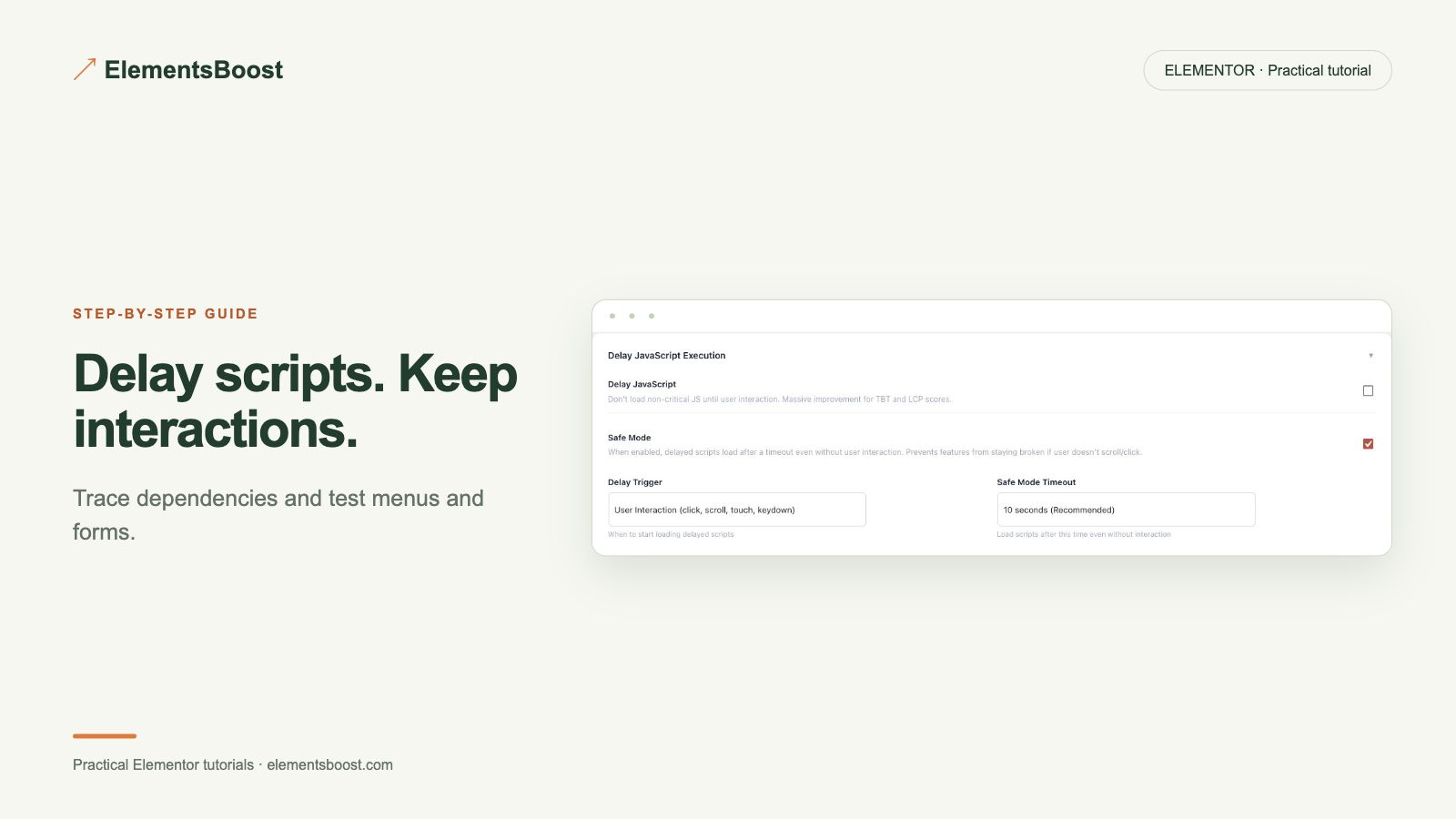
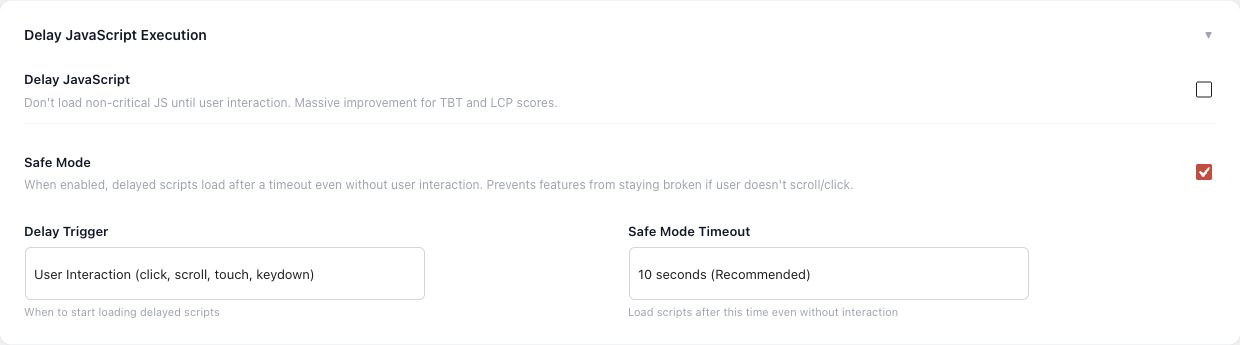
Read the actual Pro control before enabling it. Deferring execution until document parsing and delaying until a trigger are different behaviors. Follow the installed feature’s description and keep a settings snapshot. Do not assume both approaches have identical interaction timing.
3. Set the supported scope and exclusions
Apply the narrowest available rule to the chosen candidate. Keep required dependency chains together and exclude scripts that must respond immediately. If another plugin already controls JavaScript timing, assign one owner for this job instead of stacking two independent delays.
4. Test the first interaction
Open the public preview as a fresh visitor. Immediately open the mobile menu, reach a form with the keyboard, and trigger validation without sending a real message. Test consent states and any selected widget. The first click matters: a control that works only on the second attempt is a regression.
5. Verify timing and recovery
Inspect when the candidate executes and compare the initial work with the baseline. Check for console errors associated with the change. Release only after the functional checks pass, then repeat as a logged-out visitor. Restore the previous rule if dependencies or user actions fail.
If the result is different
If a menu or form breaks, remove the specific delay first and retest. Avoid broad exclusions copied from another site without matching its scripts. Dependency handling reduces some risks but does not replace testing your actual widgets and consent setup.
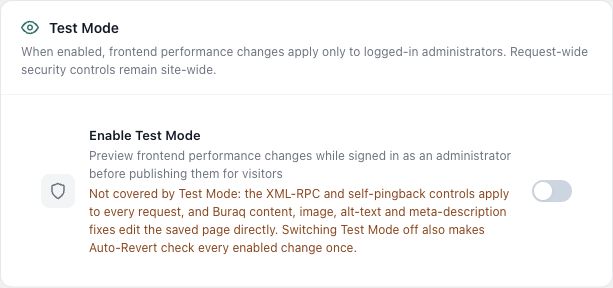
For supported frontend changes, follow the testing and recovery guide. Persistent content and image changes need their own backups; private Test Mode output cannot be measured by a public scanner.
Choose the next step that fits your page
Use Pro to control eligible scripts precisely.
When Pro is the useful next step
Pro adds dependency-aware JavaScript delay and defer controls. Test the first menu click, form submission and other essential interactions before release.
See Pro plans and included features →
Choose the license for the number of sites you manage. Check the feature comparison and license terms before buying.