
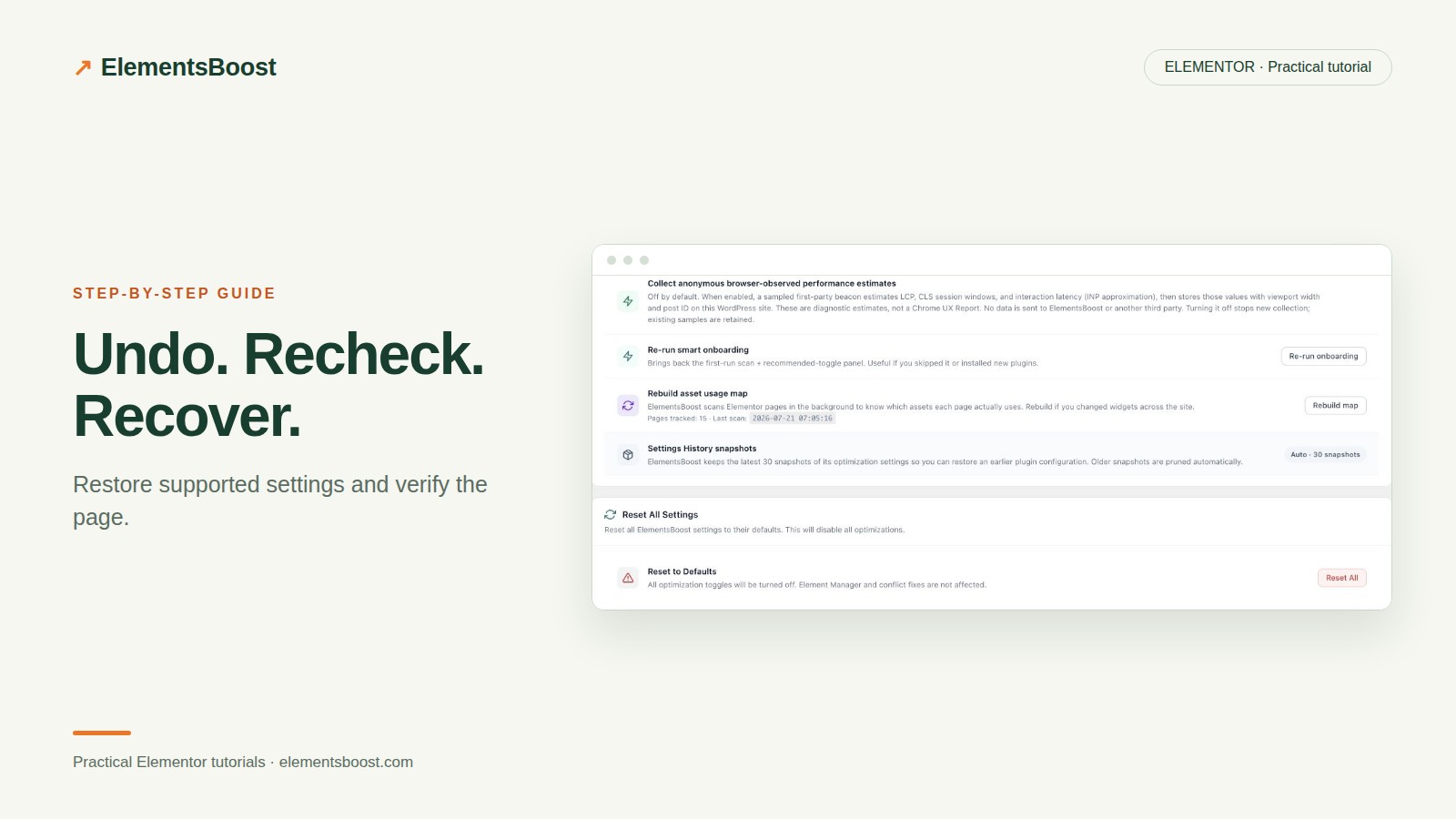
How to Undo a Bad Elementor Optimization and Verify Recovery
Content reviewed September 26, 2026 · Free 2.0.6 feature scope; Pro availability depends on the installed version and supported action.
If a menu stops working or a layout changes after an optimization, stop making additional changes. The fastest recovery usually comes from identifying the last candidate and reversing it through the mechanism that actually owns the change.
ElementsBoost settings, per-page rules, Elementor content and optimized image files do not share one universal undo button. Use the matching path below, then verify what visitors receive.
Workflow illustration: the steps to follow, not measured test results.
1. Identify the last change and its scope
Record the affected URL, device and broken interaction. Compare the timing with the last setting, per-page rule, content action or media operation. If several changes were bundled, return toward the known-good baseline before testing them separately.
2. Restore a setting or disable a rule
For supported global settings, use Settings History to inspect and restore an appropriate snapshot, or turn off the identified candidate. History retains up to 30 snapshots. For a Pro page rule, disable or reverse the relevant rule within its own scope. Avoid resetting unrelated configuration if a single candidate explains the failure.
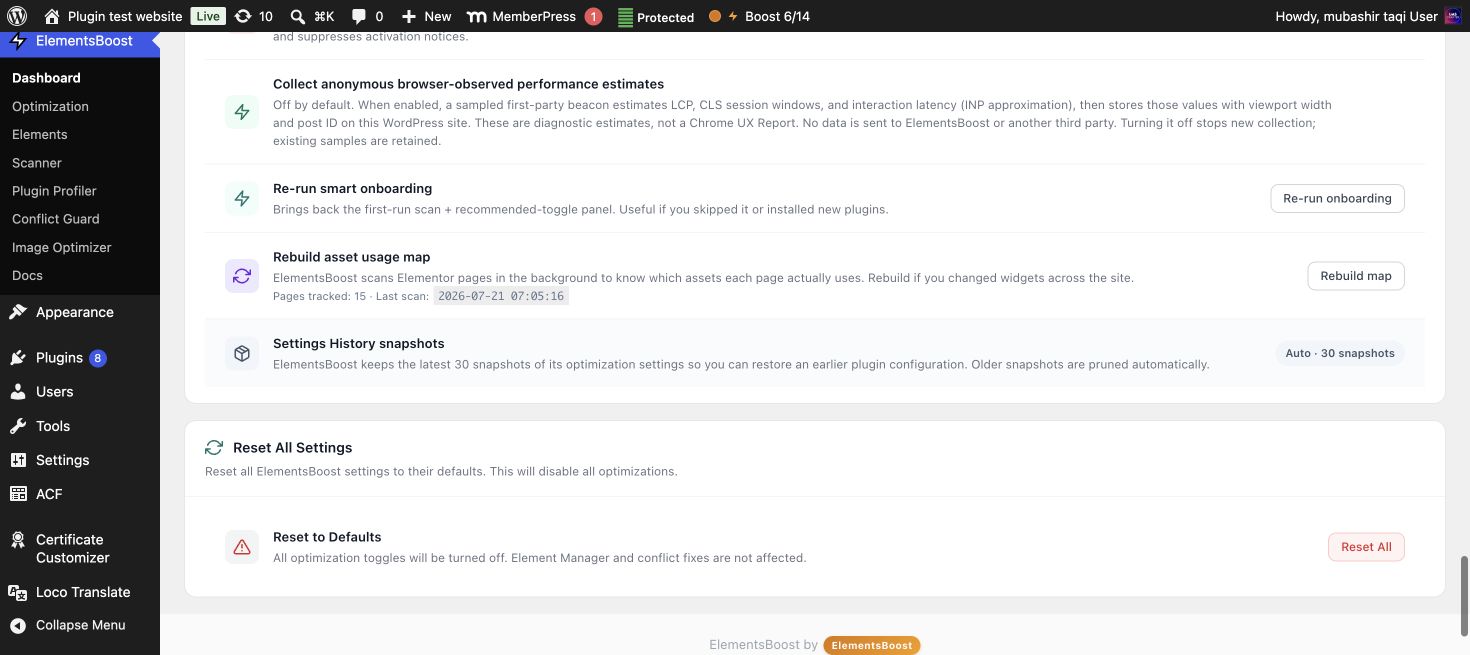
3. Use content undo carefully
Eligible Buraq content actions have scoped undo. The tool checks whether the value changed later before restoring it, which helps protect newer manual edits. If scoped undo is unavailable or refuses a conflict, inspect the Elementor/WordPress revision or backup. Do not overwrite a newer content change blindly.
4. Restore the media operation separately
For Pro image optimization, use the available backed-up image-family restoration path. Check the original and derivative files involved. Restoring an image file is different from reverting a page’s crop, CSS or widget settings; those may need their own recovery.
5. Confirm recovery publicly
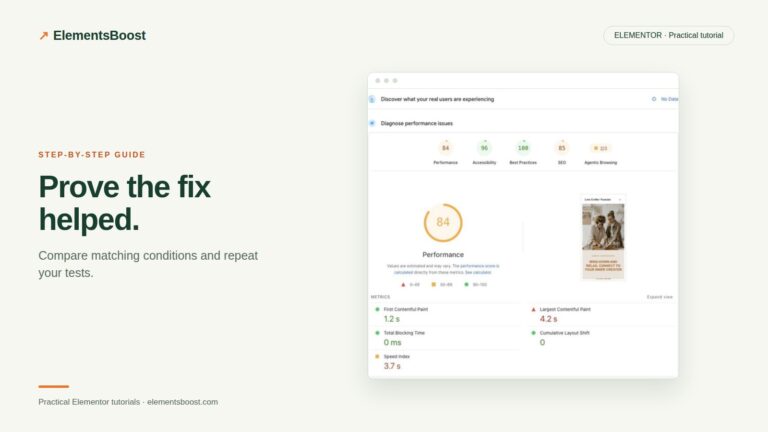
Clear the affected cache layers and open the exact URL logged out. Reproduce the previously broken interaction and inspect the relevant requests or markup. A successful restore notice is only the start of verification. Once stable, document the dependency and test a narrower candidate on staging or a supported preview surface.
Before you call this fixed
- The original broken behavior is fixed publicly.
- Caches no longer serve the bad variant.
- Newer manual edits were preserved.
- The failed candidate is documented before another attempt.
Further reading: ElementsBoost’s current Free feature documentation on WordPress.org.
One Comment