How to Fix a Slow Elementor Hero Image
Both · A practical Elementor tutorial
The large image visitors see first can be slow for several different reasons. It may be discovered late, downloaded from an oversized source, or kept hidden while scripts and styles finish.
Start by finding the actual Largest Contentful Paint candidate—the largest content element recorded during loading. Do not assume the first image in Elementor is the one the browser measured.
This route is a reading guide, not a screenshot or measured result.
1. Identify the real first-screen candidate
Run the Free page diagnosis and record a public mobile performance test. Check the browser trace or report for the LCP element, then match its URL and geometry to the page. Sometimes the candidate is text rather than an image. If that happens, use the font or rendering workflow instead of applying an image fix.
2. Separate late discovery from a large download
Inspect when the image request starts and how long it takes. A late request can point to lazy loading, script insertion or CSS discovery. A promptly discovered but large image suggests source size or compression. Save the baseline and change the cause you observed rather than enabling several performance switches at once.
3. Correct an inappropriate lazy-loading rule
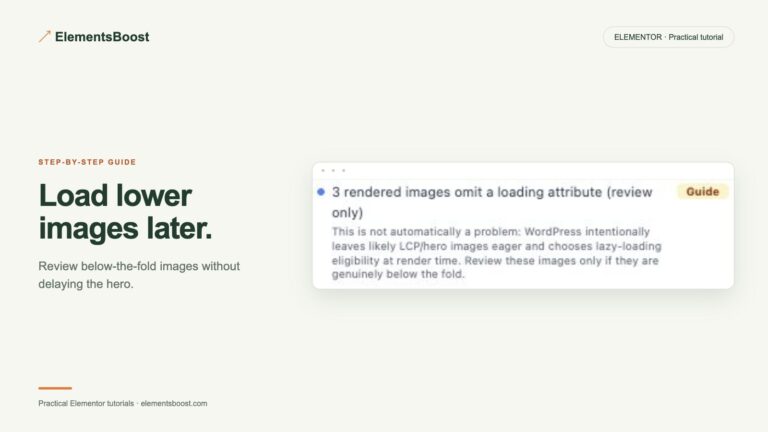
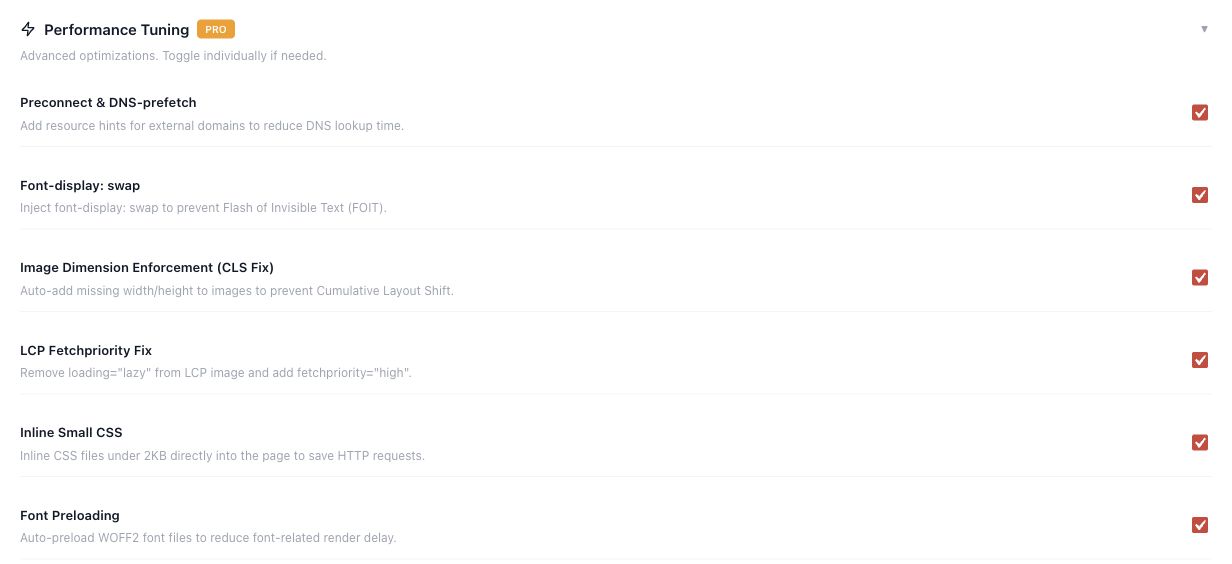
Inspect the actual hero markup and identify the tool that controls its loading. If the hero is incorrectly deferred, exclude that image through the responsible tool or appropriate Elementor setting. Keep lower-page lazy loading intact. This can be a manual configuration fix; it does not automatically require Pro.
4. Use a supported Pro action when it fits
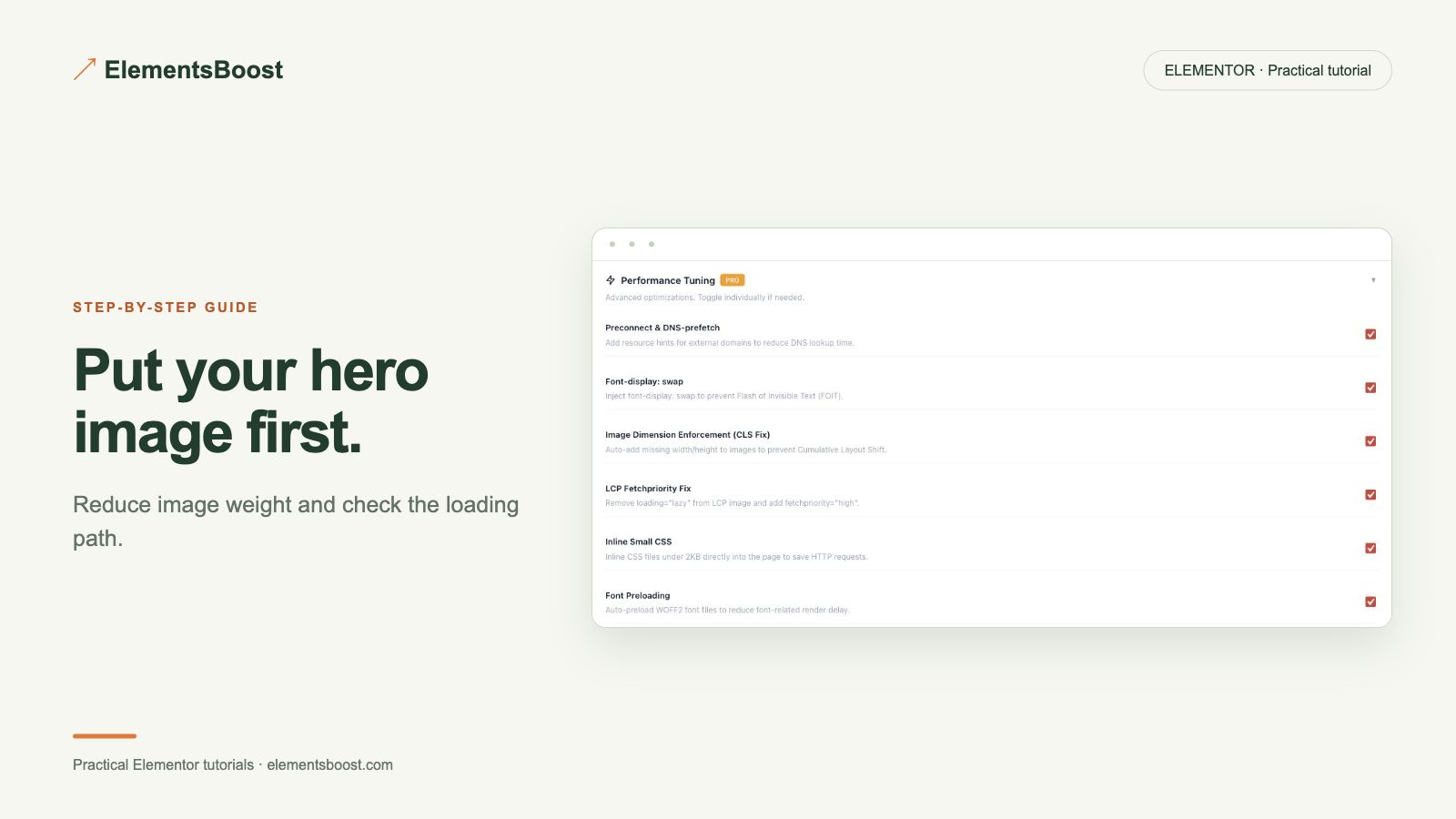
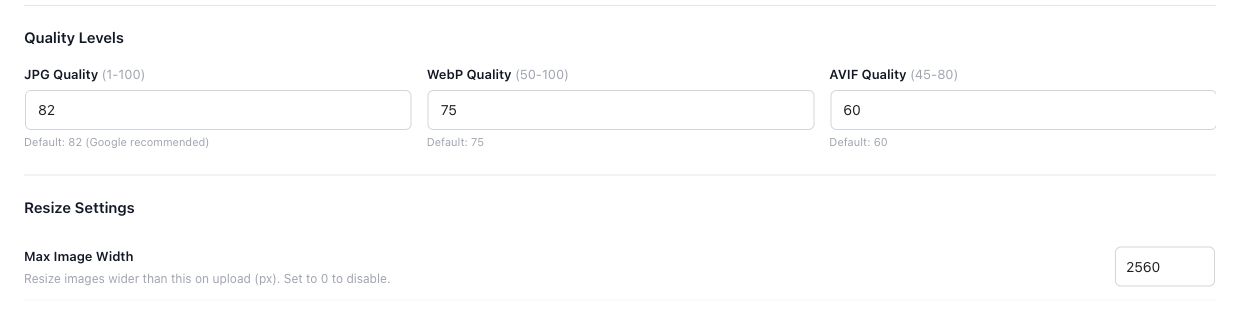
For an eligible mapped hero, Pro provides targeted LCP handling. Review the actual candidate and action before applying it. Local compression or a supported modern format can also help if file size is the bottleneck. Do not preload every image: competing priorities can undermine the intended improvement.
5. Check the public result and preserve the design
After the controlled release and relevant cache clear, inspect the image request, priority or preload actually emitted. Run three comparable mobile tests and compare medians with the baseline. Check responsive cropping, overlays and the hero animation. Removing an intentional animation is not a required image optimization step.
Check your result
- The optimized image is the measured candidate.
- Any priority/preload points to the correct responsive resource.
- There is no unnecessary duplicate image request.
- The page looks and behaves correctly on mobile and desktop.
If the result is different
If the image arrives early but appears late, investigate render delay rather than increasing its priority again. If a CSS background is involved, use its supported delivery path and confirm the computed URL at the tested breakpoint.
For supported settings, use the testing and recovery guide. A public scanner cannot measure a private Test Mode preview. Keep backups for persistent content or image changes.
Your next useful step
Free page findings plus a browser trace identify the candidate; manual removal of an incorrect lazy-loading rule may suffice.
Verified mapped LCP controls and local image optimization where appropriate.
When Pro is the useful next step
Pro adds supported LCP controls and local image processing. Choose the control that addresses the measured bottleneck, then preserve the hero design.
See Pro plans and included features →
Choose the license for the number of sites you manage. Check the feature comparison and license terms before buying.