How to Review Elementor Headings and Meta Descriptions With Deep Scan
Pro-first · Practical Elementor tutorial
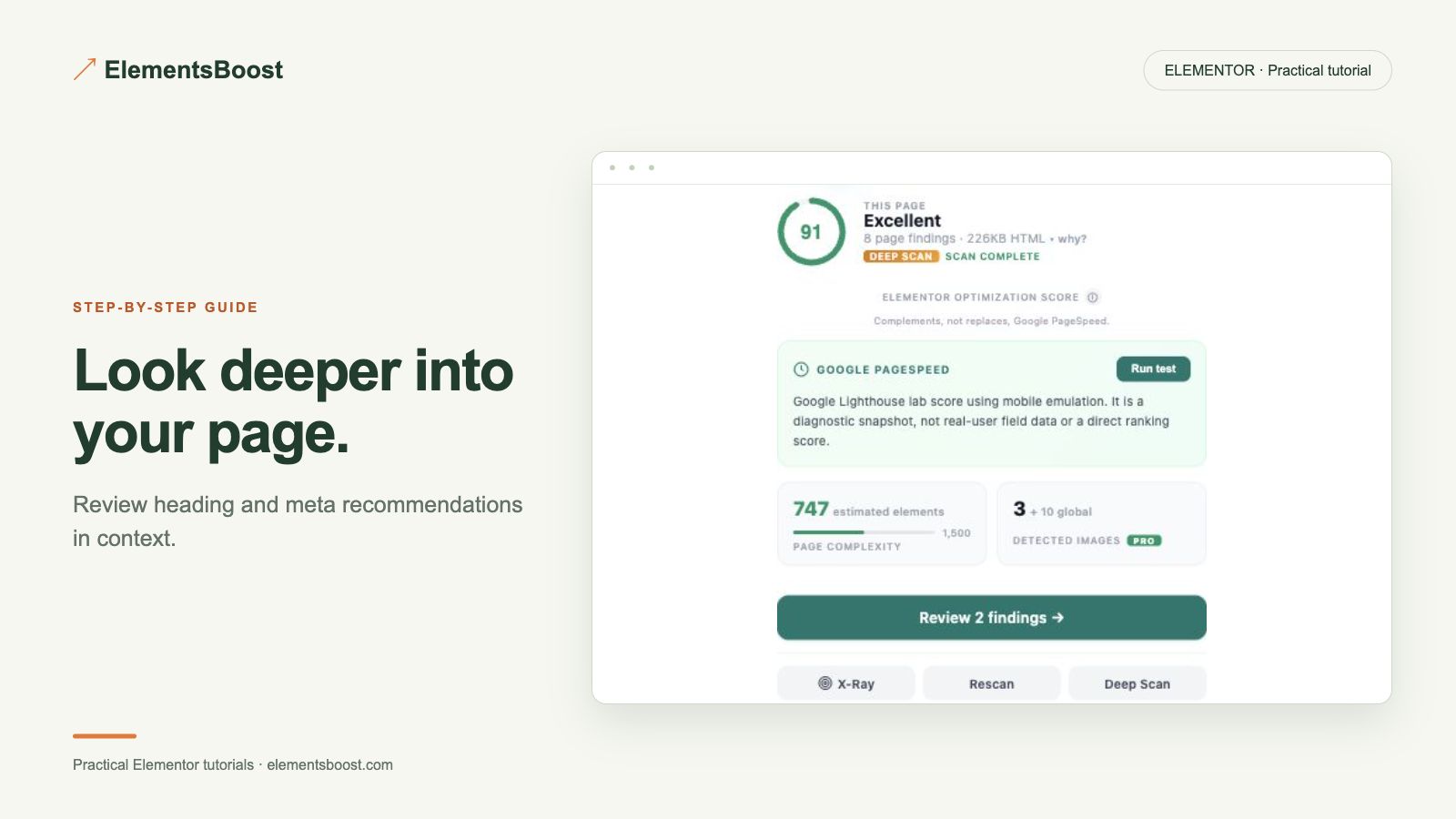
A heading should describe the section that follows it, and a search description should accurately summarize the page. Pro Deep Scan can surface eligible issues and reviewable actions. Use the proposal as a starting point, then check the actual page meaning before saving.
What you will achieve
Correct an eligible page-structure or description issue after reviewing the proposed change.
Free: Free scan provides the initial page context; alt-text review remains a separate Free feature.
Pro: Deep Scan with eligible reviewable/reversible heading and meta actions.
1. Read the page before changing its structure
Identify its main topic and section hierarchy. Review the visible title and heading levels in the rendered output. A heading level expresses structure; it should not be chosen only because it looks large. Use Elementor styling controls to adjust appearance separately.
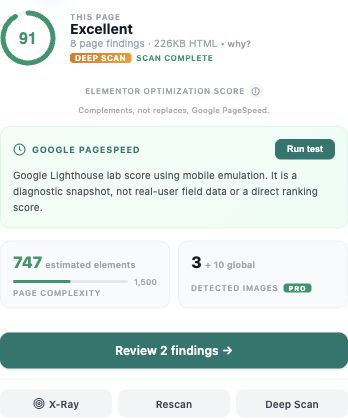
2. Run Deep Scan and inspect one issue
Open the Pro scan findings and select an eligible heading or meta-description action. Match it to the correct page and current value. Keep a revision or backup before persistent content changes. Free image-alt review remains a different workflow and does not require Deep Scan.
3. Rewrite the proposal in context
Make a heading specific to its section. For a description, explain what the reader will learn without stuffing keywords or promising unsupported results. Check whether the site’s SEO plugin already owns that field. Avoid creating conflicting descriptions in two systems.
4. Apply the supported edit
Review the final proposed value and save through the eligible action. Do not bulk-rewrite all headings simply because a scanner offers suggestions. Preserve useful copy, branded language and the page’s intended emphasis. Use the supported undo when the change does not fit.

5. Verify the public output
Inspect the rendered heading tag or page-head description after the controlled save and cache clear. Check that only the intended value changed. Re-run the scan and inspect the visible page. Search engines may choose a different snippet, so a saved description is not a promise of the exact search result.
If the result is different
If the new value does not appear, check the SEO plugin, template override and cache before repeating the action. This workflow can improve clarity and valid output; it cannot guarantee rankings or clicks.
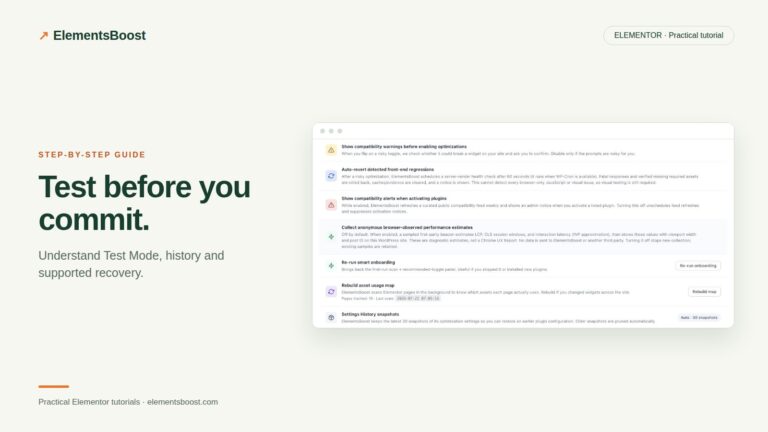
For supported frontend changes, follow the testing and recovery guide. Persistent content and image changes need their own backups; private Test Mode output cannot be measured by a public scanner.
Choose the next step that fits your page
Use Pro Deep Scan for eligible heading and description reviews.
When Pro is the useful next step
Pro Deep Scan helps review supported heading and description issues inside your page workflow. Review the wording yourself before accepting edits.
See Pro plans and included features →
Choose the license for the number of sites you manage. Check the feature comparison and license terms before buying.