
How to Audit an Elementor Page Before Optimizing It
Content reviewed September 26, 2026 · Free 2.0.6 feature scope; Pro availability depends on the installed version and supported action.
A useful page audit ends with a testable next action. It does not need a long list of every possible speed setting. Begin with a page that matters to the business and a symptom you can reproduce: slow first content, a late hero, a shifting layout or delayed interaction.
ElementsBoost Free supplies page findings and asset guidance. Combine those with a public-page baseline so the eventual improvement can be checked.
Workflow illustration: the steps to follow, not measured test results.
1. Choose a representative public page
Use the exact URL visitors land on. Note the main conversion or navigation path without triggering real submissions or purchases. Record mobile and desktop context separately. Start with a page receiving relevant visitors when reliable analytics are available; low-traffic reports may require more observation before ranking priorities.
2. Capture the baseline
Record a mobile Lighthouse test and repeat it under consistent conditions. Save screenshots, the LCP element and the major network requests. Note cache state. Separate lab values from real-user Core Web Vitals and from an optimizer’s internal score.
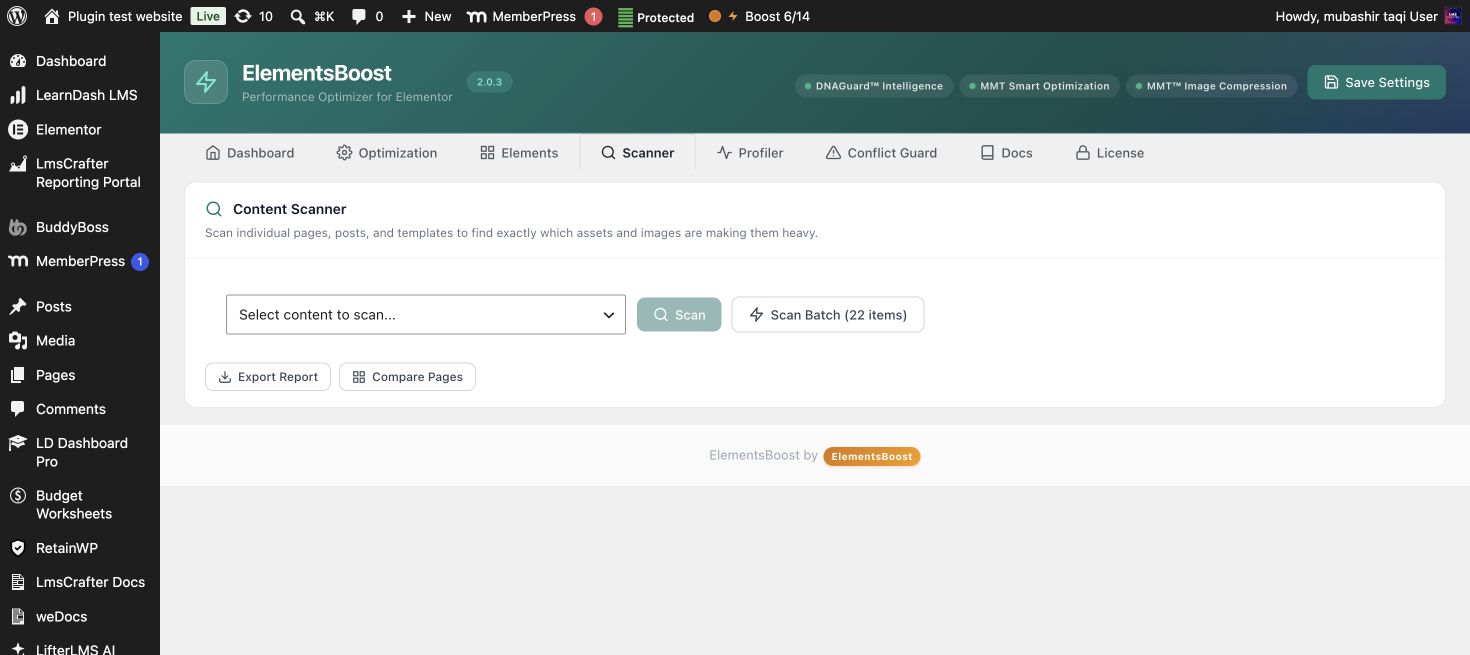
3. Run the ElementsBoost scan
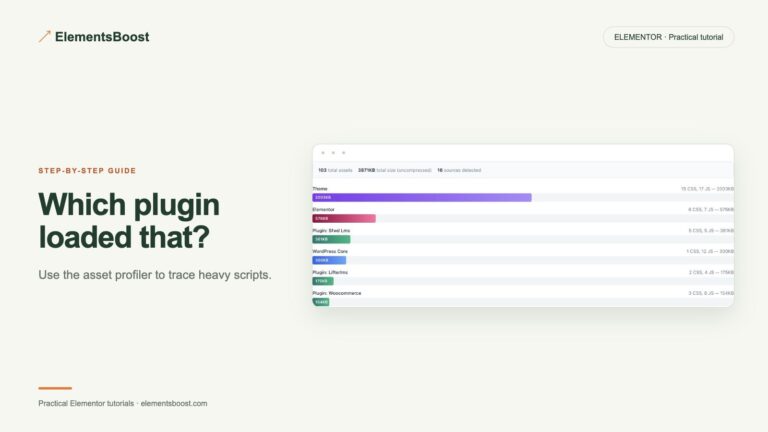
Open the page in Elementor, launch Buraq and scan the public page. Review findings, PageDNA and asset information. Use X-Ray to locate supported matching elements. Read theoretical opportunities as hypotheses until a public change and its effect are verified.
4. Classify the bottleneck
Group the evidence into server delivery, images, fonts, CSS/JavaScript, layout shifts or third-party components. Choose the most plausible high-impact cause you can test safely. A large request count is useful context, but it is not proof that every file should be removed.
5. Define the next experiment
Write one sentence: “If I change this supported candidate on this page, I expect this request, markup or timing to change.” Record the recovery route and acceptance checks. Use Free when its supported fix fits; evaluate Pro only when the next action needs its extra scope or processing.
Before you call this fixed
- The baseline uses the intended public URL.
- The main bottleneck has supporting evidence.
- The proposed fix has a recovery route.
- Success has a concrete technical and functional definition.
Further reading: Google’s guide to diagnosing and improving LCP.
3 Comments