How to Stop Elementor Text Jumping When Fonts Load
Free-first · Practical Elementor tutorial
Text can move when the browser replaces a fallback font with the chosen web font. Faster font delivery may shorten the wait, but different letter widths can still change line breaks. ElementsBoost Free helps diagnose fonts and supports Google Font self-hosting; layout and fallback choices need their own review.
What you will achieve
Find and reduce text movement caused by font changes.
Free: Font diagnosis and supported Google Font self-hosting. Fallback metrics and layout choices are manual.
Pro: No Pro requirement for the Free font control; saved comparisons are optional if the reader manages repeated tests.
1. Record the text that moves
Reload the public page with a performance recording and watch the heading or paragraph that jumps. Compare its line breaks before and after the web font appears. Keep viewport, zoom and text identical. Confirm that the movement is caused by a font swap rather than a late image or changing container width.
2. Find the font and unnecessary variants
Inspect the rendered font and its Network requests. Note the family and weights actually used by Elementor and the theme. Remove unnecessary variants through the responsible typography configuration. A bold heading and regular body do not automatically need every weight in the family.
3. Review Free self-hosting if applicable
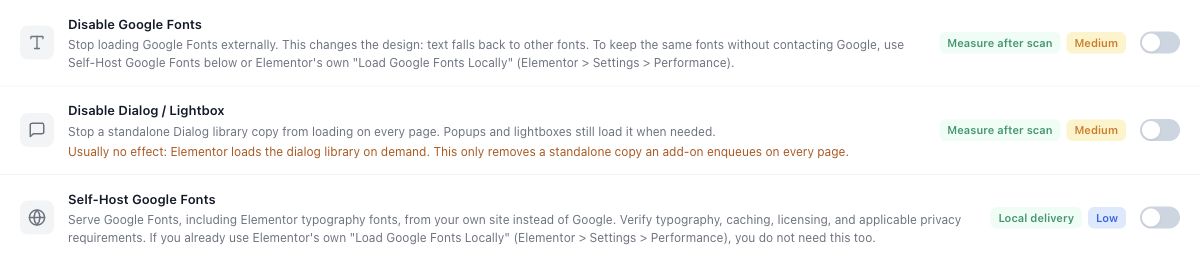
For supported Google Fonts, inspect the ElementsBoost Free self-hosting control and confirm the font files can be served correctly. Test the actual public requests after release. Self-hosting changes delivery; it does not make a fallback font geometrically identical to the final font.
4. Improve the fallback and layout
Choose a sensible fallback stack and review heading width, line height and responsive typography. Advanced CSS metric overrides require measurements for the actual font; do not copy arbitrary values from another site. Avoid fixed heights that clip translated text or larger accessibility settings.
5. Repeat the same recording
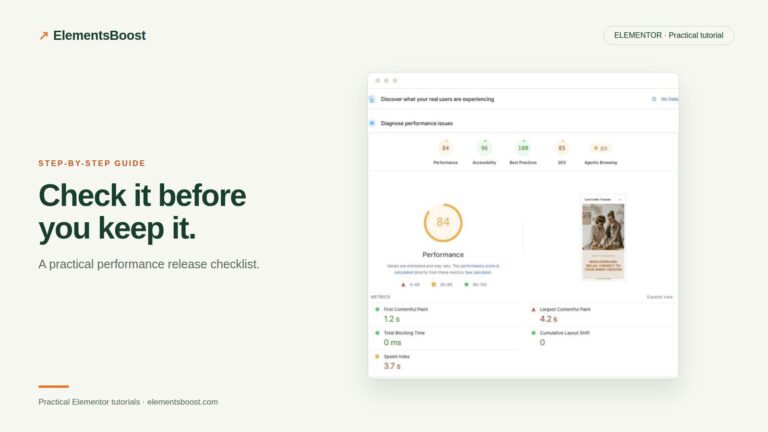
Run the same page at the same viewport and compare the shifting text region. Check a fresh load as well as a cached visit. Confirm the chosen font still appears, no text is clipped, and the intended design is preserved. Keep the recording and request evidence together.
If the result is different
If the font loads promptly but text still jumps, focus on fallback metrics and line wrapping. If it never loads, check the emitted font URL, format and cache. Pro saved comparisons are optional; the supported Free font control does not require an upgrade.
For supported frontend changes, follow the testing and recovery guide. Persistent content and image changes need their own backups; private Test Mode output cannot be measured by a public scanner.
Choose the next step that fits your page
Start with Free font diagnosis and supported self-hosting.
When Pro is the useful next step
Start with Free font tools. If image weight or blocking CSS is also slowing the first screen, Pro provides separate controls for those causes.
See Pro plans and included features →
Choose the license for the number of sites you manage. Check the feature comparison and license terms before buying.