
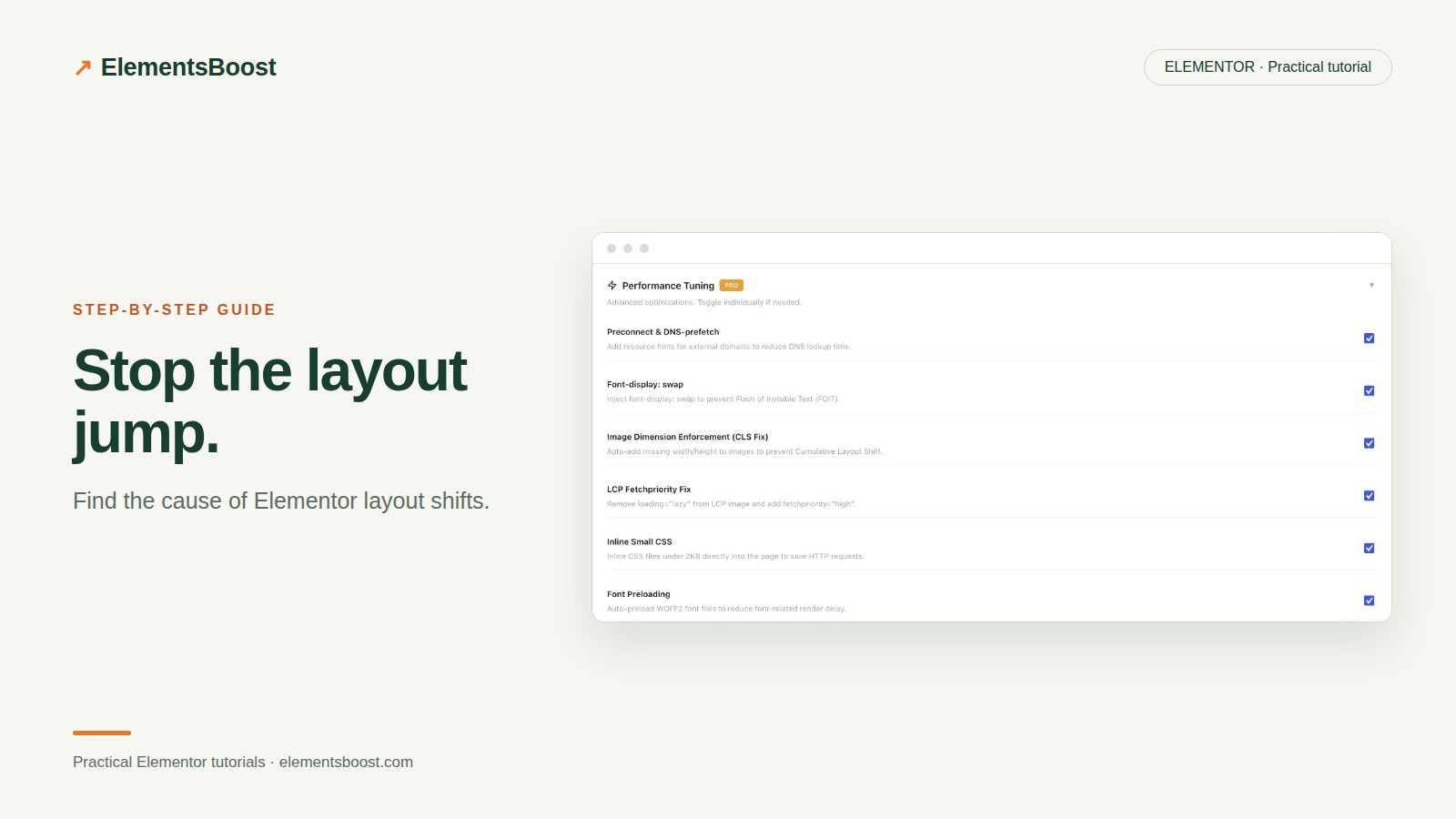
How to Fix Elementor Layout Shift (CLS) Without Guessing
Content reviewed September 26, 2026 · Free 2.0.6 feature scope; Pro availability depends on the installed version and supported action.
CLS measures unexpected visual movement. A button moving just before someone taps it is the problem to solve—not simply a number to turn green. On an Elementor page, common causes include images without reserved space, font swaps, embeds, expanding banners and components that resize after initialization.
The useful first question is: which event moved the layout? This guide is the diagnosis hub. Follow the matching focused tutorial once you have evidence for the cause.
Workflow illustration: the steps to follow, not measured test results.
1. Record the movement at the affected viewport
Use the public URL, select the mobile viewport where the issue occurs and record a reload in browser performance tools. Include scrolling if the movement happens later. Inspect layout-shift events and their affected elements. Those elements show what moved, which may be below the content that caused the movement. Keep a screenshot or recording of the event before editing.
2. Match the symptom to a cause
If text moves when a photo appears, inspect the image dimensions and its wrapper. If a heading changes line count when a font arrives, compare the fallback and final font metrics. If the whole page moves after an announcement or embed loads, reserve space for that component. If a slider changes height, inspect its initialization and responsive rules. One page can have several separate causes.
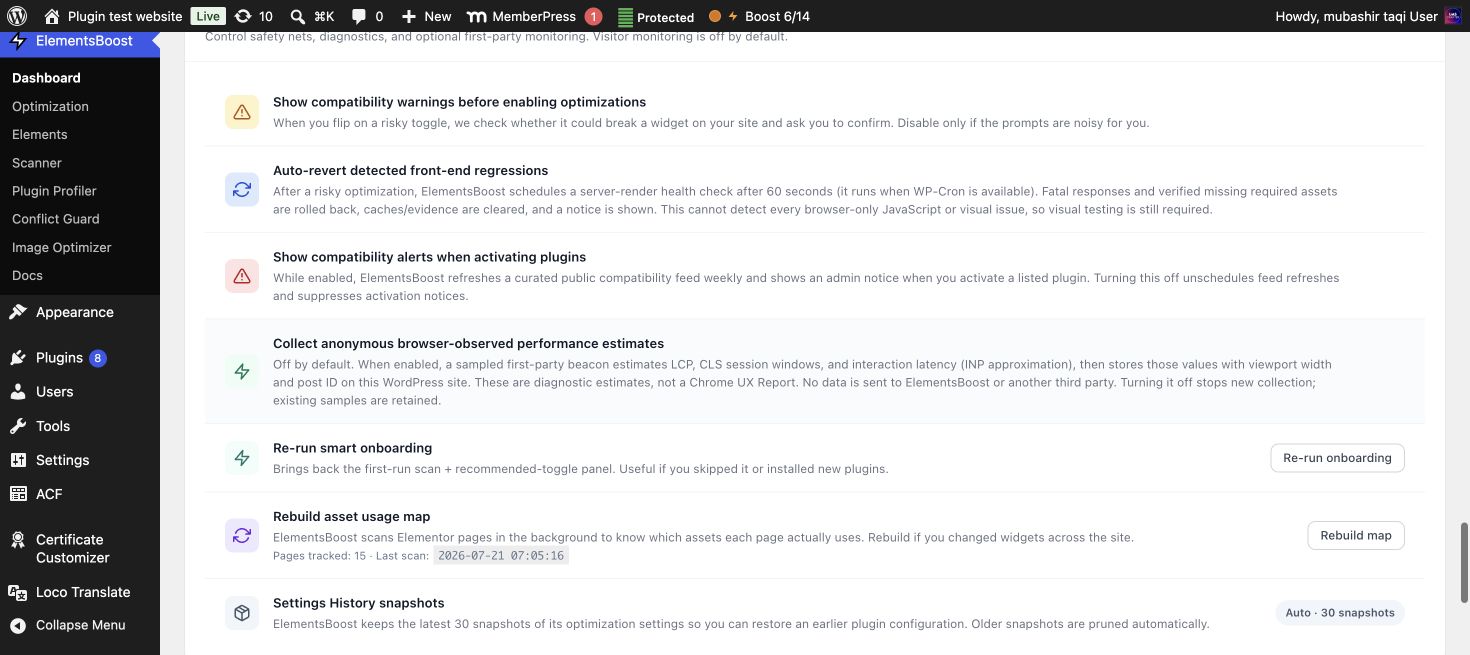
3. Use Buraq to narrow the Elementor work
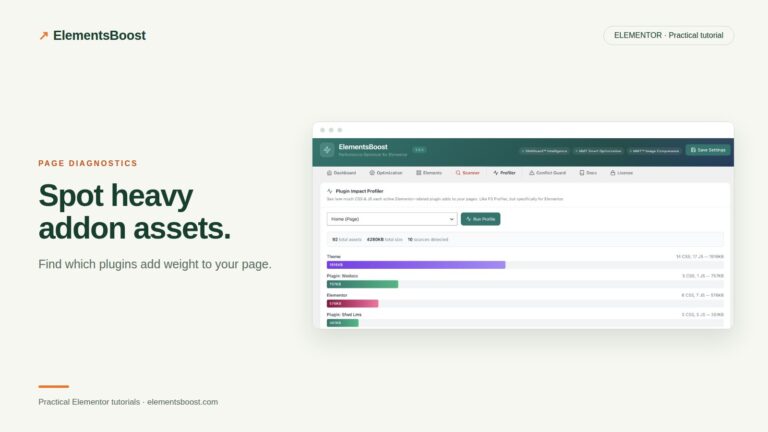
Open ElementsBoost in the Elementor editor and scan the same page. Review relevant image, font and structure findings. X-Ray helps locate matching elements, but a highlight is not a browser layout-shift trace. Use both sources: the trace identifies the event; the editor finding helps you reach a plausible component and supported fix.
4. Fix the smallest confirmed cause
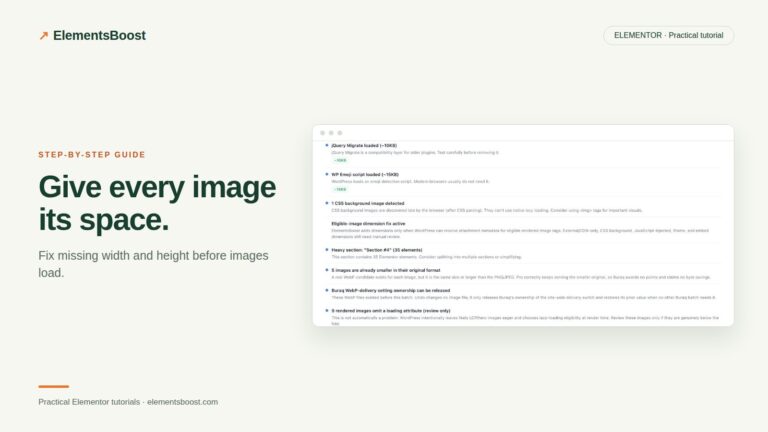
For eligible local images, use the Free dimension fix and verify the rendered attributes. For fonts, reduce unnecessary families and weights, then review supported self-hosting and fallback behavior. For dynamic modules, reserve a realistic area or change the design so content does not push the page unexpectedly. Apply one change at a time so the next recording can explain the result.
5. Separate lab verification from field improvement
Repeat the same interaction sequence after clearing relevant caches. Compare the original event, not only the total score. PageSpeed field data and Search Console can take time to reflect a release. Optional ElementsBoost local RUM can provide another first-party signal when enabled; its sample and collection method differ from Google’s CrUX field data.
Before you call this fixed
- The original shifting event is no longer reproducible or is smaller.
- Menus, banners, fonts and embeds still work.
- Mobile and desktop were checked separately.
- Lab and real-user results are reported separately.
Further reading: Google’s guidance on layout shifts, dimensions and fonts.
4 Comments