How to Reduce Render-Blocking CSS on an Elementor Page
Pro-first · Practical Elementor tutorial
CSS can delay the first visible screen, but removing needed styles can cause flashes or broken layouts. Critical CSS aims to provide the styles needed immediately while supported non-critical styles load through a different path. Test one page before extending the setup.
What you will achieve
Test whether Critical CSS improves first-screen rendering on one page.
Free: Free asset findings and an on-demand baseline.
Pro: Separate mobile/desktop Critical CSS and supported non-critical CSS handling.
1. Confirm that CSS is the bottleneck
Record a public performance test and inspect the blocking stylesheet chain. Match the affected first-screen content to the page. A slow server response or large hero download needs a different fix. Use the Free asset findings to understand which styles belong to Elementor, the theme or an addon.
2. Choose one owner for CSS optimization
Inspect the cache plugin and ElementsBoost settings. Avoid two tools independently generating critical styles or changing stylesheet delivery. Record the current configuration and choose which tool owns that job on the test page. Keep the other plugin’s unrelated caching responsibilities intact.
3. Use the supported Pro Critical CSS workflow
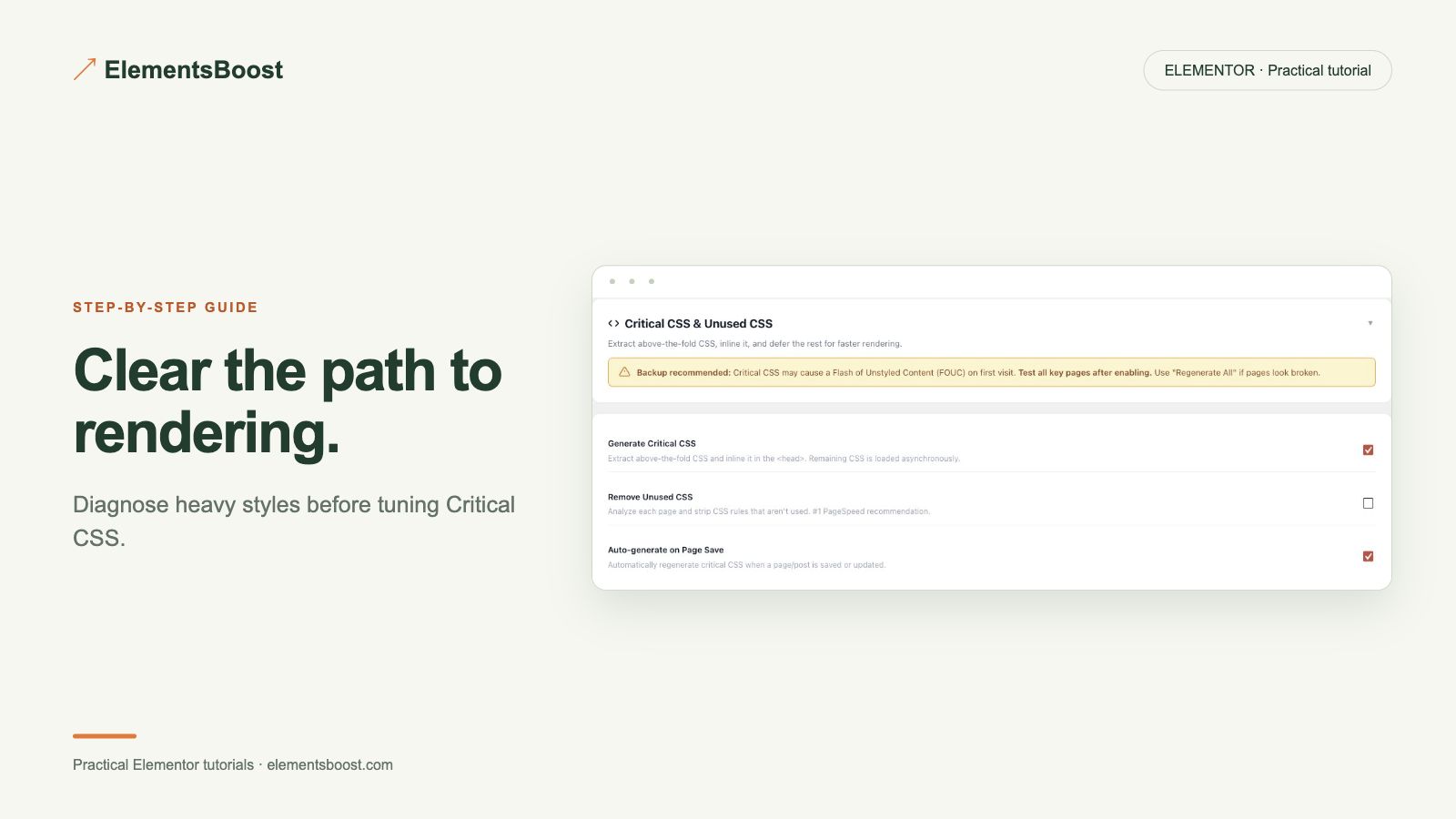
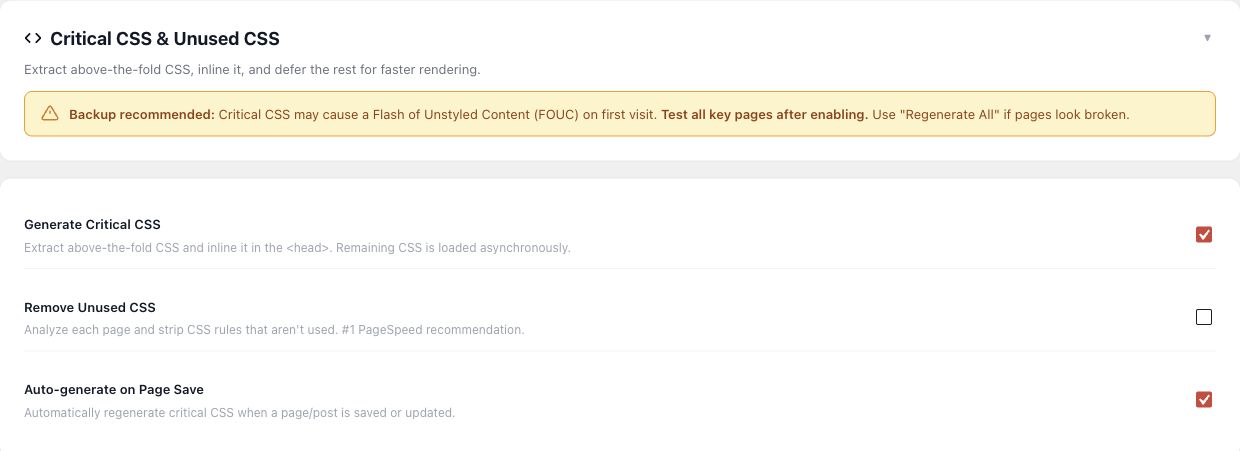
Open the current Pro controls and review generation for mobile and desktop. Use the page-specific workflow exposed by the installed build. If it is unavailable or generation fails, keep the original CSS delivery and investigate the error instead of pasting an unverified critical-style block.
4. Inspect both first screen and interactions
Preview at mobile and desktop widths. Check typography, hero geometry, menus, forms and content revealed after scrolling. Watch for an unstyled flash during a fresh load. Regenerate or revise the setup after major layout changes because the critical styles must match the page being served.
5. Compare public runs
After a controlled release and cache clear, repeat comparable public tests and compare medians across three runs. Record the exact page, viewport and settings. Keep the change only if rendering improves without visual regressions; a higher score alone does not establish that the page is usable.
If the result is different
If the first screen flashes or a breakpoint breaks, restore the previous delivery setting and regenerate for the current layout. A stale critical stylesheet can outlive a page edit through caching. Record your own matched measurements before deciding whether to keep the change.
For supported frontend changes, follow the testing and recovery guide. Persistent content and image changes need their own backups; private Test Mode output cannot be measured by a public scanner.
Choose the next step that fits your page
Use Free to understand the blocking files, then test the supported Pro Critical CSS workflow.
When Pro is the useful next step
Pro Critical CSS provides separate mobile and desktop workflows for the first screen. Use it after identifying blocking CSS and choosing one optimization owner.
See Pro plans and included features →
Choose the license for the number of sites you manage. Check the feature comparison and license terms before buying.