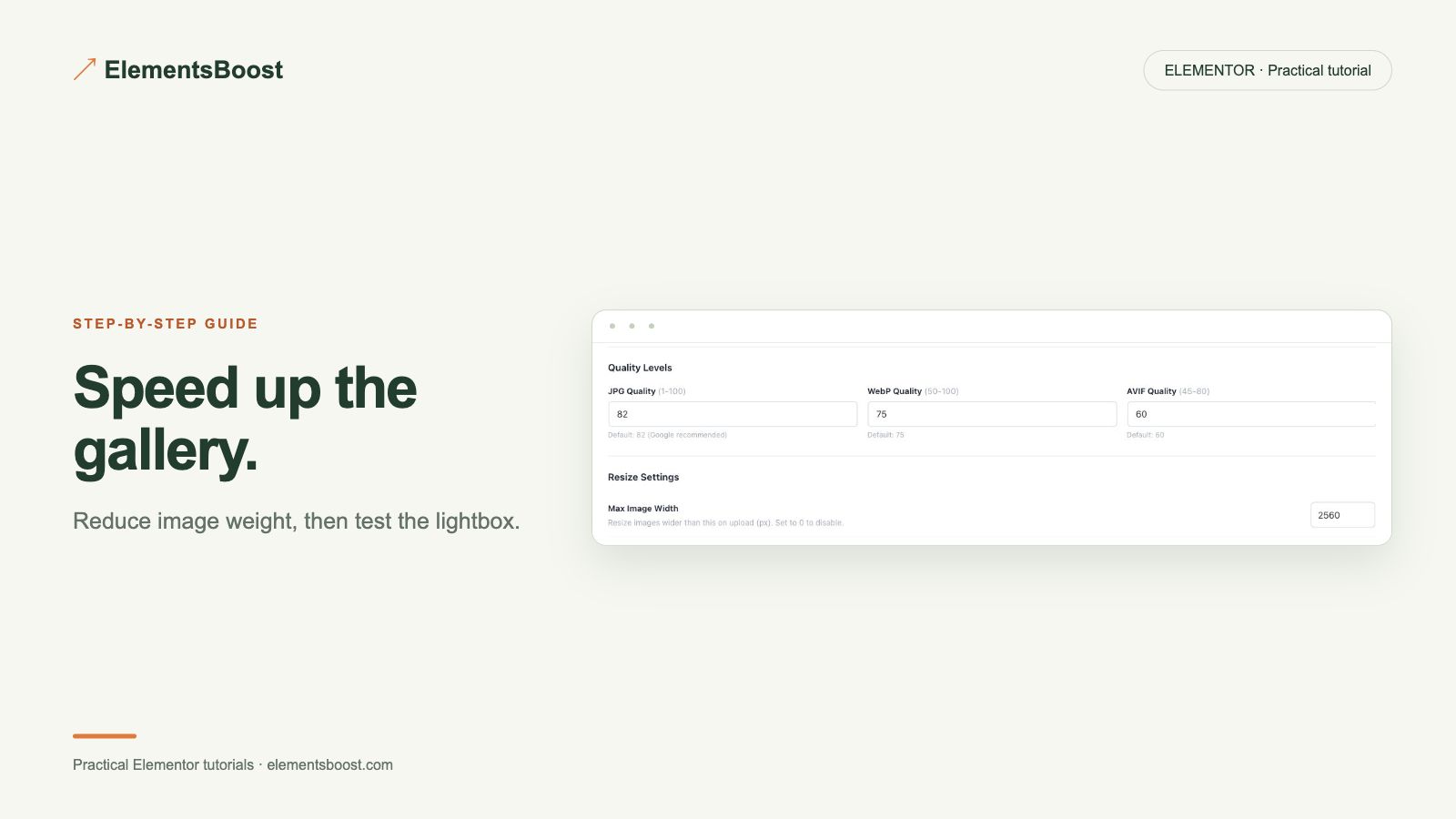
How to Speed Up an Elementor Gallery and Keep the Lightbox Working
Both · Practical Elementor tutorial
A gallery has two jobs: show lightweight thumbnails and provide a useful larger view when clicked. Sending the full-size image for every thumbnail wastes bandwidth, while compressing everything aggressively can damage the viewing experience. Treat those two resources separately.
What you will achieve
Load suitable thumbnails and preserve the full-size viewing experience.
Free: Free image diagnosis, eligible dimensions and below-fold helpers; thumbnail selection is manual.
Pro: Optimize eligible local gallery images in a backed-up batch.
1. Inspect thumbnail and lightbox sources
Choose one gallery item and record the image downloaded before clicking it. Open the lightbox and record the larger resource. Check mobile as well as desktop. Free image findings can help locate oversized or unstable images, but the actual requests show which variant is being used.
2. Fix the thumbnail choice
In Elementor, review the gallery’s image-size or resolution setting. Choose a variant that stays sharp at the displayed size and intended screen density. Keep the crop consistent. This is an editor setting; Pro is not required to choose an appropriate thumbnail.
3. Reserve space and review lower images
Use eligible Free dimension fixes for local image markup where available. Keep gallery geometry stable and test supported below-fold loading without deferring a first-screen image incorrectly. Scroll through the full gallery to confirm no image remains blank.
4. Optimize a representative image set
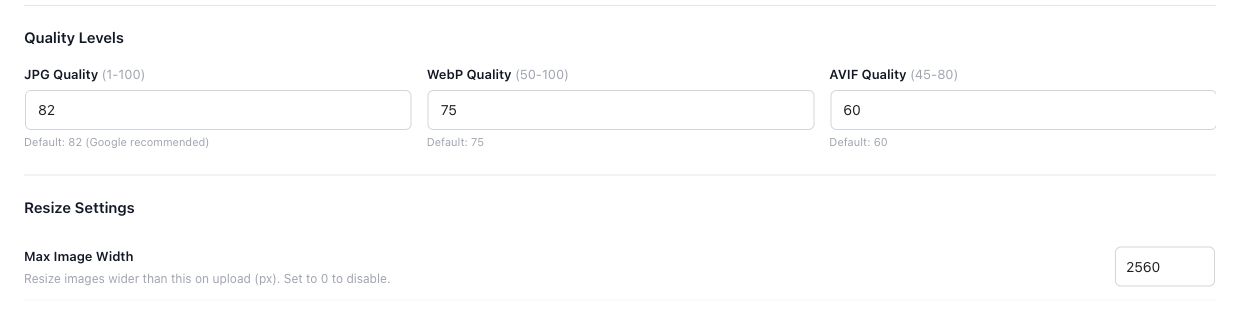
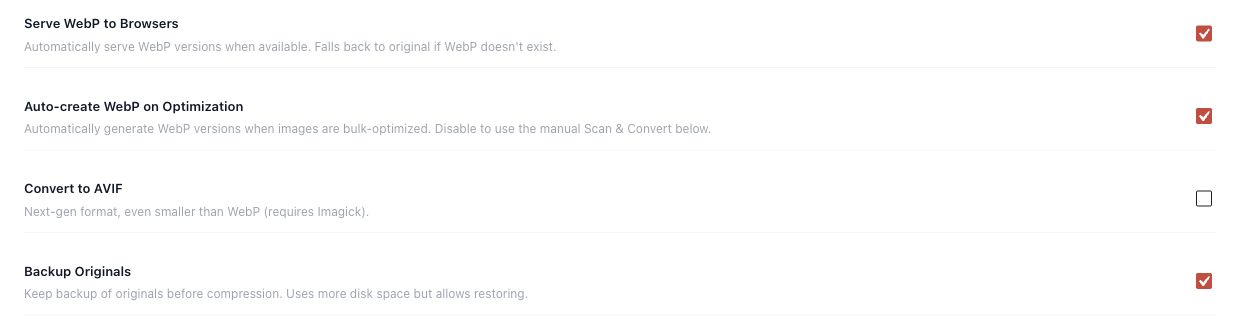
For remaining heavy local images, enable Pro backups and test a small sample before a batch. Include thumbnails and larger views in the verification. Record real savings and skipped results; do not claim a gallery-wide percentage from a single photograph.
5. Test the complete lightbox interaction
Open, advance, go back and close the lightbox. Test mobile swipes and keyboard controls supported by the widget. Check captions and focus behavior. Confirm the larger image remains detailed and the gallery still works after a fresh visitor load.
If the result is different
If the lightbox breaks, inspect removed slider/lightbox assets or delayed scripts before changing image compression again. If thumbnails stay large, check responsive source selection. Keep each optimization tied to the actual symptom.
For supported frontend changes, follow the testing and recovery guide. Persistent content and image changes need their own backups; private Test Mode output cannot be measured by a public scanner.
Choose the next step that fits your page
Use Free to find gallery issues; Pro to process the image set.
When Pro is the useful next step
Pro image processing helps when a gallery has many heavy local files. Keep appropriate thumbnail sizes and verify the full-size lightbox separately.
See Pro plans and included features →
Choose the license for the number of sites you manage. Check the feature comparison and license terms before buying.