How to Convert Elementor Images to WebP With ElementsBoost Pro
Pro-first · A practical Elementor tutorial
Creating a WebP file is only half the job. The useful result is a smaller image that looks right and is actually downloaded by visitors.
This guide follows one local Media Library image from its original file to verified delivery. ElementsBoost Free supplies page diagnosis; the conversion workflow uses the Pro image engine.
1. Pick one image and record its starting point
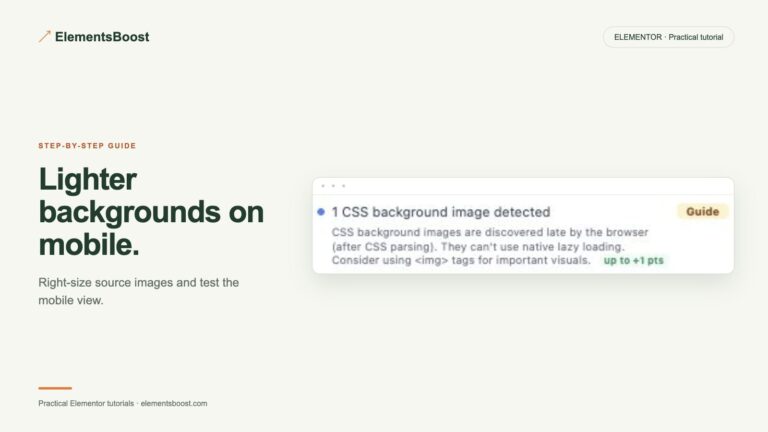
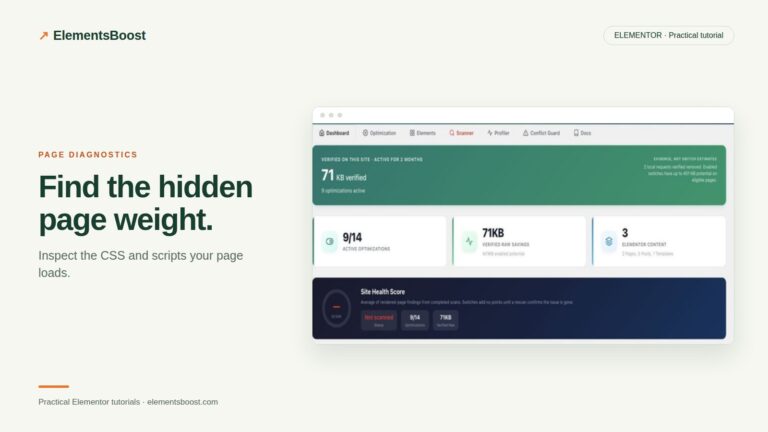
Use the Free scan to identify an image worth optimizing. Confirm that WordPress can resolve it to a local Media Library attachment. Save its original format, dimensions, file size and the public page where it appears. Start with a normal photograph before attempting a large mixed batch.
2. Enable a recovery copy
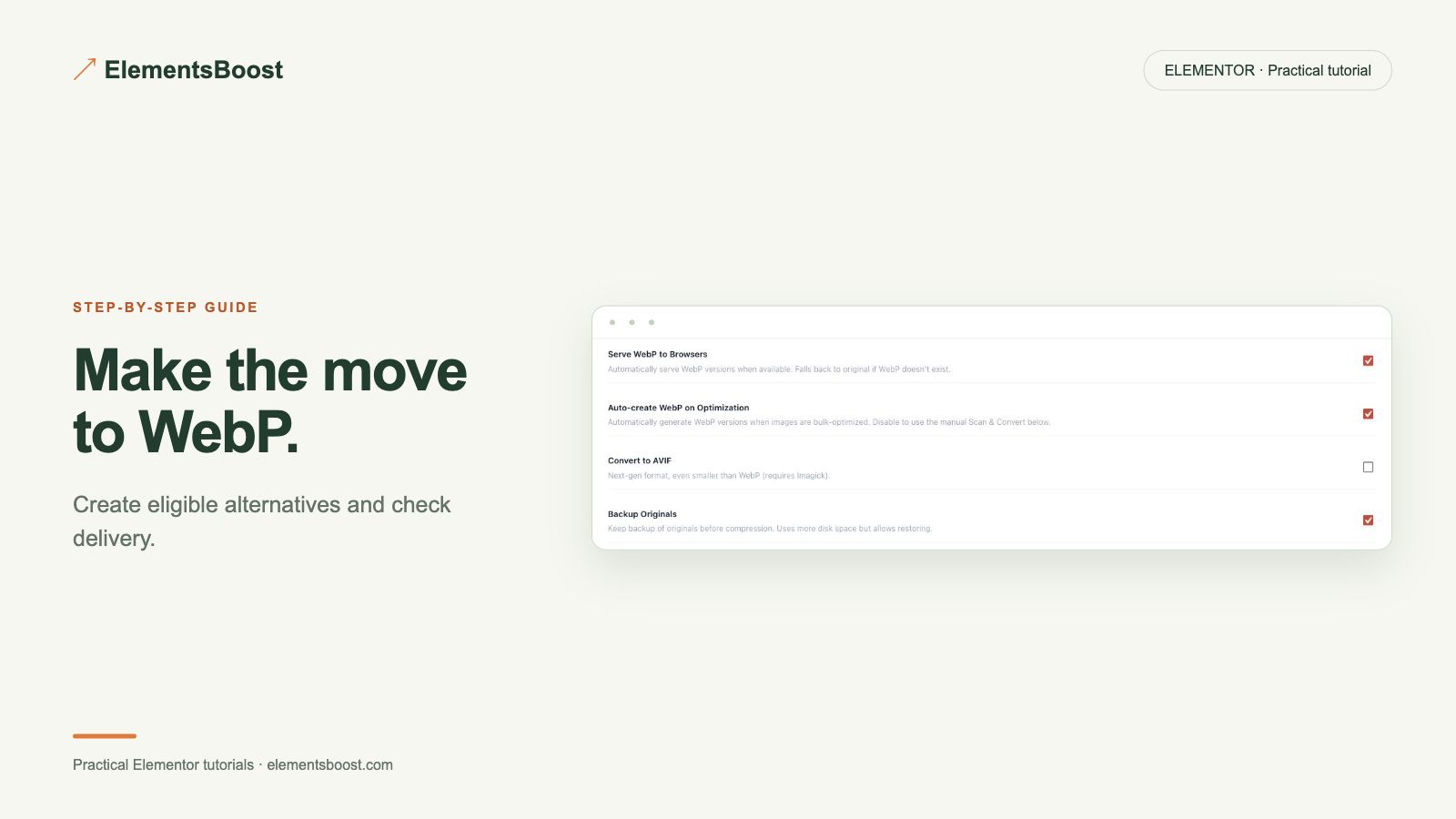
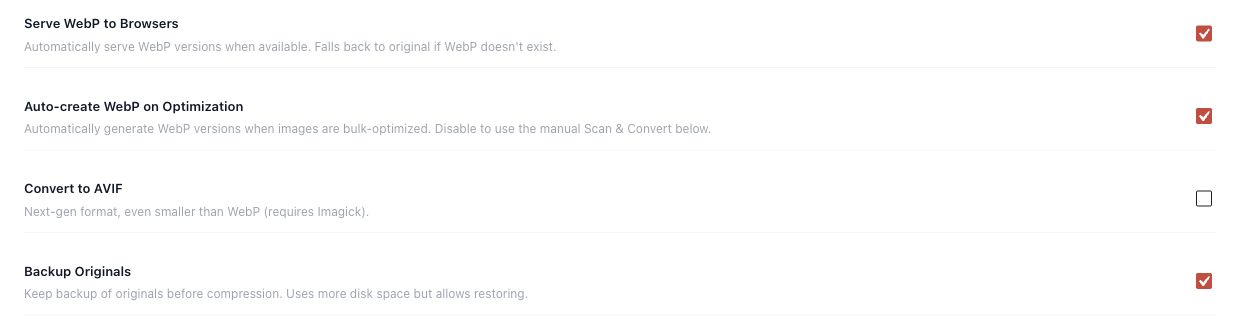
In the Pro image tools, confirm Backup Originals is enabled before routine optimization. Check that the server has room for backups and generated sizes. An attachment may include several WordPress image variants, so recovery should cover the image family rather than only the largest file. Do not delete backups during the tutorial.
3. Generate the supported WebP candidate
Use the actual WebP conversion action available in the installed release. Check server encoder support and read the reported result. Pro keeps qualifying smaller, decodable candidates with matching dimensions. A skipped or no-benefit result can be correct when the original is already efficient; do not force a conversion simply to change its extension.
4. Check quality before accepting the result
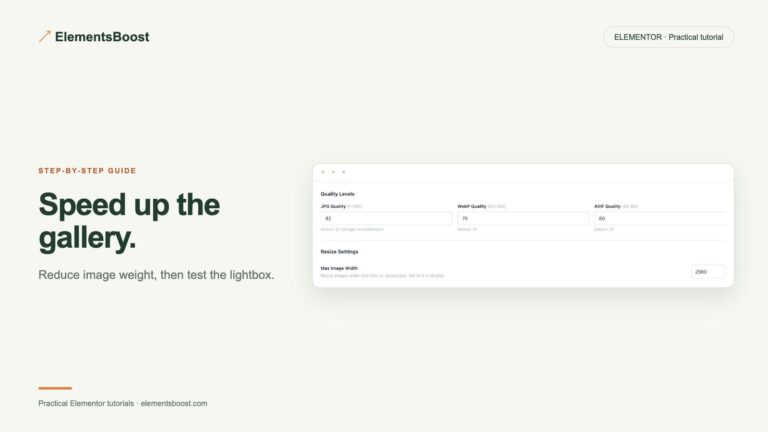
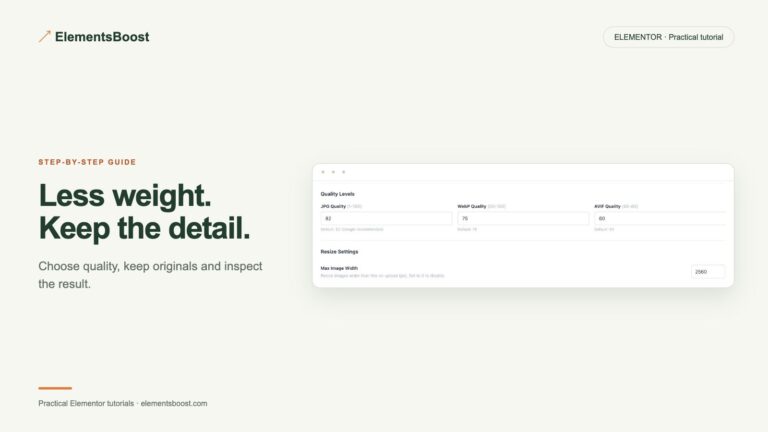
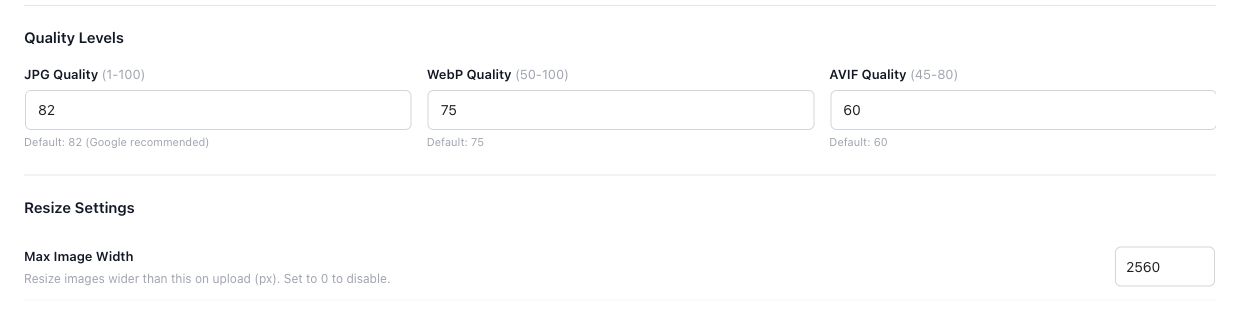
Compare the same crop at the same displayed size. Look at faces, text, gradients and detailed edges. Record the real before/after bytes rather than a promised percentage. If the result loses important detail, adjust the available quality setting or restore the backup, then repeat on the same image.
5. Verify that visitors receive WebP
Review the supported delivery setting, including Serve WebP to Browsers where present. After a controlled release and the relevant cache clear, inspect the public page. Check the selected image source and the response format. Run a fresh Buraq scan as an additional check. A library success badge alone does not establish which format the browser received.
Check your result
- The generated file is valid and smaller when reported as beneficial.
- Dimensions and important visual detail are preserved.
- The public image request uses the intended format.
- The original fallback and recovery copy remain available.
If the result is different
If WebP exists but the page still serves the original, inspect the current responsive source, cache and image-delivery owner. Remote/offloaded files and externally defined CSS paths are not automatically covered by the local engine.
For supported settings, use the testing and recovery guide. A public scanner cannot measure a private Test Mode preview. Keep backups for persistent content or image changes.
Your next useful step
Use Buraq to identify the image and record the starting page.
Local image engine, verified conversion and supported delivery. Enable backup before routine processing.
When Pro is the useful next step
Pro combines local WebP creation, supported delivery and original-file backups in one workflow. Start with one image, then expand after checking quality.
See Pro plans and included features →
Choose the license for the number of sites you manage. Check the feature comparison and license terms before buying.