How to Optimize Elementor Background Images for Mobile
Both · Practical Elementor tutorial
A mobile background can download a desktop-sized image even when only a narrow crop is visible. Backgrounds also reserve space through their container, not through image width and height attributes. Start with Elementor’s responsive layout and then optimize eligible local bytes if needed.
What you will achieve
Use a suitable mobile background with stable geometry.
Free: Free findings/X-Ray where available; Elementor breakpoint images and container sizing are manual.
Pro: Local image processing and supported inline/embedded background delivery; no universal external-CSS rewrite promise.
1. Find the actual mobile background
Open the public page at the intended phone width and inspect the computed background-image URL. Match it to the container in Elementor, using Free findings or X-Ray where available. A desktop screenshot does not tell you which CSS rule wins on mobile.
2. Choose a suitable responsive source
Review the container’s background settings at the relevant breakpoint. Where the widget supports a responsive image choice, use a source that fits the mobile crop. Check background size and position so the subject remains visible. Keep important information as real page text rather than embedding it in the background.

3. Reserve stable container space
Set appropriate responsive height, padding or aspect ratio through the layout controls. Avoid a height that clips content when text wraps or visitors enlarge it. Adding img width/height attributes cannot fix a CSS background; the containing element needs stable geometry.
4. Optimize eligible local files with Pro
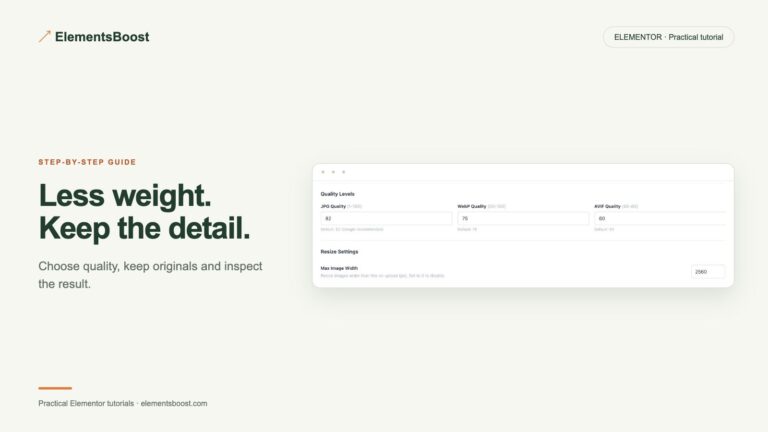
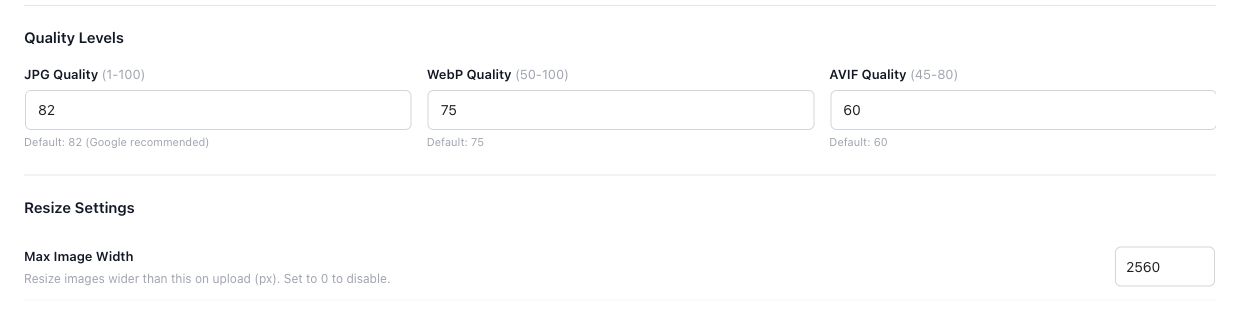
If the chosen source remains large, enable backups and test local compression or a supported modern format. Pro supports specific background delivery paths, not every external stylesheet or remote image. Verify the actual output and preserve the intended crop and contrast.
5. Inspect the public request again
After the controlled save and cache clear, reload at the same phone width. Confirm the computed URL, downloaded bytes and visible background. Also inspect desktop so the mobile change has not degraded the wide layout. Treat first-screen backgrounds separately from lower-page lazy-loading decisions.
If the result is different
If the desktop source still downloads, inspect the winning CSS rule and cached stylesheet. If two backgrounds download, check whether hidden duplicate containers or overlapping responsive rules are responsible. Free diagnosis and manual responsive design may be enough; Pro addresses a remaining local file-size problem.
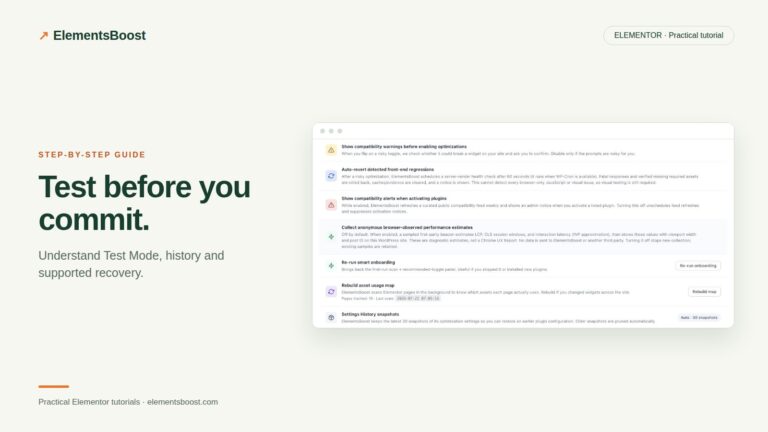
For supported frontend changes, follow the testing and recovery guide. Persistent content and image changes need their own backups; private Test Mode output cannot be measured by a public scanner.
Choose the next step that fits your page
Start with Free diagnosis; add Pro processing for heavy local backgrounds.
When Pro is the useful next step
Pro can process eligible local background files. Responsive source selection and stable container sizing remain part of your Elementor layout work.
See Pro plans and included features →
Choose the license for the number of sites you manage. Check the feature comparison and license terms before buying.