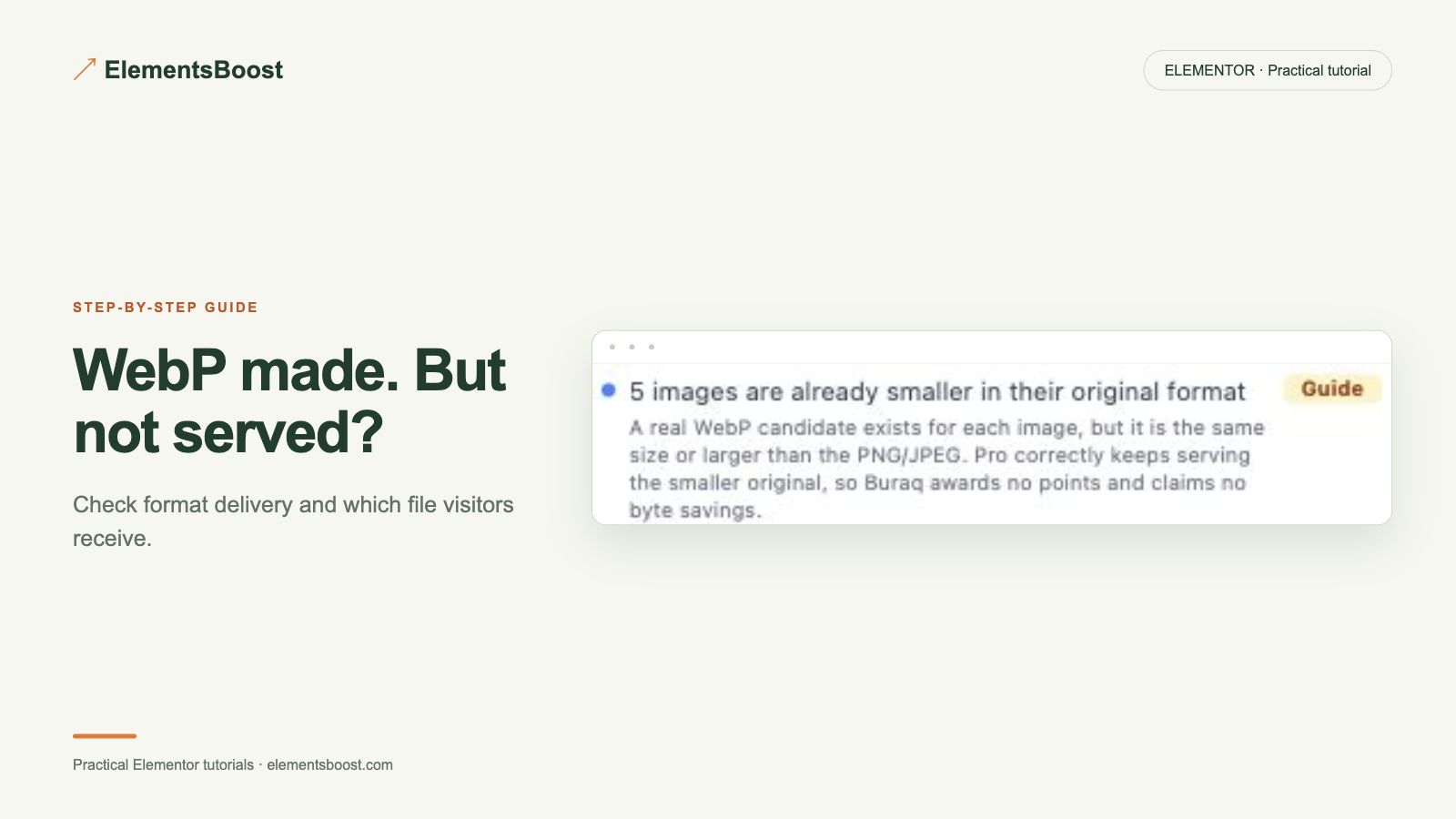
WebP Created but Not Showing in Elementor? Here Is What to Check
Both · Practical Elementor tutorial
A WebP file can exist on disk while visitors still receive the original JPEG or PNG. Separate generation from delivery. ElementsBoost Pro manages eligible local conversion and delivery; Free rescans and browser inspection help verify what the page actually sends.
What you will achieve
Distinguish an encoded file from the file a visitor downloads.
Free: Buraq public rescan and manual browser inspection help verify delivery.
Pro: Pro image output and supported delivery controls are the setting under investigation.
1. Confirm the right output exists
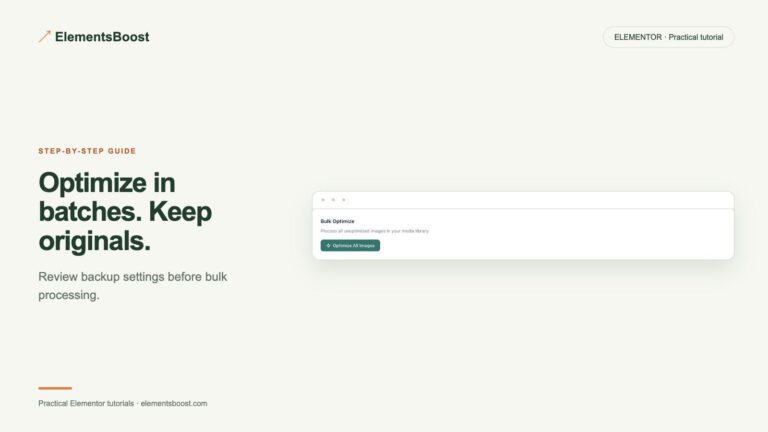
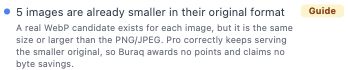
In the Pro image workflow, inspect the result for the exact attachment and size used by the page. A converted full-size file does not establish that every thumbnail has a candidate. Confirm that the output is valid and beneficial, not merely a stale success message.
2. Inspect the selected resource
On the public page, inspect the image’s currentSrc and its Network response format. Responsive markup can choose a different file from the visible src attribute. Record the actual URL and content type. A rewritten CDN URL may not display a familiar extension, so inspect the response as well.
3. Check the delivery owner
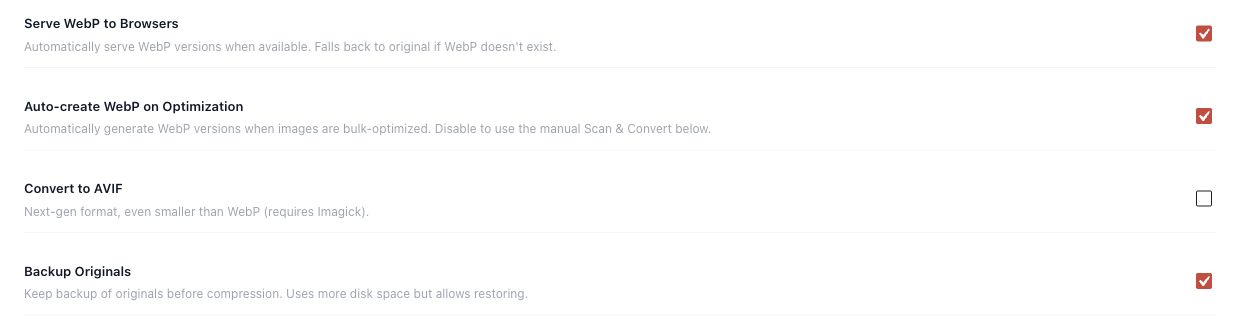
Review Serve WebP to Browsers in the supported Pro setup and identify any cache, CDN or image plugin also rewriting images. Choose one owner for that job. Remote/offloaded files and externally defined CSS backgrounds are not automatically covered by a local image engine.
4. Clear the relevant cache and retry
After a controlled configuration correction, purge the affected page or image cache using the responsible tool. Reload as a visitor and inspect the same image at the same viewport. Avoid changing several settings while testing because it obscures which delivery layer was responsible.
5. Confirm appearance and fallback
Check that the intended format arrives and the image still looks right. Test the actual responsive variants on mobile and desktop. Keep original fallback files available. Run a fresh Free page scan as an additional check, while retaining the browser request as direct delivery evidence.
If the result is different
If WebP still does not appear, follow the precise requested URL back to the attachment or CDN transform. Do not repeatedly compress the original to fix a delivery problem. Encoding and serving are separate stages.
For supported frontend changes, follow the testing and recovery guide. Persistent content and image changes need their own backups; private Test Mode output cannot be measured by a public scanner.
Choose the next step that fits your page
Use Free rescans to check the page and Pro controls to manage eligible local image delivery.
When Pro is the useful next step
Pro manages supported local image generation and delivery. Confirm the exact resource visitors receive before counting a conversion as a win.
See Pro plans and included features →
Choose the license for the number of sites you manage. Check the feature comparison and license terms before buying.