
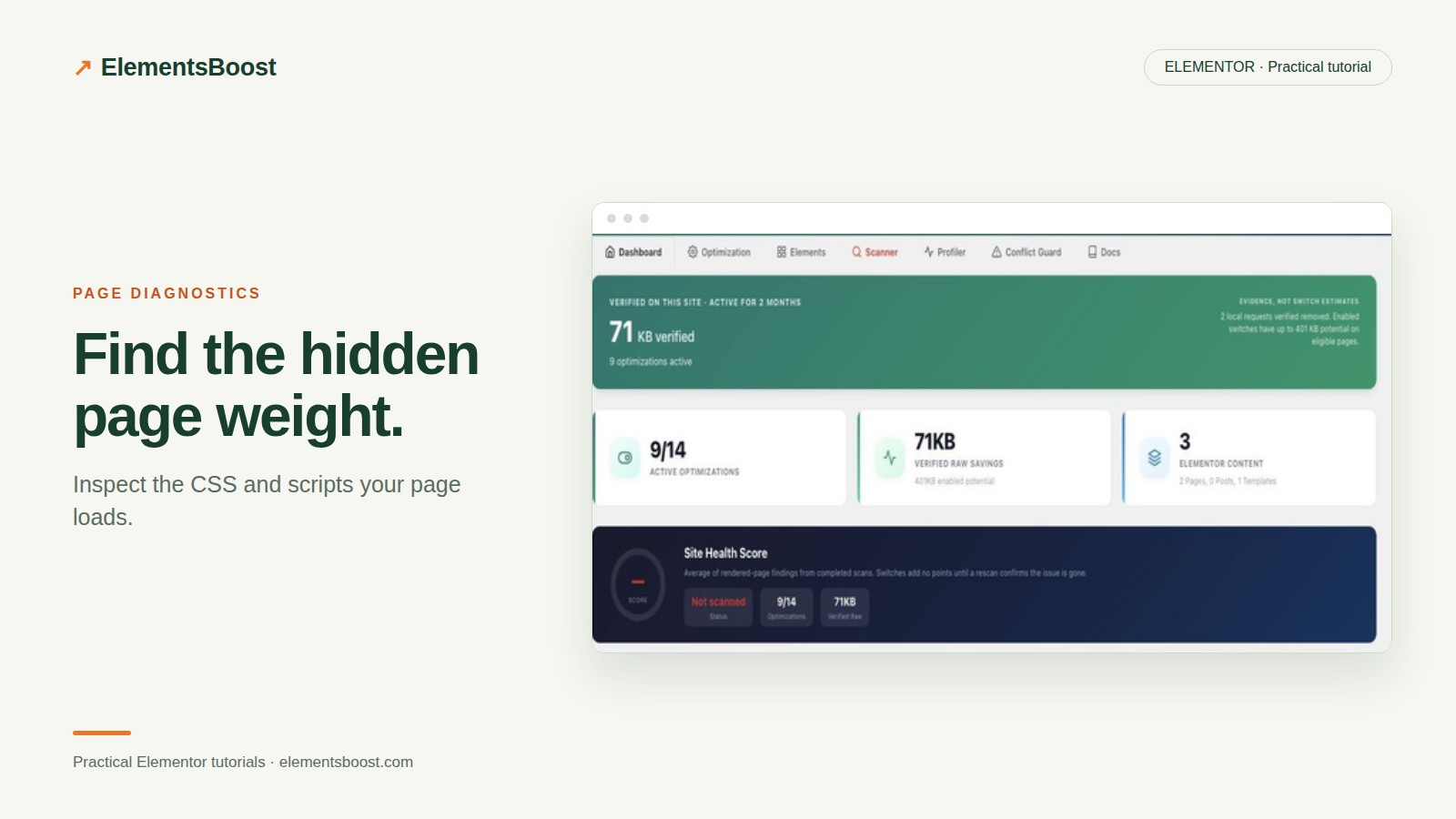
How to Diagnose Elementor CSS and JavaScript Bloat
Content reviewed September 26, 2026 · Free 2.0.6 feature scope; Pro availability depends on the installed version and supported action.
A long network list can make every plugin look guilty. The useful output of a CSS/JavaScript audit is a short, explainable list: which request is costly, who loads it, when it is needed and what action is worth testing.
Do the diagnosis before changing optimization settings. This article deliberately stops at a candidate list; the remediation guide covers previewing and publishing removals.
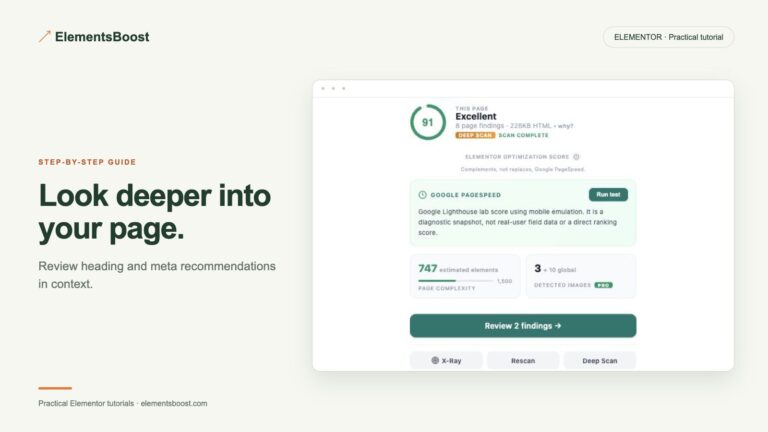
Workflow illustration: the steps to follow, not measured test results.
1. Establish the page and test conditions
Pick one public Elementor URL and a mobile viewport. Record whether the page cache is warm or cold, then reload with the network log preserved. Separate HTML response time from image downloads, stylesheets and script execution. A slow server response is not solved by removing an unrelated icon library.
2. Map files to owners
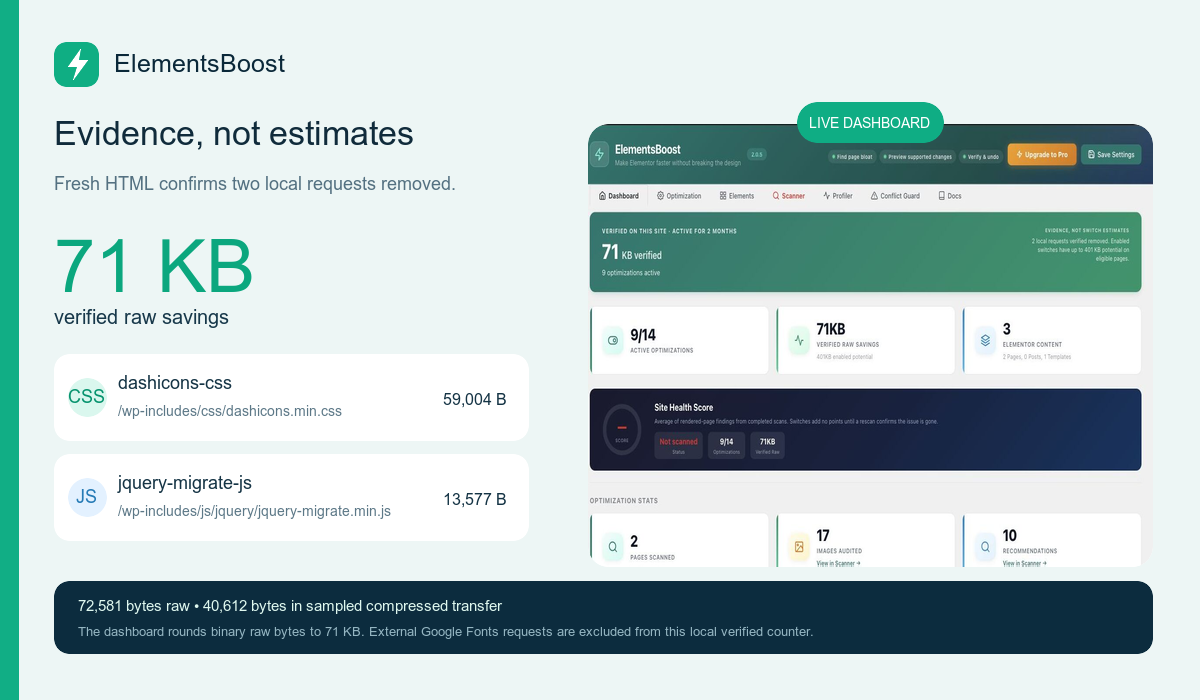
Group requests by path and source: Elementor, theme, WordPress core, addon packs and third-party services. ElementsBoost’s Plugin Profiler and Asset Usage Map help connect frontend assets to likely owners. Treat this as request attribution, not proof of backend CPU cost or a reason to deactivate the whole plugin.
3. Exercise the states the audit missed
Open the menu, expand accordions, trigger popups and try forms. Check responsive layouts and shared templates. Browser coverage from a single idle page load does not show every future state. Mark an asset as uncertain if you cannot reproduce the feature that uses it.
4. Write a candidate record
For each candidate, record the URL, owner, approximate transfer size, page scope and reason it may be unnecessary. State which interaction could prove you wrong. Separate removal candidates from render-blocking assets that are genuinely required and need scheduling rather than deletion.
5. Choose the next test
Use a supported Free global control only when its site-wide scope fits the evidence. For page-specific cleanup, evaluate Pro Lean Mode and Safe Preview. If the issue is a required stylesheet or script delaying rendering, investigate Critical CSS or dependency-aware delay/defer separately. Test one hypothesis at a time.
Before you call this fixed
- Every candidate has a named owner or is marked uncertain.
- Interactive states were tested.
- Removal and scheduling candidates are separate.
- No plugin is blamed for server cost from frontend bytes alone.
Further reading: Chrome DevTools documentation for CSS and JavaScript coverage.
5 Comments