How to Bulk Optimize Elementor Images and Restore the Originals
Pro-first · Practical Elementor tutorial
Bulk optimization saves repetitive work, but a mixed library deserves a small trial first. ElementsBoost Pro provides local processing and image-family recovery. Start with representative images and prove that restoration works before processing the rest.
What you will achieve
Process a small batch, verify it, and recover a complete image family.
Free: Free scan supplies a prioritized starting list.
Pro: Bulk image processing and image-family backup/restore.
1. Build a small trial set
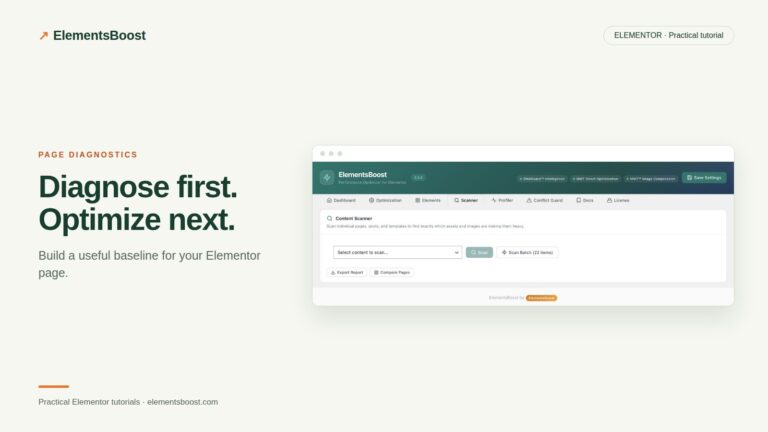
Use the Free page findings to identify images worth addressing. Include a photograph, a transparent graphic and a screenshot with text. Record the pages that use them and their generated WordPress sizes. Work on copies or a dedicated staging library when the bulk action covers the whole library.
2. Prepare backups and capacity
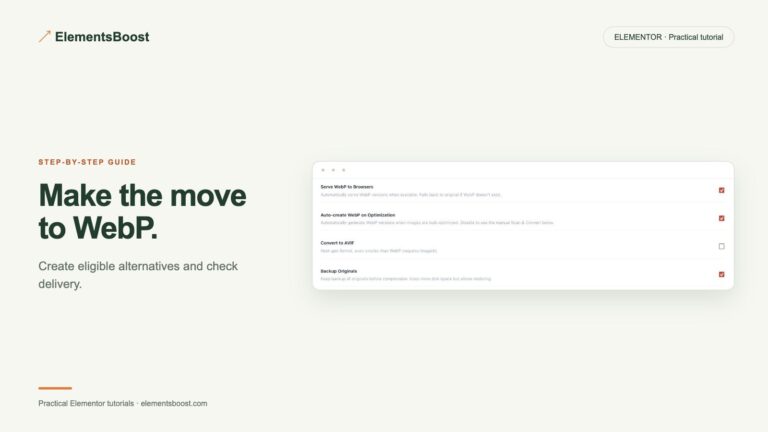
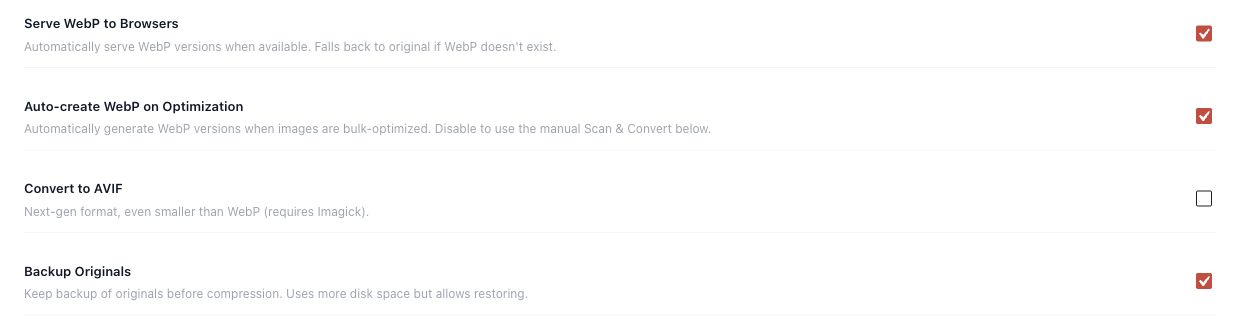
In Image Optimizer, enable Backup Originals before routine processing. Check available disk space because backups and converted variants require storage. Keep an independent site backup as well. Do not use Delete All Backups as part of the trial; that removes the recovery copies.

3. Choose settings before starting
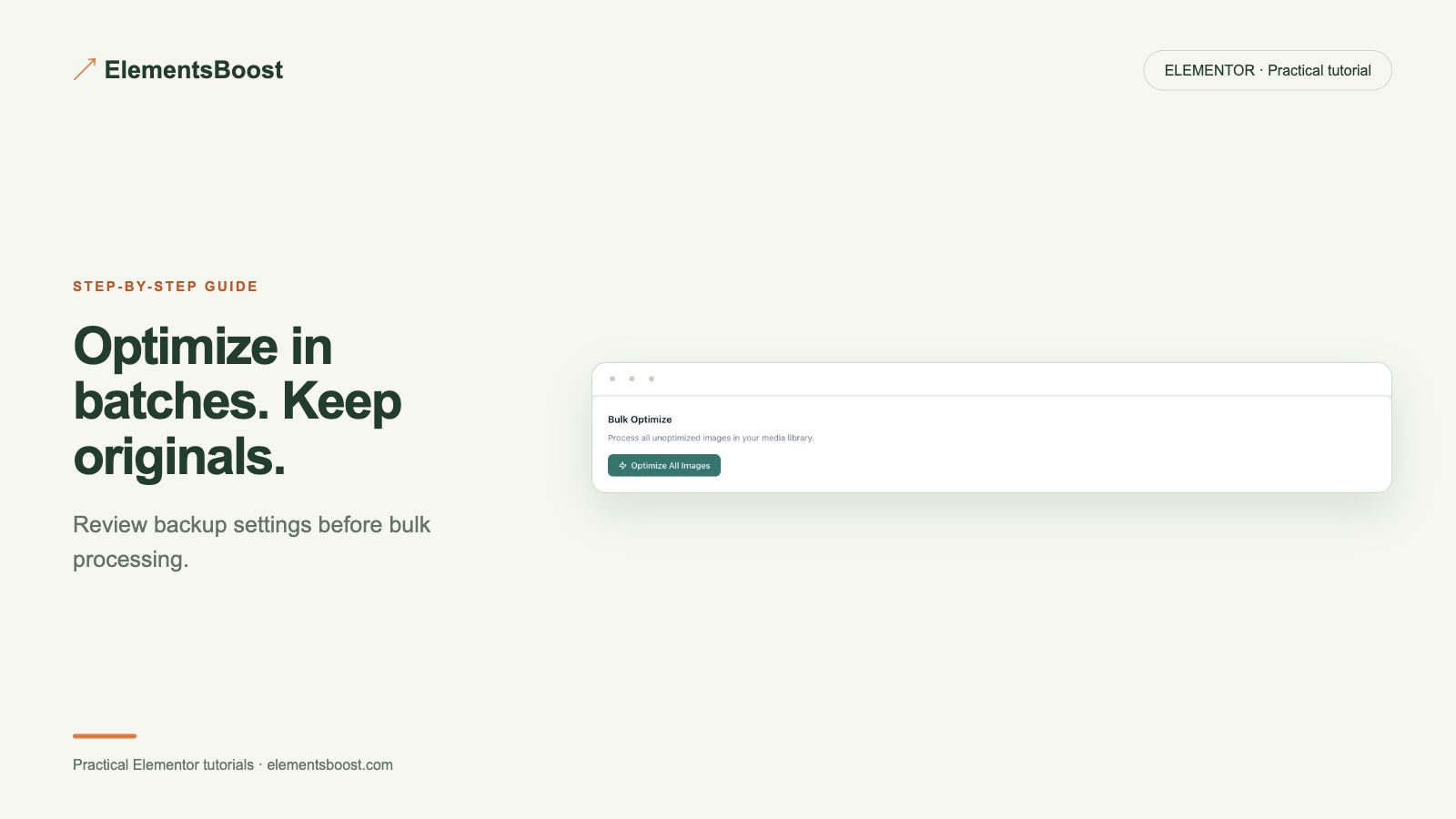
Review compression mode, format creation, quality and exclusions. Keep logos or originals out of a batch when they need individual treatment. Read the scope of the actual button: Optimize All Images processes unoptimized library items, so it is not a substitute for selecting a small trial on a busy production library.
4. Review results rather than just totals
Run the approved trial workflow and record optimized, skipped and failed items. A skipped original may already be smaller than a generated candidate. Inspect the actual files and public thumbnail/full-size variants; a single success count does not establish that every visible image changed.
5. Restore one image family
Use the available restore action for a sample and confirm the original and relevant generated sizes return. Reload the pages that use it and inspect the served resources. Only expand the batch after appearance, delivery and recovery checks succeed.
If the result is different
If processing fails, inspect the reported encoder, permission or resource error before restarting a large batch. Preserve backups and avoid repeated force re-optimization as a first response. Report partial completion honestly and retry only the affected scope.
For supported frontend changes, follow the testing and recovery guide. Persistent content and image changes need their own backups; private Test Mode output cannot be measured by a public scanner.
Choose the next step that fits your page
Use Pro for a repeatable bulk workflow.
When Pro is the useful next step
Pro bulk processing helps you apply tested image settings across a library. Back up originals and trial a small batch before expanding.
See Pro plans and included features →
Choose the license for the number of sites you manage. Check the feature comparison and license terms before buying.