
How to Use Buraq X-Ray to Locate Elementor Page Issues
Content reviewed September 26, 2026 · Free 2.0.6 feature scope; Pro availability depends on the installed version and supported action.
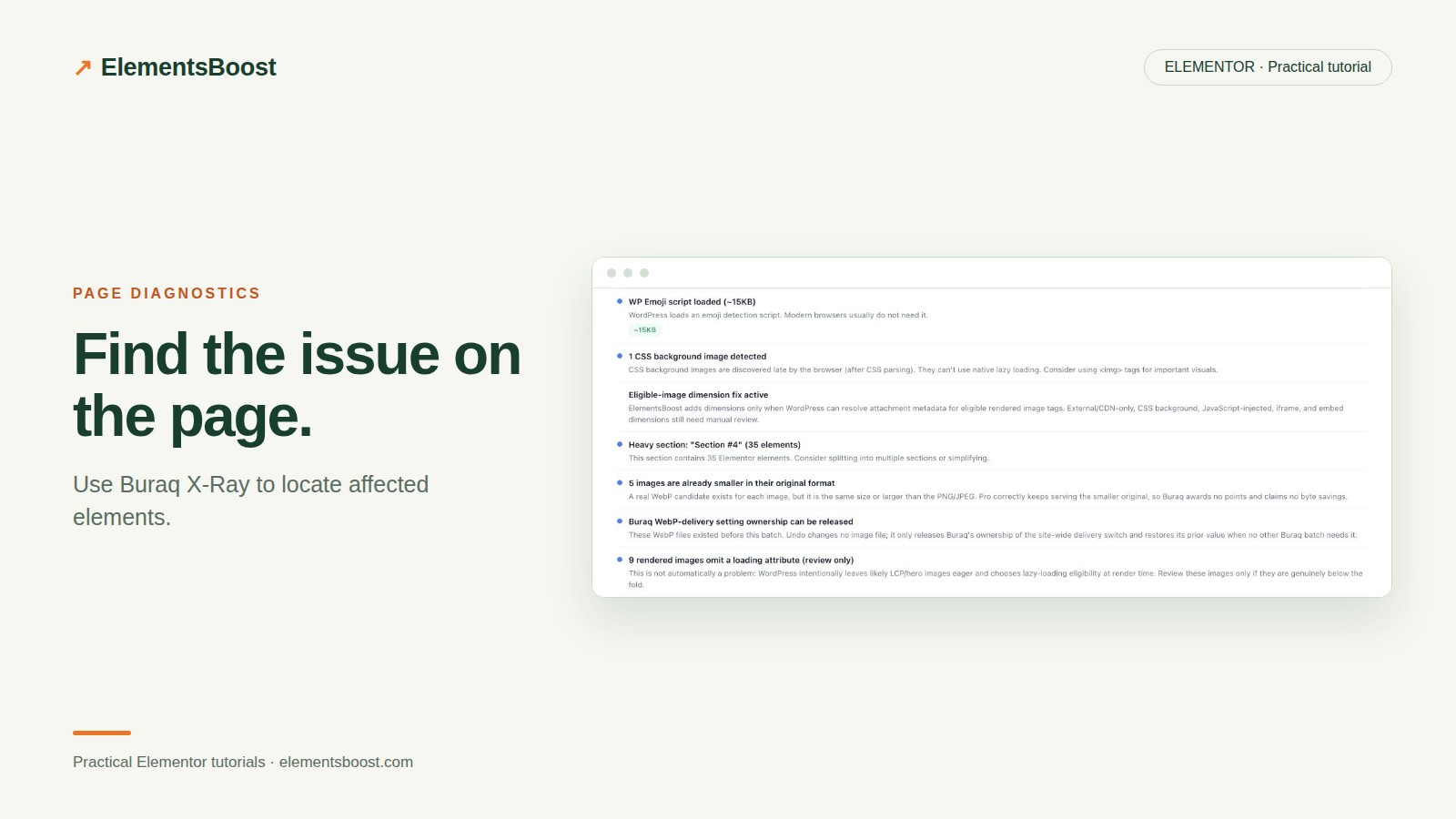
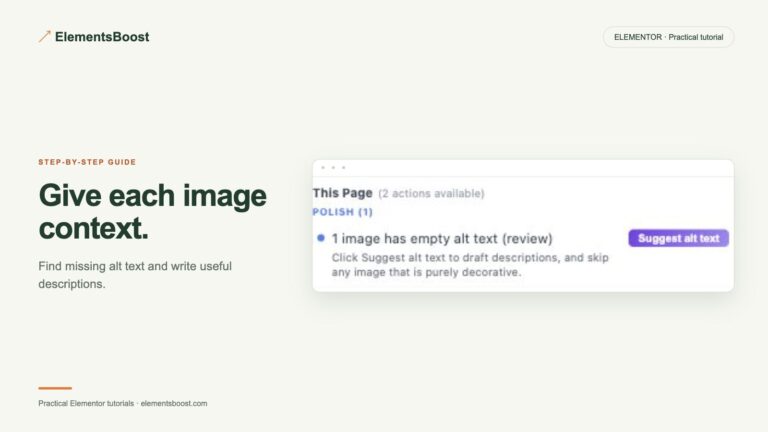
A finding such as “heavy image” or “empty container” is easier to fix when you can locate the matching Elementor element. X-Ray provides a visual bridge between a scan finding and the content you need to inspect.
It is a locator, not a substitute for measuring network cost or tracing layout shifts. Use the highlight to reach the component, then verify the diagnosis with the appropriate evidence.
Workflow illustration: the steps to follow, not measured test results.
1. Open the right document
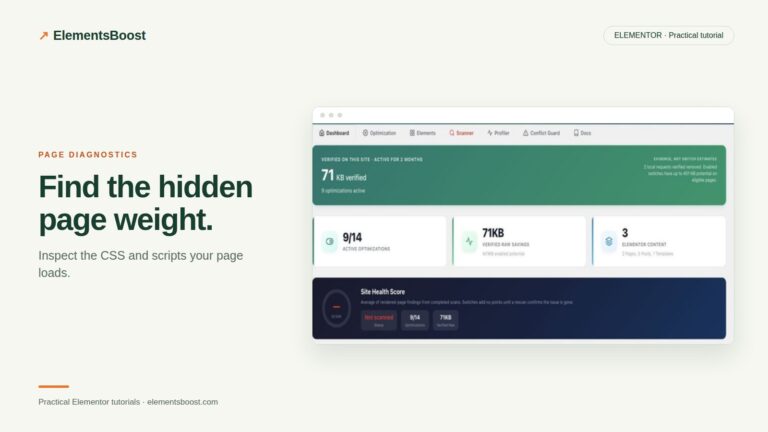
Open the affected page in Elementor and launch Buraq. Run a scan and confirm the public page context. If the issue comes from a shared template, remember that editing the page body may not reach the element that owns it.
2. Choose a finding with a visible target
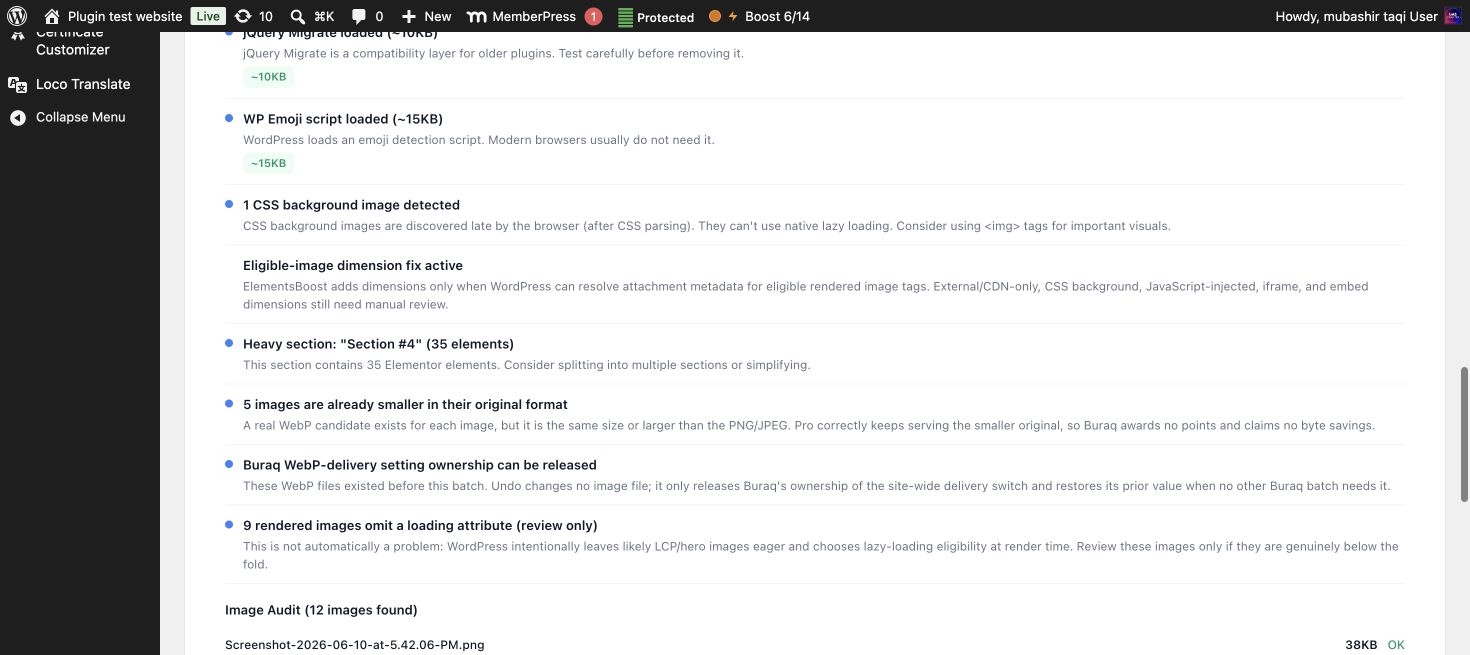
Read the finding and use the X-Ray Show control for supported matching elements. Compare the highlight with the text, image or container in the Elementor navigator. Use Hide when the overlay obscures your inspection or when you move to another finding.
3. Investigate a missing or ambiguous highlight
Check whether the element is inside a popup, hidden at the current breakpoint, inserted later or controlled by a template. Switch to the relevant editor context. Some asset findings describe requests rather than one visible element, so a single highlighted box may not represent the whole cause.
4. Inspect the element’s actual settings
For an image, check its source, displayed size and dimensions. For a container, check whether it is genuinely empty and whether it provides intentional spacing or responsive structure. For a widget, inspect the asset and interaction it uses. Do not delete an element solely because it is highlighted.
5. Apply and re-scan
Use the supported action or make a focused manual edit with a revision/backup. Hide the overlay and check the design normally. Verify the published result after the appropriate release and cache steps. A cleaner editor view is not enough if visitors still receive the old output.
Before you call this fixed
- The correct page or template is open.
- The highlighted element matches the finding.
- Intentional design structure was preserved.
- The published result—not just the overlay—was checked.
Further reading: ElementsBoost’s current Free feature documentation on WordPress.org.
2 Comments