
How to Find Heavy Elementor Elements Before Optimizing
Content reviewed September 26, 2026 · Free 2.0.6 feature scope; Pro availability depends on the installed version and supported action.
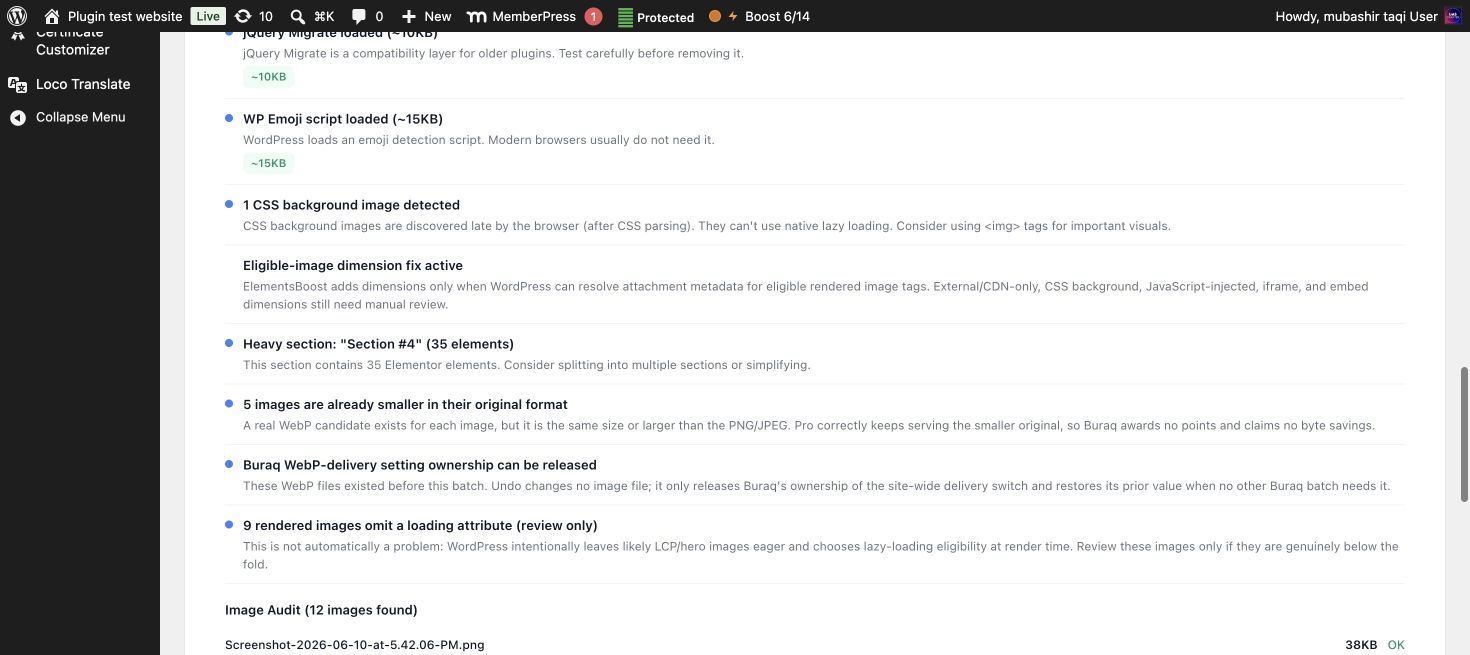
A page-wide warning is hard to act on when the Elementor editor contains dozens of containers. You need to connect the warning to a component: the full-size image, video embed, slider, deeply nested section or addon widget contributing to the cost.
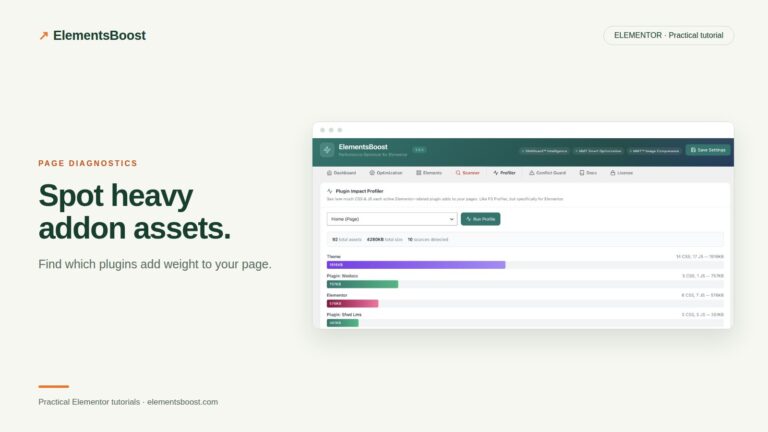
ElementsBoost helps make that connection with findings and X-Ray. The browser’s network and performance evidence tells you what the component actually costs.
Workflow illustration: the steps to follow, not measured test results.
1. Scan the same page visitors load
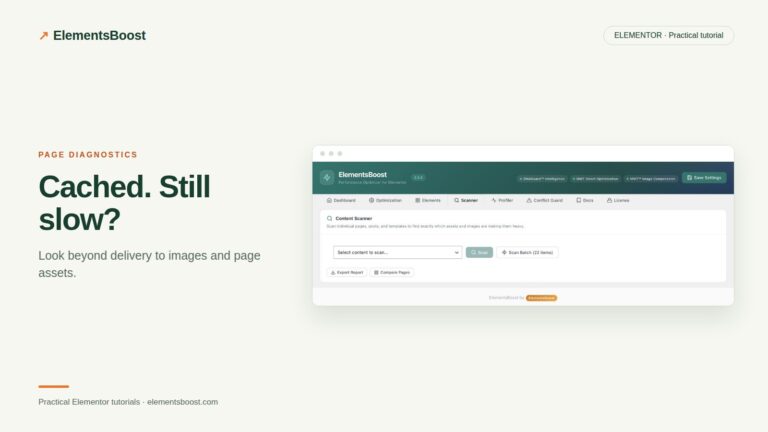
Open the Elementor page and launch Buraq from the ElementsBoost button. Run the scan and confirm that it refers to the intended public URL. Save your current baseline before editing. A logged-in editor view can differ from a cached visitor response.
2. Read the finding before highlighting
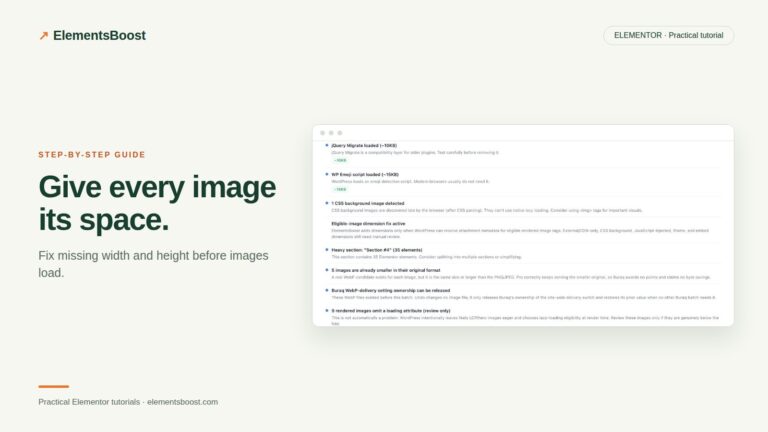
Decide whether the finding concerns an image, a structural issue or an asset request. Read what is observed and what is only suggested. An estimated opportunity is not a measured saving, and a high element count does not identify the slowest component by itself.
3. Use X-Ray to locate a matching element
Use Show to highlight matching elements and Hide to remove the overlay. Match the highlighted content to the Elementor navigator. If the element is in a template, popup or different responsive state, open that context. A missing highlight does not establish that the finding is false.
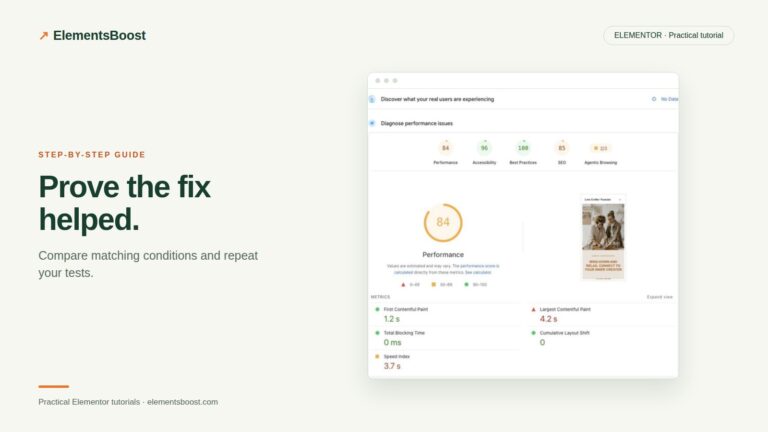
4. Confirm the cost with the right evidence
For an image, compare downloaded bytes and displayed size. For an embed, inspect its third-party requests. For scripts, inspect execution and interaction requirements. For nested containers, look for a simpler layout that preserves the design. The right fix follows the cost category.
5. Make the smallest useful change
Replace an oversized source, simplify a component or use an eligible ElementsBoost action. For persistent content edits, save a revision or backup. Re-scan and compare the public page. Keep the change only after checking both its intended effect and the responsive design.
Before you call this fixed
- The finding matches a real page component.
- The cost is measured in the appropriate tool.
- Estimated and verified results are separate.
- The simplified or optimized element still meets the design need.
Further reading: Google’s guide to diagnosing and improving LCP.
3 Comments