
How to Fix Missing Image Width and Height in Elementor
Content reviewed September 26, 2026 · Free 2.0.6 feature scope; Pro availability depends on the installed version and supported action.
A page can look correct after loading and still jump while its images arrive. If the browser does not know an image’s proportions, it may lay out the text first and move it when the image appears. Adding accurate width and height attributes gives it an aspect ratio before the file finishes downloading.
This fixes a space-reservation problem. It does not compress the image or automatically fix every cause of CLS. Start with the exact image reported by your audit, then use ElementsBoost Free for eligible local Media Library images.
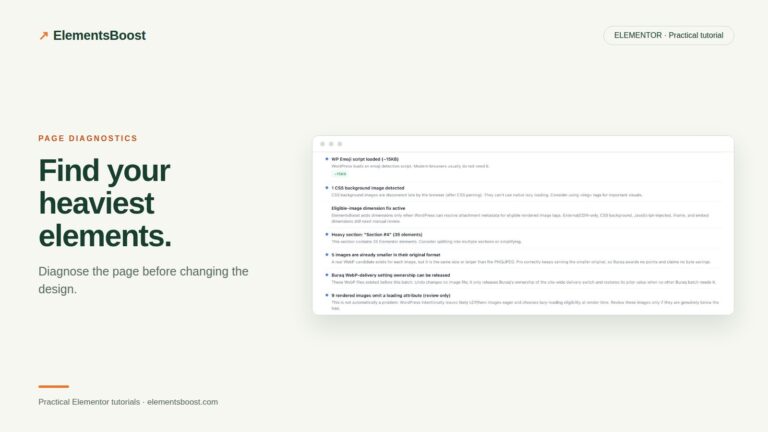
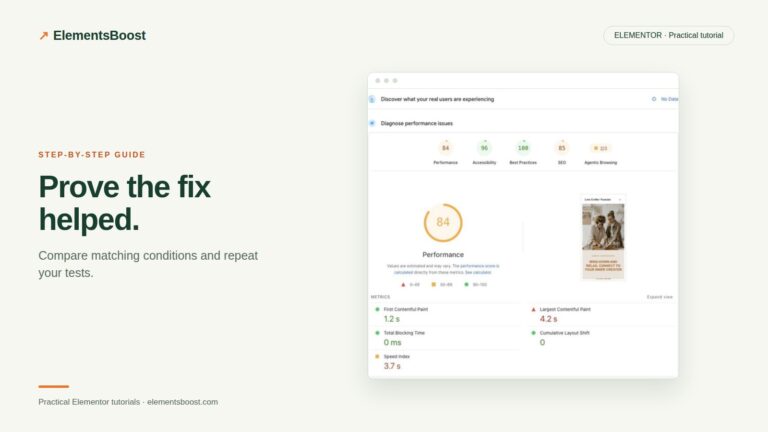
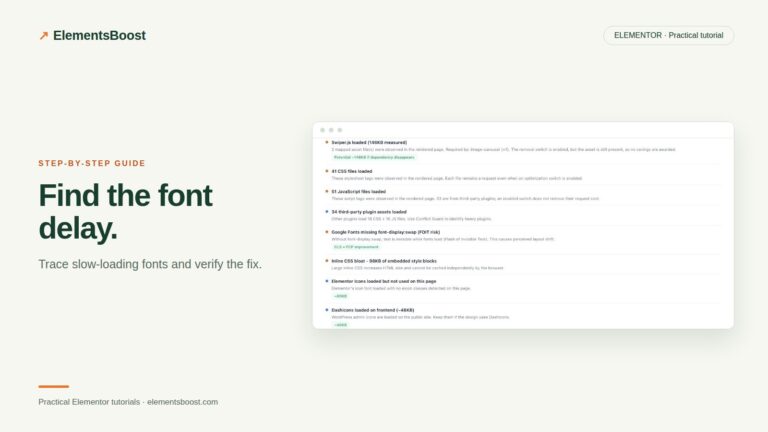
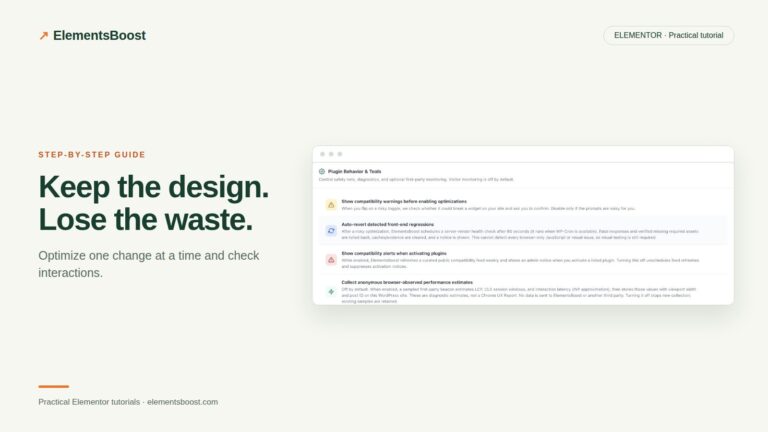
Workflow illustration: the steps to follow, not measured test results.
1. Identify the image that actually moves the page
Open the affected public page on mobile and reload it. In your browser’s performance recording, inspect a layout-shift event and the elements that moved. A paragraph pushed down by an image can be the affected element even though the image is the cause. Match the reported image URL to its Elementor widget. Check both the page content and shared header or template.
2. Check the source and the aspect ratio
Inspect the rendered img tag. Look for width and height attributes and compare their ratio with the actual image. For example, a 1200 × 800 image has a 3:2 ratio. Keep responsive CSS such as max-width:100% and height:auto; the attributes do not require the image to display at its full intrinsic size. A deliberately cropped component needs a stable wrapper matching that crop.
3. Apply the eligible ElementsBoost fix
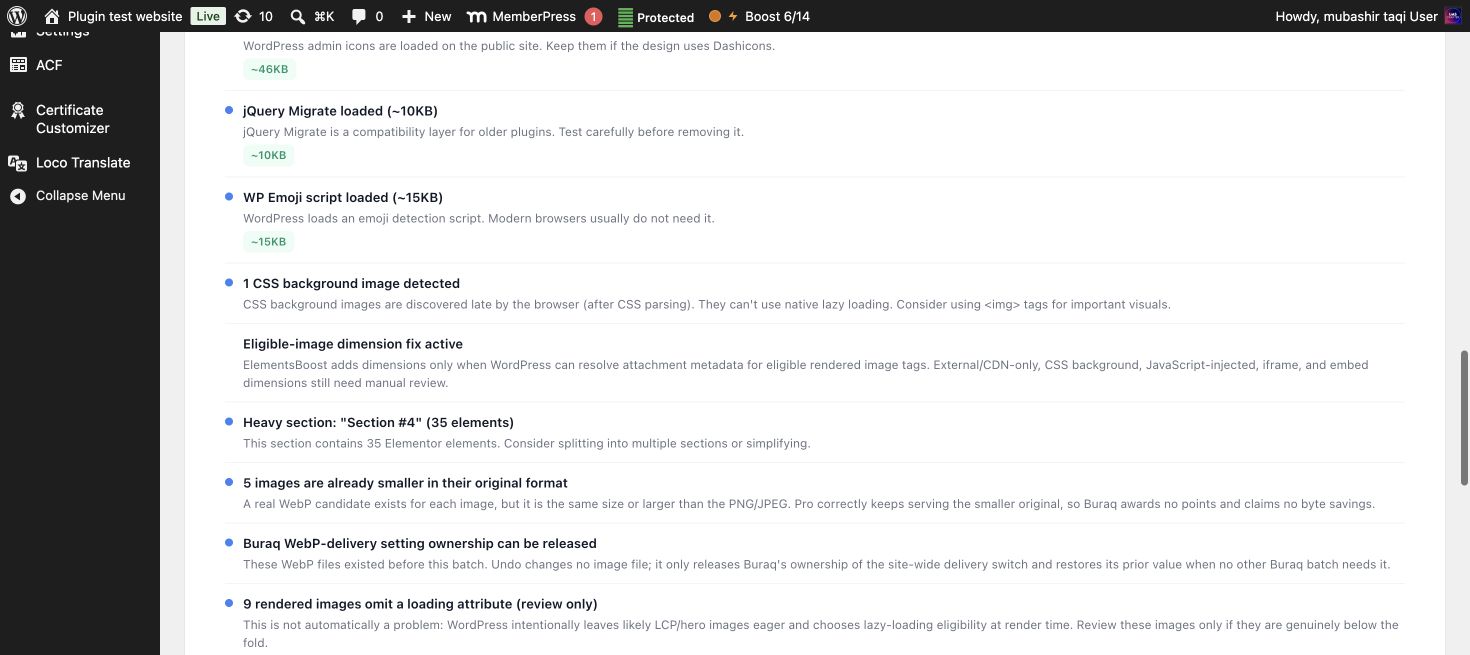
Open the page in Elementor and run Buraq from the ElementsBoost button. Review its missing-dimension finding. Use the supported action when WordPress can resolve the image to local Media Library metadata. Read the result and rescan. External URLs, CSS backgrounds, iframes and images inserted later by JavaScript may need manual treatment; a missing action is not a reason to guess dimensions.
4. Test the public output
Test Mode gates supported frontend controls for administrators. A public scan cannot confirm private Test Mode output. Preview the change, then follow the linked controlled-release workflow before measuring the logged-out page. Clear the affected page cache and inspect the new img attributes. Repeat the same mobile recording to check whether the original shift disappeared.
5. If the page still shifts
Check fonts, banners, embeds and late content insertion. Do not keep changing image dimensions when the recorded shift has a different cause. If an image remains large and slow after its space is reserved, inspect its transferred bytes and displayed dimensions: that is a separate image-delivery task.
Example markup to inspect
This is an illustrative 3:2 image, not a copy of your site’s markup. Substitute the actual source dimensions.
<img src="photo.webp" width="1200" height="800"
     style="max-width:100%;height:auto"
alt="A description of the image">Before you call this fixed
- The rendered image has accurate width and height.
- The image stays responsive at phone and desktop widths.
- The original layout shift is reduced in a repeat recording.
- No hero image was accidentally made lazy.
Further reading: Google’s guidance on layout shifts, dimensions and fonts.
3 Comments