How to Diagnose and Fix Slow Font Loading in Elementor
Content reviewed September 26, 2026 · Free 2.0.6 feature scope; Pro availability depends on the installed version and supported action.
Slow fonts can delay readable text or change a heading’s width after it appears. Elementor sites often combine theme fonts, Elementor global fonts and fonts loaded by embedded HTML or addon widgets. That can create duplicate families and extra network requests.
Start by identifying which font actually serves the visible text. Downloading every family locally preserves the clutter; the better fix is usually to simplify the font set first.
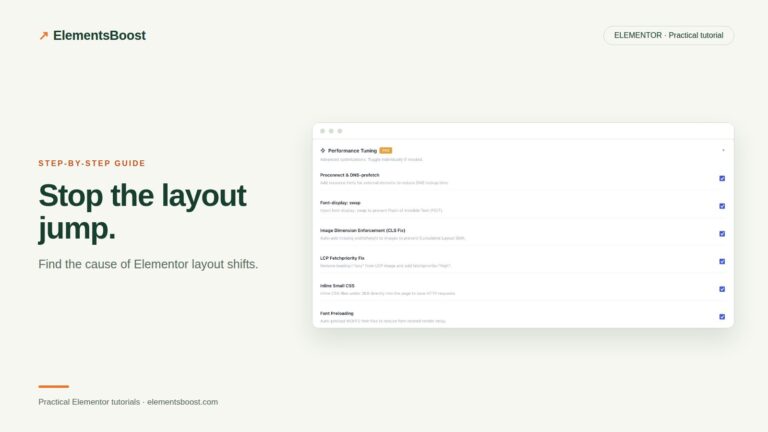
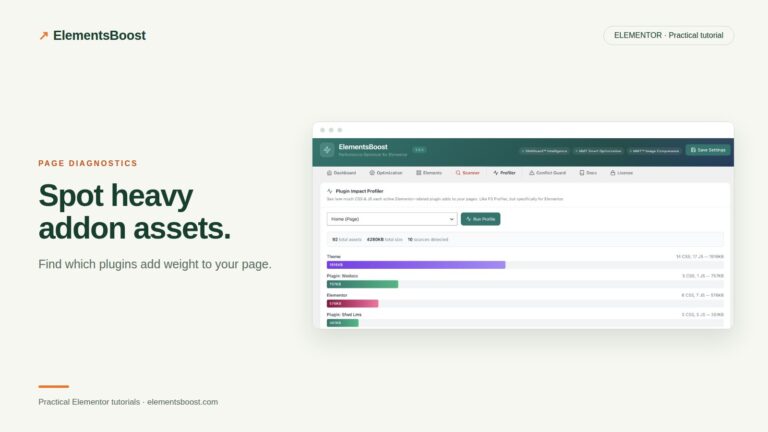
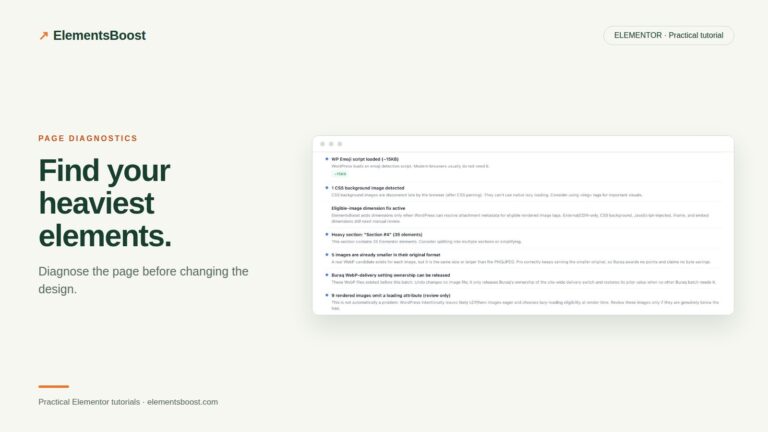
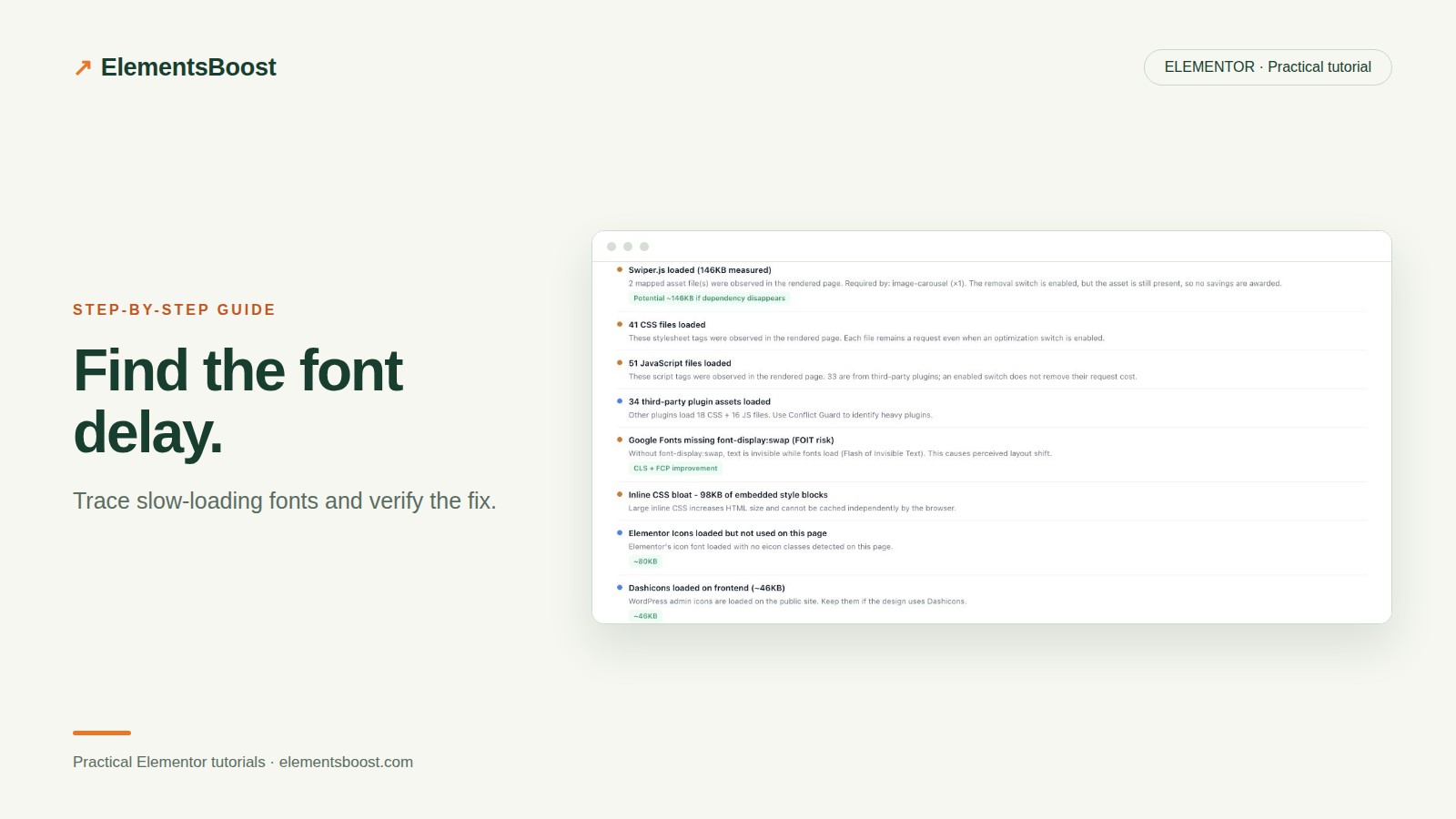
Workflow illustration: the steps to follow, not measured test results.
1. Inspect one slow heading
Open the public page, inspect the heading and check its computed font family. Record a reload with the network font filter enabled. Note the font file, source domain, weight and whether the request was needed for the first screen. Repeat on mobile because a different template or hidden component may load there.
2. Find who loads each family
Compare the requests with the theme typography, Elementor global styles and custom HTML widgets. A font stylesheet in a reusable widget can be repeated across the page. Remove an unnecessary import from its owner rather than disabling a shared file without knowing who depends on it. Keep only the families and weights used by the design.
3. Review supported self-hosting
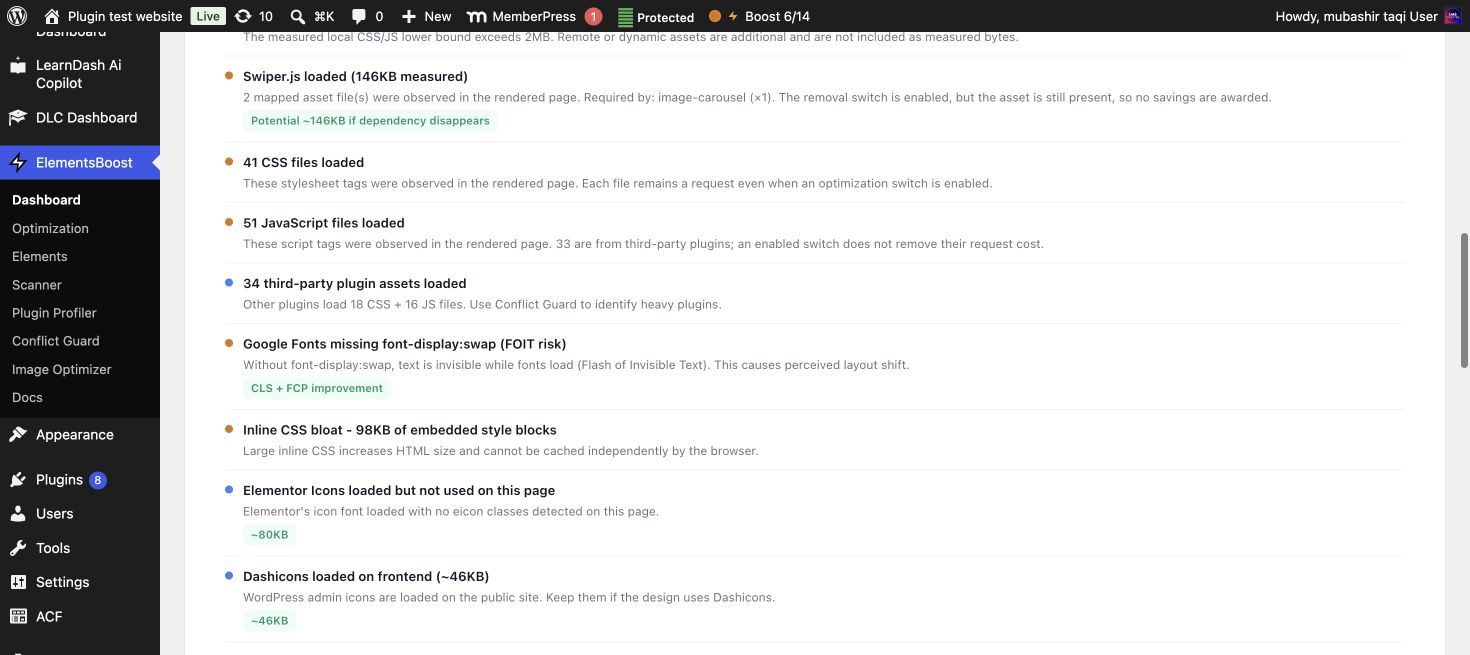
ElementsBoost Free can self-host supported Google Fonts. Enable that as a focused change after checking compatibility with your existing font or cache plugin. Use one tool as the owner of font rewriting. Preview supported frontend output, then release it using the safety workflow before asking a logged-out scanner to verify it.
4. Check loading and layout together
Inspect the published requests to confirm the supported files are served locally. Compare the heading before and after the font loads. A font-display strategy changes how text appears during loading; it does not guarantee identical metrics between fallback and final fonts. Keep a sensible fallback and check line wrapping, buttons and navigation labels.
5. Avoid an indiscriminate preload list
Preload only a font whose early use is established by the page. Preloading every family can compete with the hero image and other important resources. Repeat the same mobile test and compare the actual text rendering, font requests and layout-shift events.
Before you call this fixed
- Only intentional families and weights load.
- The supported local URLs are visible publicly.
- Text remains readable during loading.
- Navigation and headings do not develop new wrapping problems.
Further reading: Google’s guidance on layout shifts, dimensions and fonts.