How to Make Elementor Images Load Faster: Start Free, Go Further With Pro
Both · A practical Elementor tutorial
Your page can look beautiful and still make visitors wait for its images. The fix depends on what is actually wrong: a huge source file, missing dimensions, late discovery, or an image loading before anyone needs it.
Start with one page and one image. ElementsBoost Free helps you find and fix eligible loading issues. Pro adds local image compression, modern formats and supported hero-image controls when those are the next useful step.
1. Find the image that costs the most
Open the page in Elementor and run its ElementsBoost/Buraq scan. Use X-Ray on a matching finding to locate the widget. Then inspect the public page in your browser: the biggest file and the image that appears last are not always the same image. Record the image URL, displayed size and downloaded bytes so you can check the same resource after the change.
2. Choose a sensible source size
Select the image widget and review the available WordPress image sizes. A small card rarely needs the original camera-sized upload. Choose a source that stays sharp at the intended display size, including high-density screens, then inspect the file the browser actually downloads. This step uses Elementor or WordPress settings; Free helps you find the issue.
3. Give the image space before it arrives
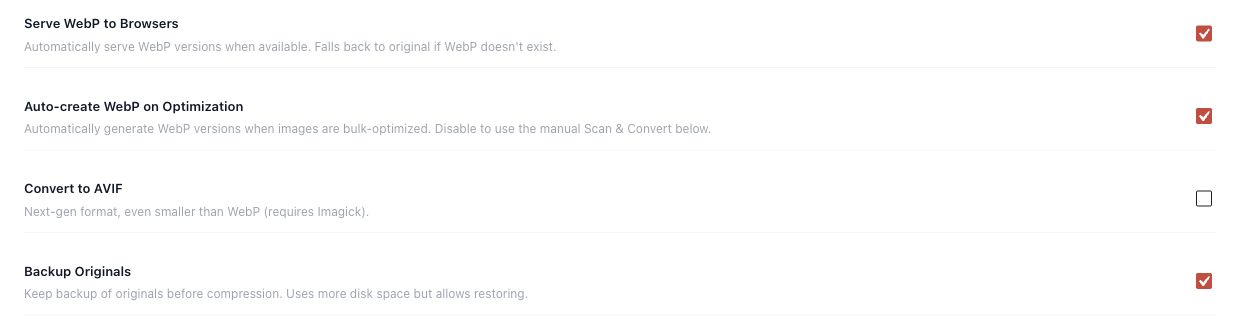
If text moves when the image loads, look for missing width and height attributes. Use the Free supported dimension action when the image resolves to local Media Library metadata. Keep the correct aspect ratio and responsive styling. CSS backgrounds need stable container geometry instead; they are not fixed by adding img attributes.
4. Load the hero now and lower images later
Treat the first-screen image separately from images farther down the page. An important hero should not wait for scrolling. Use the eligible Free lazy-loading helper for lower content, then reload and scroll to confirm it works. If the actual LCP image still starts late, review its discovery path before choosing a supported Pro hero control.
5. Make a heavy local file lighter with Pro
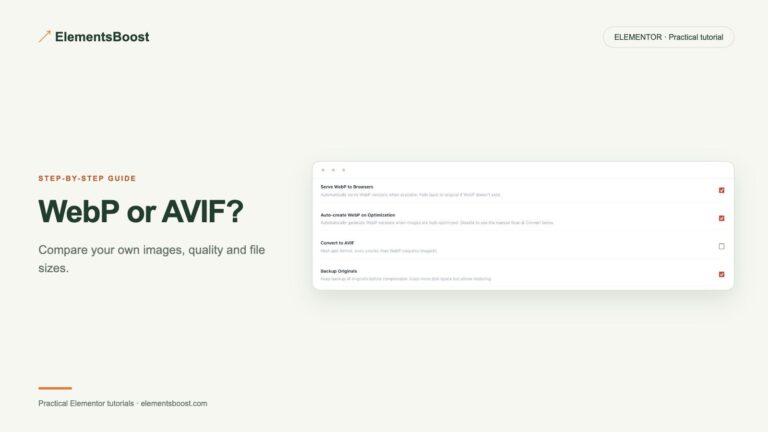
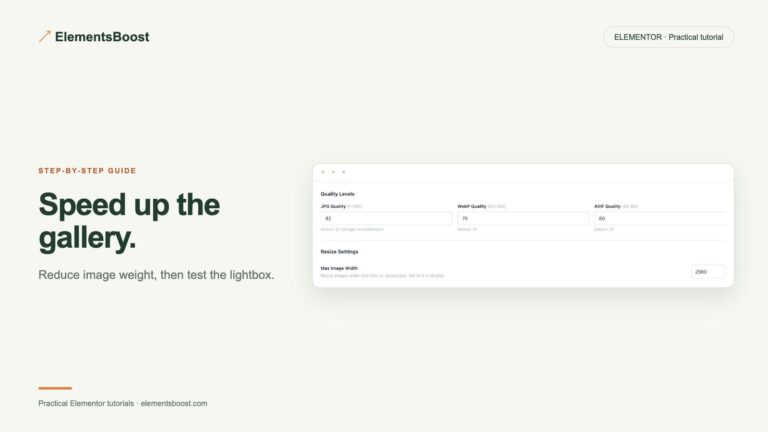
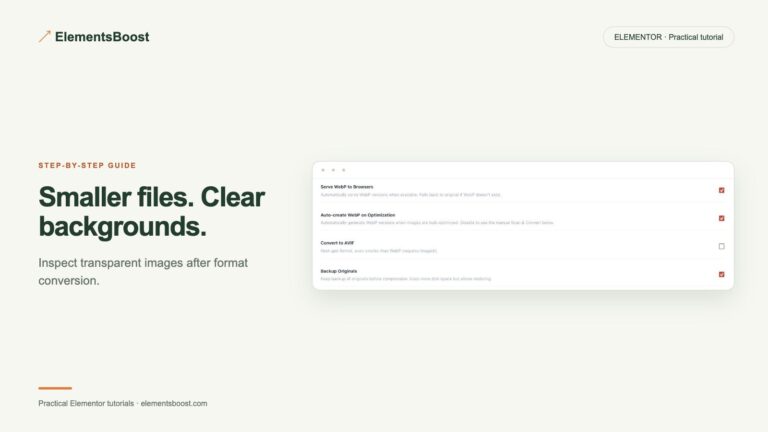
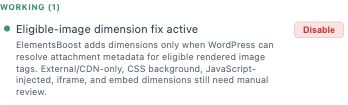
If the source size and loading order are already appropriate, open the Pro image tools. Enable Backup Originals before routine processing. Test compression or a supported WebP/AVIF format on one eligible local image. Confirm that the result is smaller, looks right, and is served on the public page. A file created in the library is not automatically proof of delivery.
Check your result
- The downloaded source suits the displayed image.
- Space is reserved before the image arrives.
- The hero is available promptly; lower images load when needed.
- Any converted file is actually delivered and retains acceptable quality.
If the result is different
If nothing changes, first inspect the served URL. A stale cache or a different responsive variant can hide a successful file change. Keep one tool responsible for image delivery and clear the relevant cache after a controlled release.
For supported settings, use the testing and recovery guide. A public scanner cannot measure a private Test Mode preview. Keep backups for persistent content or image changes.
Your next useful step
Start with Free diagnosis and eligible fixes. Add Pro when you need local image processing or supported targeted delivery.
Local compression/conversion and supported hero prioritization when diagnosis calls for them.
When Pro is the useful next step
Move from Free diagnosis to Pro when you need local compression, supported modern formats or targeted hero controls. Each solves a different cause of image delay.
See Pro plans and included features →
Choose the license for the number of sites you manage. Check the feature comparison and license terms before buying.