How to Find and Fix Missing Image Alt Text in Elementor
Free-first · Practical Elementor tutorial
Alt text explains what a meaningful image contributes when someone cannot see it. A useful description is more valuable than a filename or a string of keywords. ElementsBoost Free can identify eligible missing descriptions and prepare reviewable drafts, but you decide what the image means in context.
What you will achieve
Give meaningful images useful descriptions and keep decorative images appropriately empty.
Free: Reviewable alt-text drafts for eligible Media Library images, editing and scoped undo.
Pro: Optional related tutorial: Pro Deep Scan for headings and meta descriptions, a different task.
1. Find an image that needs a description
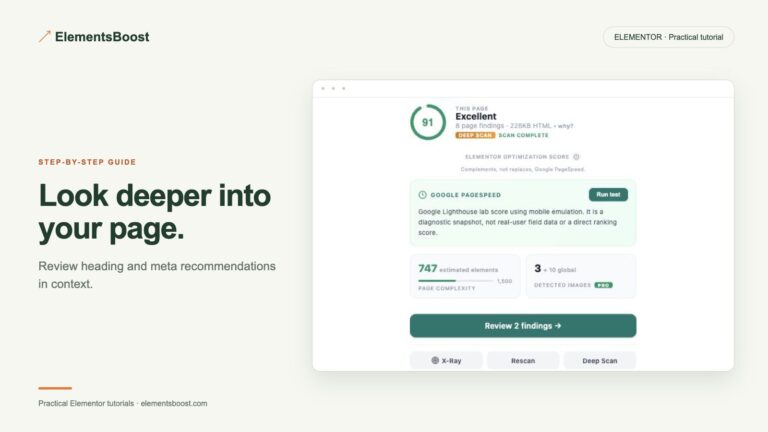
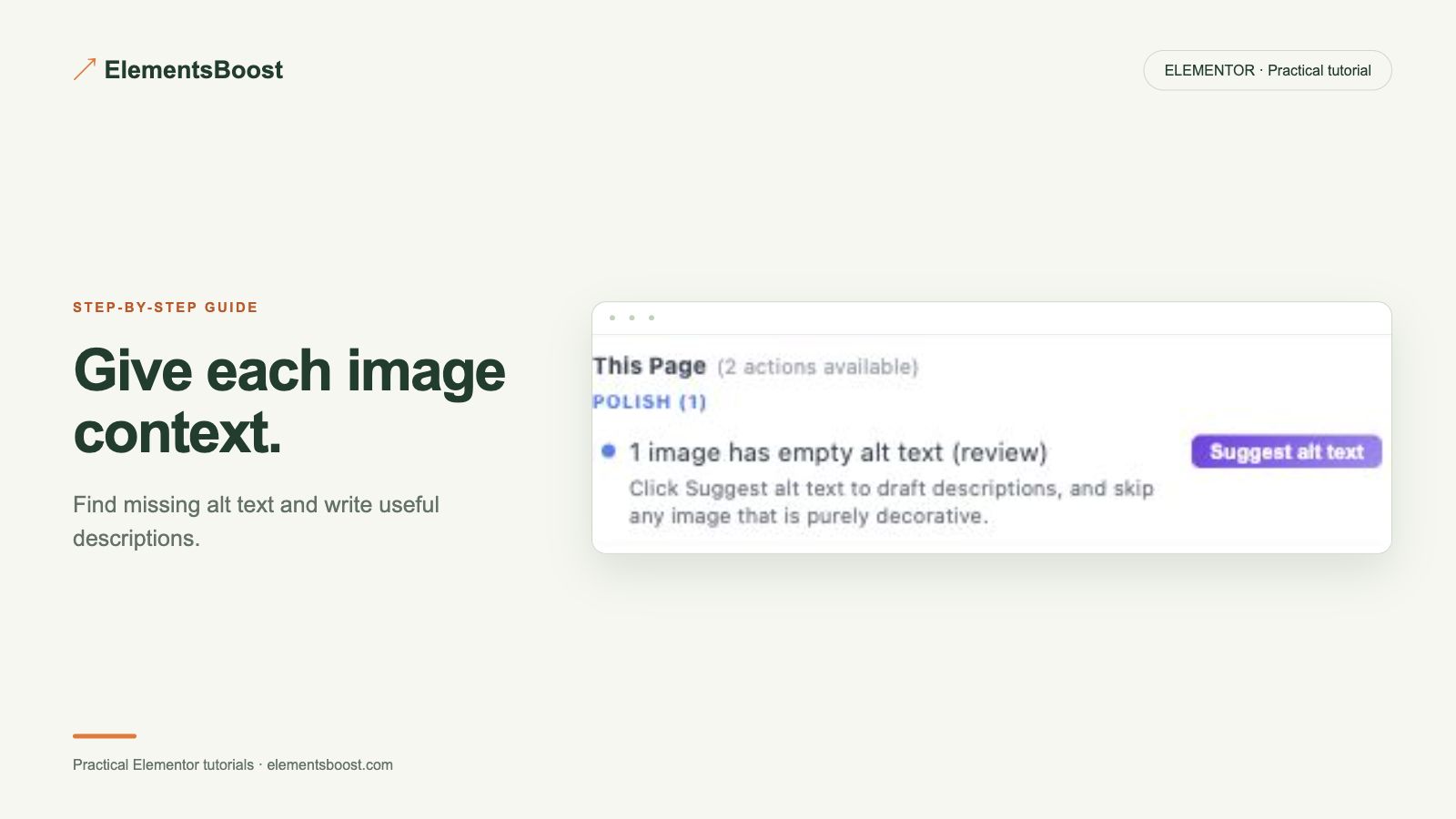
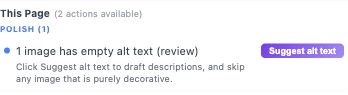
Run the page scan and open the missing-alt finding. Match the image to its widget and Media Library attachment. Decide whether it communicates information, performs an action, or only decorates the layout. Decorative images can appropriately have an empty alt attribute; an empty value is not always an error.
2. Review the proposed wording
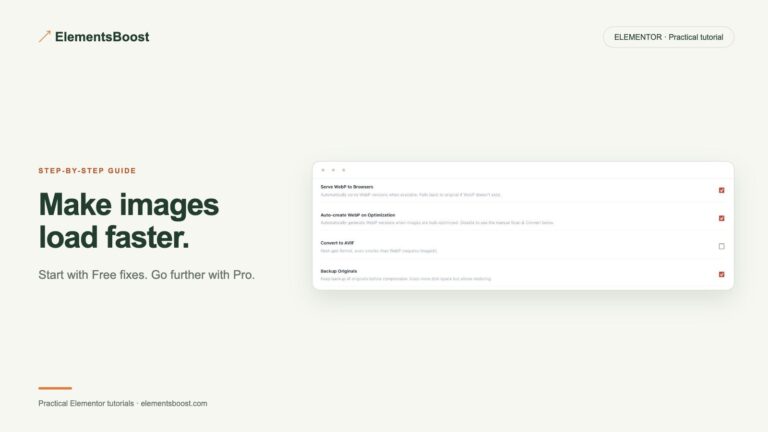
Use the eligible Free draft action and read the proposed description. Describe the relevant subject or purpose in ordinary language. For example, an instructional screenshot might say “WebP delivery enabled in ElementsBoost Image Optimizer.” This is an example, not text to paste onto every screenshot. Remove guesses, unsupported details and repeated keywords.
3. Account for reused attachments
Check whether the same attachment appears elsewhere. A Media Library description can affect several uses, while some widgets store their own value. A product photograph and a link using that photograph may need different wording. Make the narrowest supported edit and keep a recovery copy before changing shared content.
4. Inspect the rendered image
Save the reviewed value and inspect the public image’s alt attribute. Confirm that the widget uses the value you edited; a custom override can prevent a library change from appearing. For a linked image, also check whether the link has an understandable accessible name. Read the description beside its surrounding text and remove duplication.
5. Recheck and retain useful exceptions
Run a fresh scan, record the corrected example and leave intentional decorative images alone. Use the supported undo if the proposed edit did not fit. Keep any longer explanation in adjacent page text or a caption rather than cramming a full paragraph into a short image description.
If the result is different
If the finding remains, verify the actual page URL, cache and attachment mapping. Do not fill every empty alt value automatically. Pro Deep Scan concerns other eligible heading and meta issues; this Free alt-text workflow does not require upgrading.
For supported frontend changes, follow the testing and recovery guide. Persistent content and image changes need their own backups; private Test Mode output cannot be measured by a public scanner.
Reference: W3C image alt decision tree.
Choose the next step that fits your page
Start with the Free alt-text review. Use Pro Deep Scan when headings or descriptions need a separate review.
When Pro is the useful next step
Alt text review is available in Free. Pro Deep Scan extends the review to supported heading and meta-description issues.
See Pro plans and included features →
Choose the license for the number of sites you manage. Check the feature comparison and license terms before buying.