How to Stop Elementor Sliders Jumping While Images Load
Both · Practical Elementor tutorial
A slider that grows when the first image arrives pushes the rest of the page down. Start by giving slides predictable space. Compression may make images arrive sooner, but it does not replace correct slide geometry.
What you will achieve
Stabilize slide geometry and then reduce image weight if necessary.
Free: Eligible dimensions and diagnostics; slide ratios and height settings are manual.
Pro: Optional compression for heavy slide images; Pro is not required to reserve slide space.
1. Record when the jump occurs
Reload the public page and note whether movement happens on initial load, at the first transition, or when a later image appears. Use a layout-shift recording where available. Keep the viewport fixed so a responsive breakpoint change is not mistaken for a loading shift.
2. Compare slide ratios and layout
Inspect image dimensions, slider height and responsive settings in Elementor. Use a consistent aspect ratio or intentional crop where the design calls for it. Check captions and text overlays too; a late font or variable caption height can change slide geometry even when the image has dimensions.
3. Apply eligible Free dimension fixes
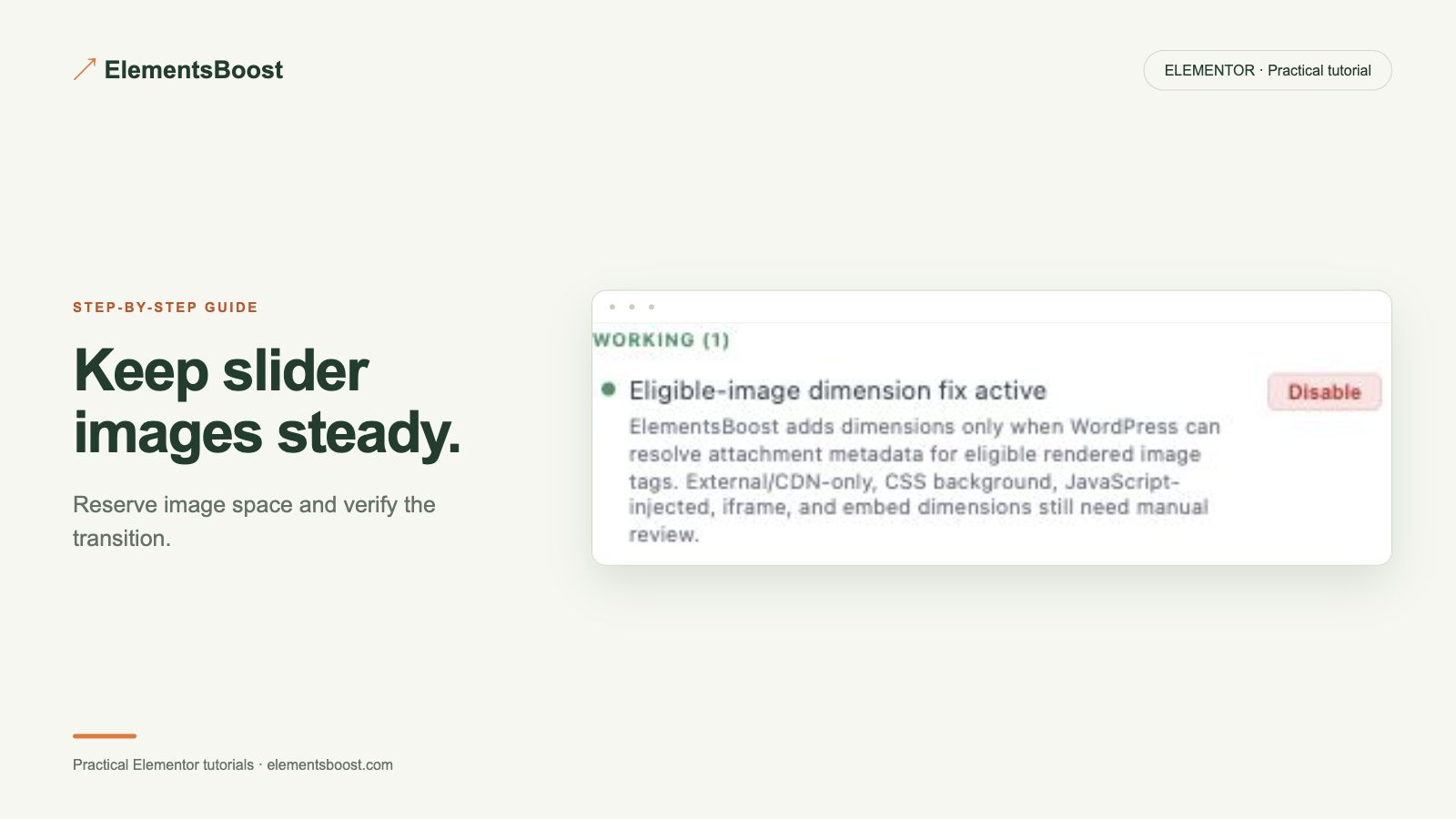
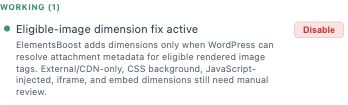
For supported local image markup, review the Free missing-dimensions action. Verify correct width/height and responsive styling after applying it. CSS-background slides need container sizing instead. Do not stretch images into the wrong ratio to silence a report.
4. Reduce weight only if it remains a problem
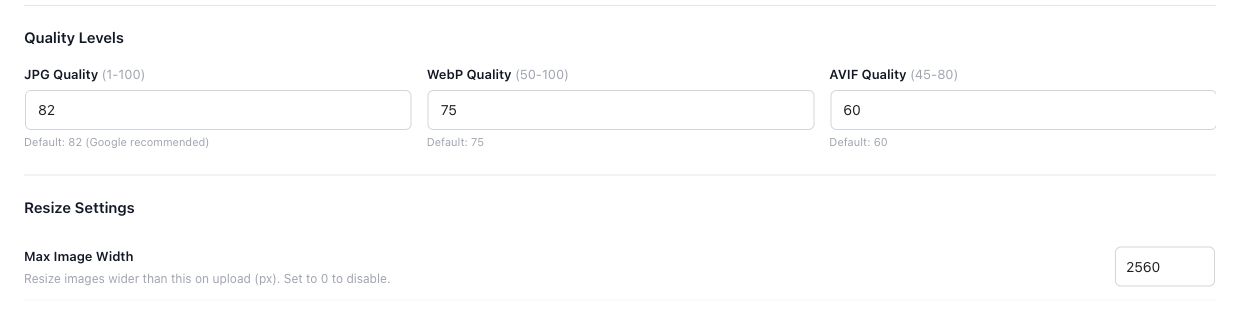
Once the slider is stable, inspect actual image bytes. Use suitable source sizes first, then Pro local compression or conversion with backups if useful. Keep the first visible slide available promptly and verify that later slides arrive before the visitor needs them.
5. Replay the slider
Test fresh load, autoplay if enabled, next/previous controls and mobile swipes. Inspect every slide and both narrow and wide layouts. Record the stable geometry and request evidence. Keep purposeful animation and transitions intact.
If the result is different
If only the transition jumps, look for mixed ratios, adaptive-height settings or changing captions. If controls fail, investigate script dependencies rather than adding more image settings. Free/manual layout fixes can solve the shift without Pro.
For supported frontend changes, follow the testing and recovery guide. Persistent content and image changes need their own backups; private Test Mode output cannot be measured by a public scanner.
Choose the next step that fits your page
Fix eligible dimension issues with Free; use Pro for the separate image-weight problem.
When Pro is the useful next step
Free can fix eligible missing image dimensions. Pro addresses the separate file-weight problem when correctly sized slides still download too much data.
See Pro plans and included features →
Choose the license for the number of sites you manage. Check the feature comparison and license terms before buying.