How to Stop Unneeded Elementor Assets Loading on Blog Posts
Free-first · Practical Elementor tutorial
A post written in the WordPress block editor may still load builder files. Sometimes they are unnecessary; sometimes an Elementor header, footer or popup needs them. Start by checking the whole rendered page before enabling global cleanup in ElementsBoost Free.
What you will achieve
Reduce eligible builder assets on a native WordPress page.
Free: Non-Elementor-page cleanup, usage checks and compatibility guards.
Pro: Use Pro per-page rules when a selective exception is needed and supported.
1. Choose a genuinely native post
Select one ordinary WordPress post and record its public URL. Confirm that its body was not built with Elementor. Inspect the header, footer, menus and any shared templates too. A native body alone does not prove the page has no Elementor dependencies.
2. Record the assets and their uses
Use the Free asset tools and browser Network panel to identify the files under investigation. Record the request URL or handle and which component needs it. A small file belonging to a shared menu may be essential even when no Elementor widget appears in the article body.

3. Review the non-Elementor cleanup control
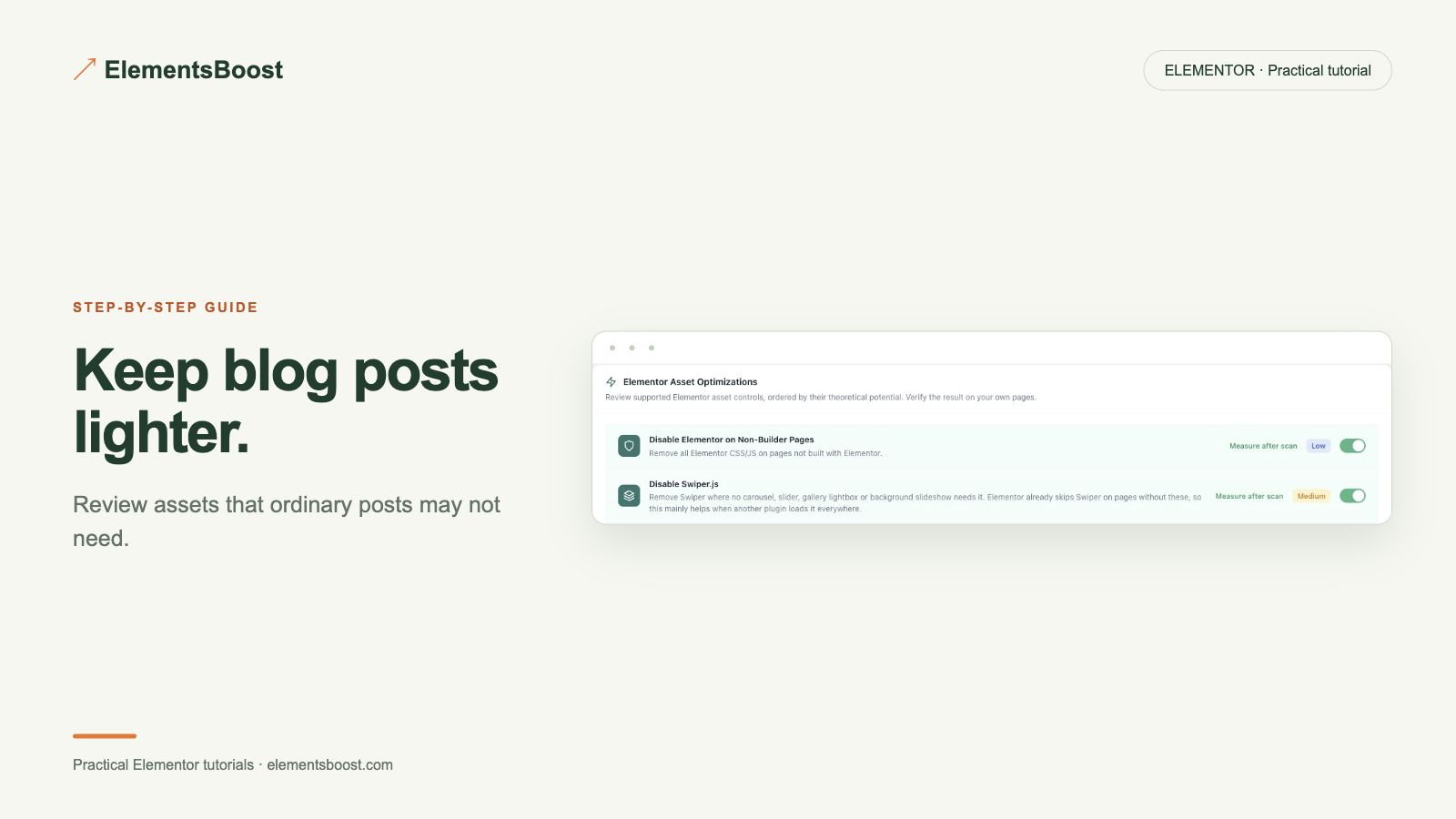
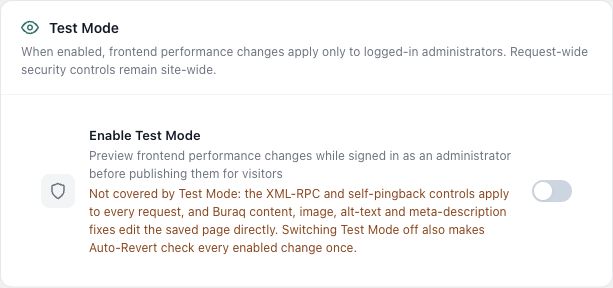
Open ElementsBoost Optimization and inspect the relevant non-Elementor-page control and any guard message. Test supported frontend changes through Test Mode where available. Keep the previous settings snapshot. If the guard identifies template usage, resolve that dependency instead of forcing removal.
4. Check two kinds of pages
Preview both the native post and a known Elementor page. Check navigation, search, forms, header/footer layout and mobile menus. After a controlled release, purge the relevant cache and repeat as a logged-out visitor. A private Test Mode preview cannot establish public scanner results.
5. Confirm the request changed
Compare the specific asset request with the baseline. Record whether it disappeared, remained because of a guard, or moved into a combined file. If global scope is too broad, restore it and investigate supported Pro per-page rules for a narrower exception.
If the result is different
If a template loses styling or behavior, restore the previous setting and clear the affected cache. Do not disable Elementor sitewide to fix one post. A correctly retained dependency is a successful safety outcome, not a failed optimization.
For supported frontend changes, follow the testing and recovery guide. Persistent content and image changes need their own backups; private Test Mode output cannot be measured by a public scanner.
Choose the next step that fits your page
Use Free to review non-builder pages. Choose Pro when a supported rule needs page-specific scope.
When Pro is the useful next step
Use Free for supported global cleanup. Choose Pro Lean Mode when you need a supported rule scoped to individual pages.
See Pro plans and included features →
Choose the license for the number of sites you manage. Check the feature comparison and license terms before buying.