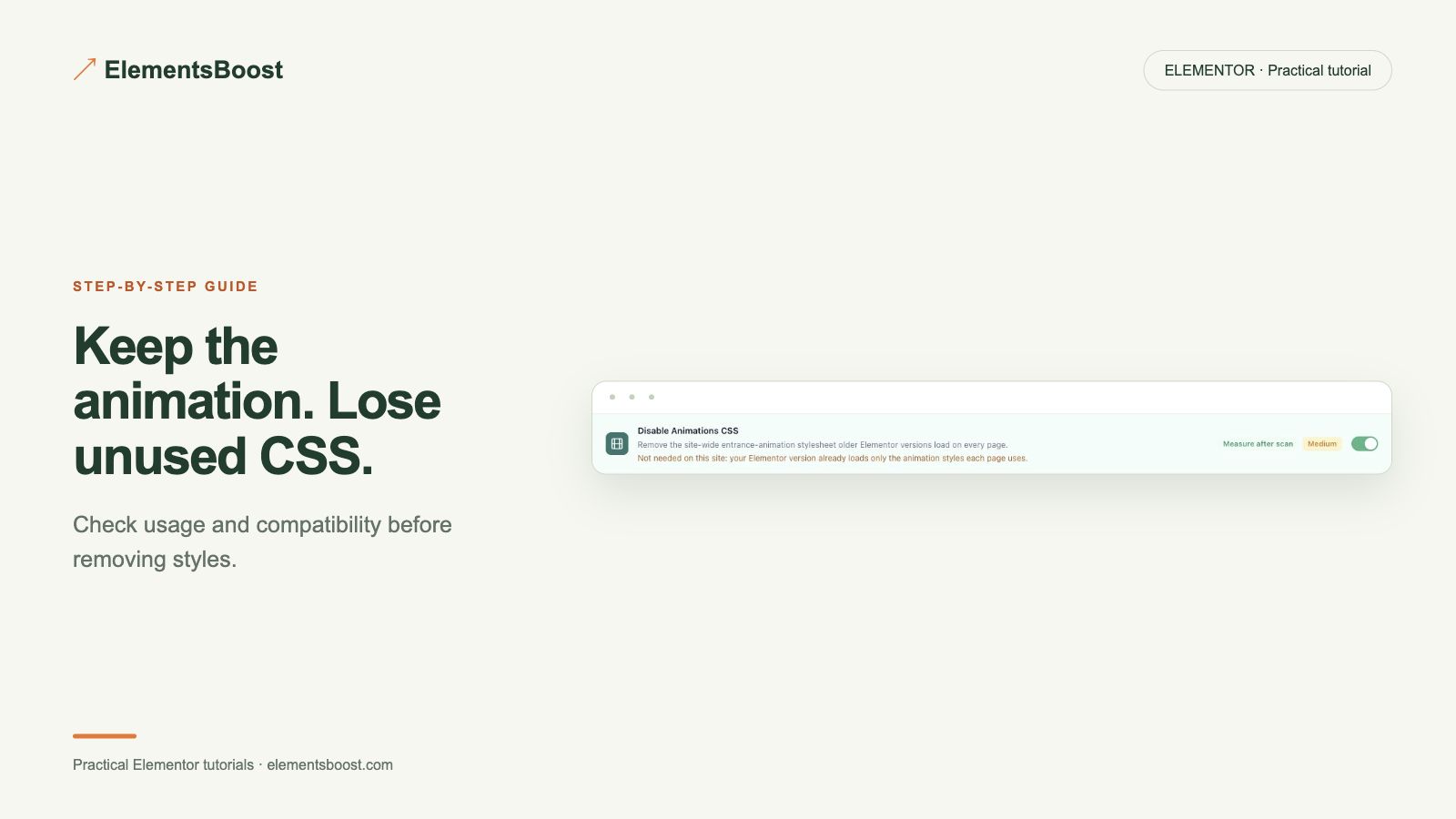
How to Remove Unused Elementor Animation CSS and Keep Your Animations
Free-first · Practical Elementor tutorial
A purposeful hero animation should remain part of the experience. The opportunity is an animation stylesheet on a page that does not use it. ElementsBoost Free offers a guarded control; Pro can help when eligible rules need a narrower page scope.
What you will achieve
Remove an unnecessary animation stylesheet only when the page does not need it.
Free: Animation CSS control with usage checks and recovery for supported settings.
Pro: Pro is useful for eligible page-specific rules when animation requirements differ between pages.
1. Inventory the animations you want to keep
List entrance animations, hover effects, sticky transitions and motion in shared templates. Replay the page from a fresh load and scroll through every section. Include the mobile layout. Save a short recording or screenshots of the intended states before changing any performance setting.
2. Identify the actual stylesheet
Use the Free usage evidence and browser Network panel to find the animation CSS request. Do not assume every file with “animation” in its name is redundant. A widget or addon may depend on a different library, and CSS that is unused on the first screen may be needed after scrolling.

3. Review the guard and scope
Open the matching optimization control and read its usage warning. Only test removal when the page and its shared components do not need the file. If other pages need it, a global change may be inappropriate. Review supported Pro per-page cleanup rather than removing intentional animations from the design.
4. Replay real interactions
In the supported preview, reload, scroll, hover and open menus or popups. Confirm that the hero animation still starts and finishes correctly. Test a page known to require the library as a comparison. A static screenshot cannot prove an animation still works; replay it in the browser.
5. Verify the visitor output
Release only the tested scope, clear relevant caches and confirm the unnecessary request is absent. Repeat the animation checks as a visitor. If any intended effect changes, restore the setting and investigate the dependency before attempting another rule.
If the result is different
If the page becomes static or content stays hidden, undo the removal. Some entrance effects initially hide an element and rely on CSS or scripts to reveal it. Preserve the design and optimize the actual unused dependency instead.
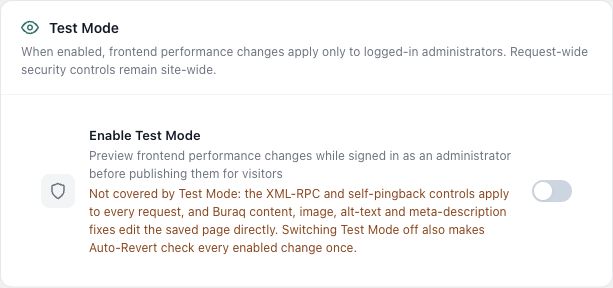
For supported frontend changes, follow the testing and recovery guide. Persistent content and image changes need their own backups; private Test Mode output cannot be measured by a public scanner.
Choose the next step that fits your page
Review animation asset usage with Free while keeping your intended design.
When Pro is the useful next step
Preserve the animations visitors need. Pro Lean Mode adds targeted control when removing an asset globally would be too broad.
See Pro plans and included features →
Choose the license for the number of sites you manage. Check the feature comparison and license terms before buying.