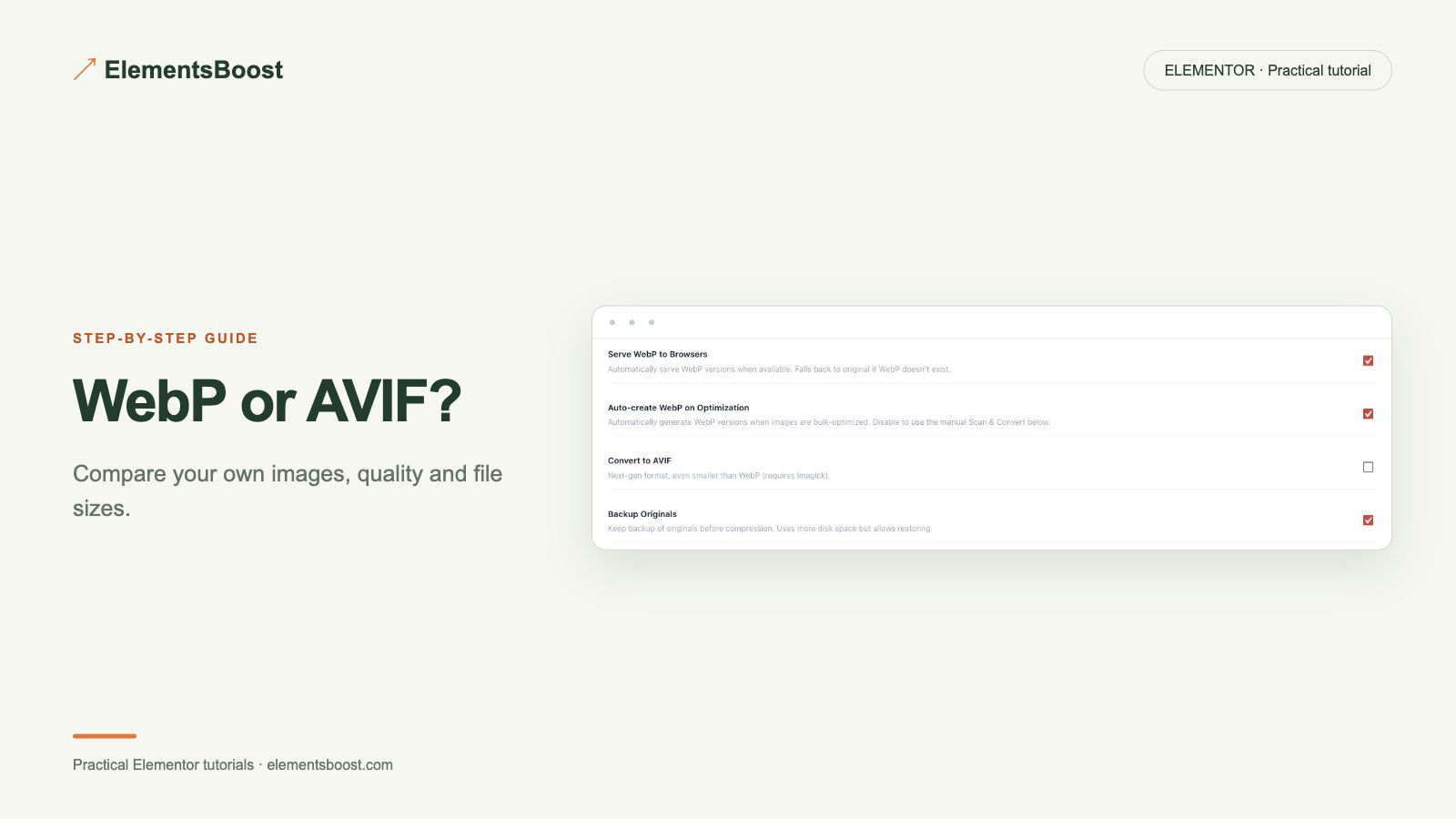
WebP or AVIF for Elementor? Compare Your Own Images
Pro-first · Practical Elementor tutorial
The smallest extension is not a universal winner. A photograph, transparent logo and screenshot can behave differently when encoded as WebP or AVIF. Compare the same source, inspect its detail and verify delivery before choosing a format.
What you will achieve
Choose a format using actual size, quality and server support.
Free: Free findings identify candidates; Free alone does not provide the Pro conversion workflow.
Pro: Verified WebP/AVIF generation where encoders are available.
1. Check available encoders
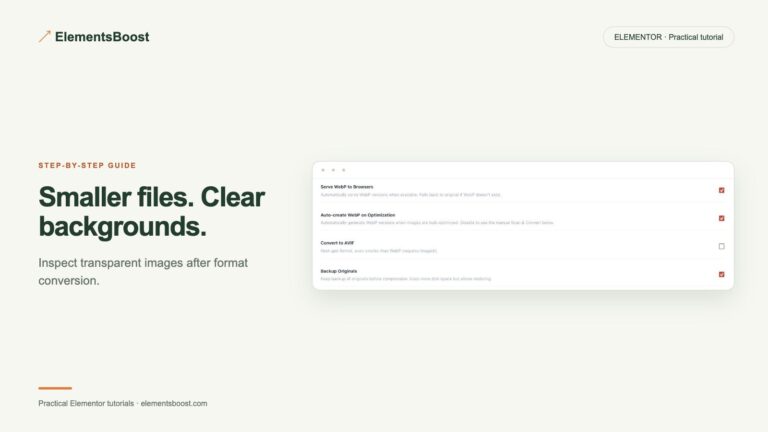
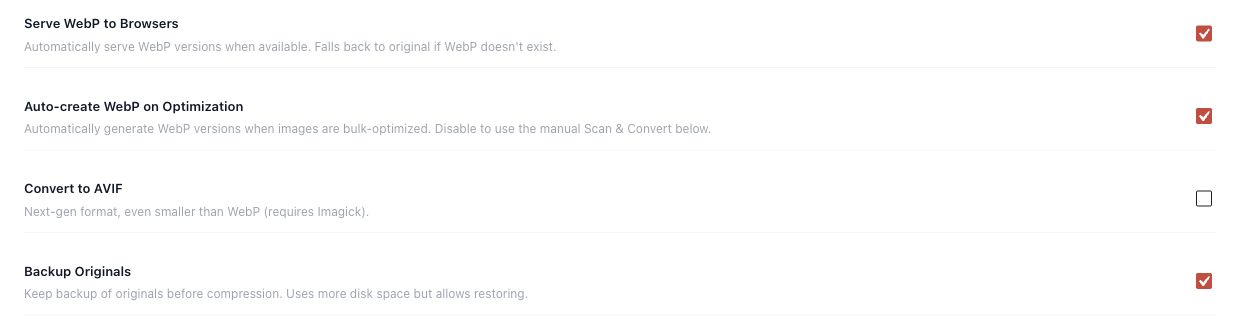
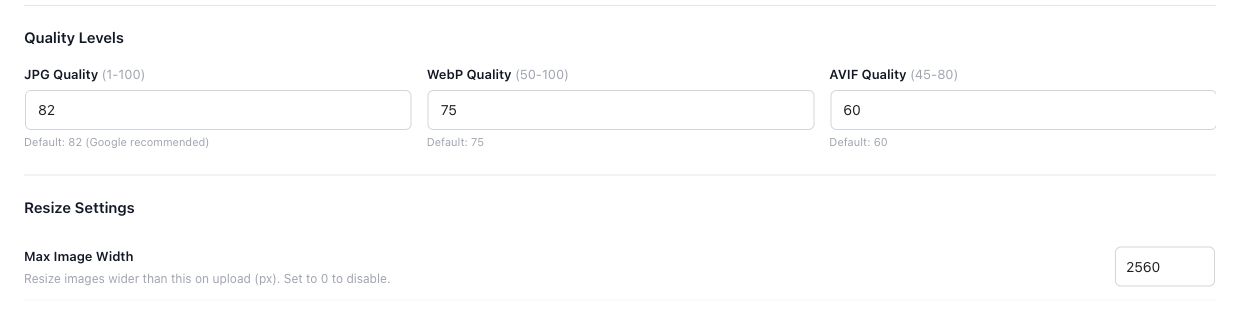
Open ElementsBoost → Image Optimizer on the Pro installation. Inspect the server capability status and the WebP/AVIF controls. Availability depends on the server’s actual encoder support. An enabled checkbox alone does not prove that a valid output was generated.
2. Select representative local images
Choose a photo with texture, a graphic with small text and a transparent image you own. Keep backups and record original dimensions and bytes. Use identical source files for both formats; changing the crop or resolution would make the comparison misleading.
3. Test the supported formats
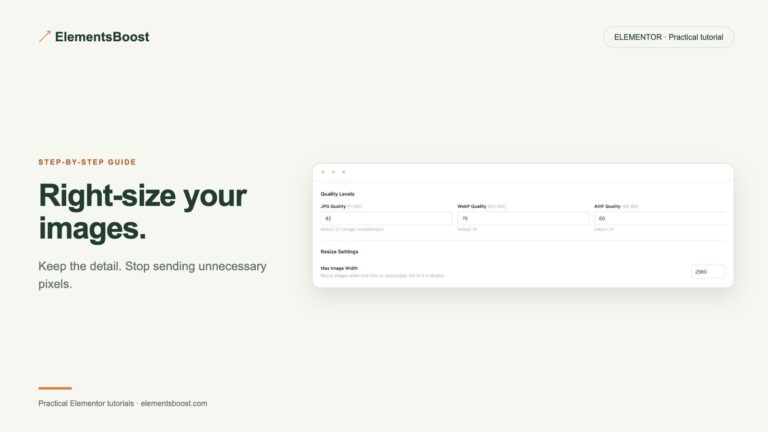
Enable Backup Originals before routine processing. Generate each supported candidate using the available workflow. Record beneficial, skipped and failed results separately. Do not interpret the same quality number as equivalent across formats: each encoder has its own behavior.
4. Compare detail and file weight
Inspect both candidates at the same displayed size. Check fine text, gradients, faces and alpha edges. Record actual bytes and retain the original as a reference. Choose the candidate whose size and appearance suit that image, including a no-change outcome when neither candidate helps.
5. Confirm public delivery and fallback
Inspect the public image request and response format after the controlled release. Check the responsive source actually chosen on mobile and desktop. Verify that the image still appears through the supported fallback path. Avoid judging success solely from the existence of a converted file on disk.
If the result is different
If AVIF is unavailable, use a supported format and record the server limitation. If a candidate looks worse or is larger, keep the better original or adjust quality. Free helps find candidates; this conversion workflow belongs to Pro.
For supported frontend changes, follow the testing and recovery guide. Persistent content and image changes need their own backups; private Test Mode output cannot be measured by a public scanner.
Choose the next step that fits your page
Compare supported modern formats with Pro using your own images.
When Pro is the useful next step
Pro lets you compare supported WebP and AVIF output locally. Encoder availability depends on your server; choose the format that works best for your images.
See Pro plans and included features →
Choose the license for the number of sites you manage. Check the feature comparison and license terms before buying.