
Elementor Image CLS: Troubleshoot Dimensions That Still Do Not Work
Content reviewed September 26, 2026 · Free 2.0.6 feature scope; Pro availability depends on the installed version and supported action.
You added width and height, yet the Elementor page still jumps. That does not prove the attributes are ineffective. The published page may still contain old markup, the component may use a different image type, or another element may be causing the shift.
Use this troubleshooting guide after the basic dimension fix. Its purpose is to explain the mismatch between “the setting is enabled” and “the visitor’s layout is stable.”
Workflow illustration: the steps to follow, not measured test results.
1. Check the exact published variant
Open the affected URL logged out, with the same device width and query parameters used in the report. Inspect the actual img element, not only the Elementor editor preview. A cache, translated page, responsive template or replacement image may explain why the live markup differs. Clear only the relevant cache layers and check again.
2. Distinguish an image tag from a background
Width and height attributes apply to img elements. An Elementor CSS background needs a stable container size or aspect ratio. For a responsive background, choose the ratio that matches the design at each breakpoint. Avoid a large fixed height copied from desktop if it creates an oversized empty area on mobile.
3. Check cropping and responsive sources
Compare the source ratio, the wrapper ratio and object-fit behavior. The natural ratio of an image is not always the ratio of its cropped card. Reserve the card’s intended area, then let the image cover it without changing the surrounding flow. If mobile uses a different crop, reserve the mobile ratio too.
4. Confirm that WordPress can resolve the file
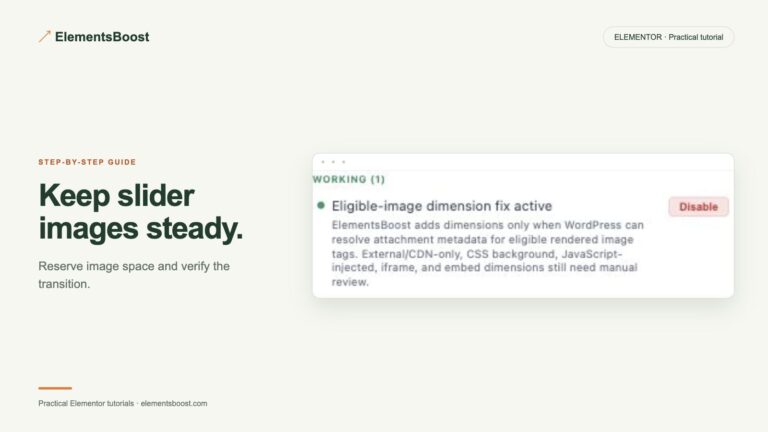
ElementsBoost Free adds dimensions for eligible local Media Library images. A remote URL, offloaded asset, generated placeholder or JavaScript-inserted image may be outside that path. Check the attachment metadata and the actual URL before expecting an automatic action. Resolve the source or adjust the component manually instead of entering made-up dimensions.
5. Reproduce the event once more
Record the page before and after the corrected markup is public. If the image’s box is stable but a heading or banner moves, return to the CLS diagnosis hub. Keep the working dimension fix and investigate the next cause rather than stacking unrelated optimization switches.
Before you call this fixed
- The inspected page is the same public variant as the report.
- Backgrounds have reserved container space.
- Responsive crops have the intended ratio.
- A recording confirms which component still moves.
Further reading: Google’s guidance on layout shifts, dimensions and fonts.
2 Comments