How to Fix Oversized Images in Elementor Without Making Them Blurry
Free-first · A practical Elementor tutorial
A thumbnail can download a full-size photograph even when it occupies only a small card. Your visitor pays the download cost without seeing extra detail.
The useful fix is to send an appropriately sized source. You can do that with Elementor and WordPress; ElementsBoost Free helps you locate the image. Pro compression is an optional second step, not a requirement for choosing the right source.
1. Locate the heavy image
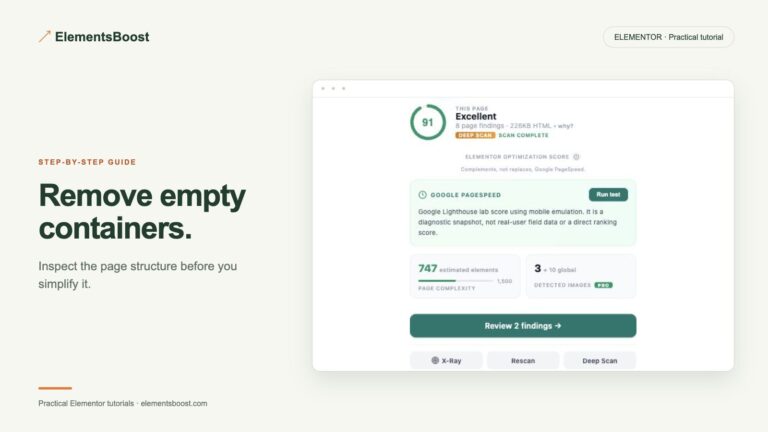
Run the page scan in ElementsBoost/Buraq and open the relevant image finding. Use X-Ray when the finding provides it. Match the highlighted widget to its public image URL, especially if the same photograph appears in a hero and a card. Changing the wrong instance will not solve the request you measured.
2. Compare source size with display size
Check the image width on the live page and the natural dimensions of the downloaded file. For an illustrative example, a 400-pixel-wide card may need roughly 800 source pixels on a 2× display, rather than a 4000-pixel original. That is a sizing example, not a universal limit: cropping, breakpoints and the actual display determine what is appropriate.
3. Select a suitable registered image size
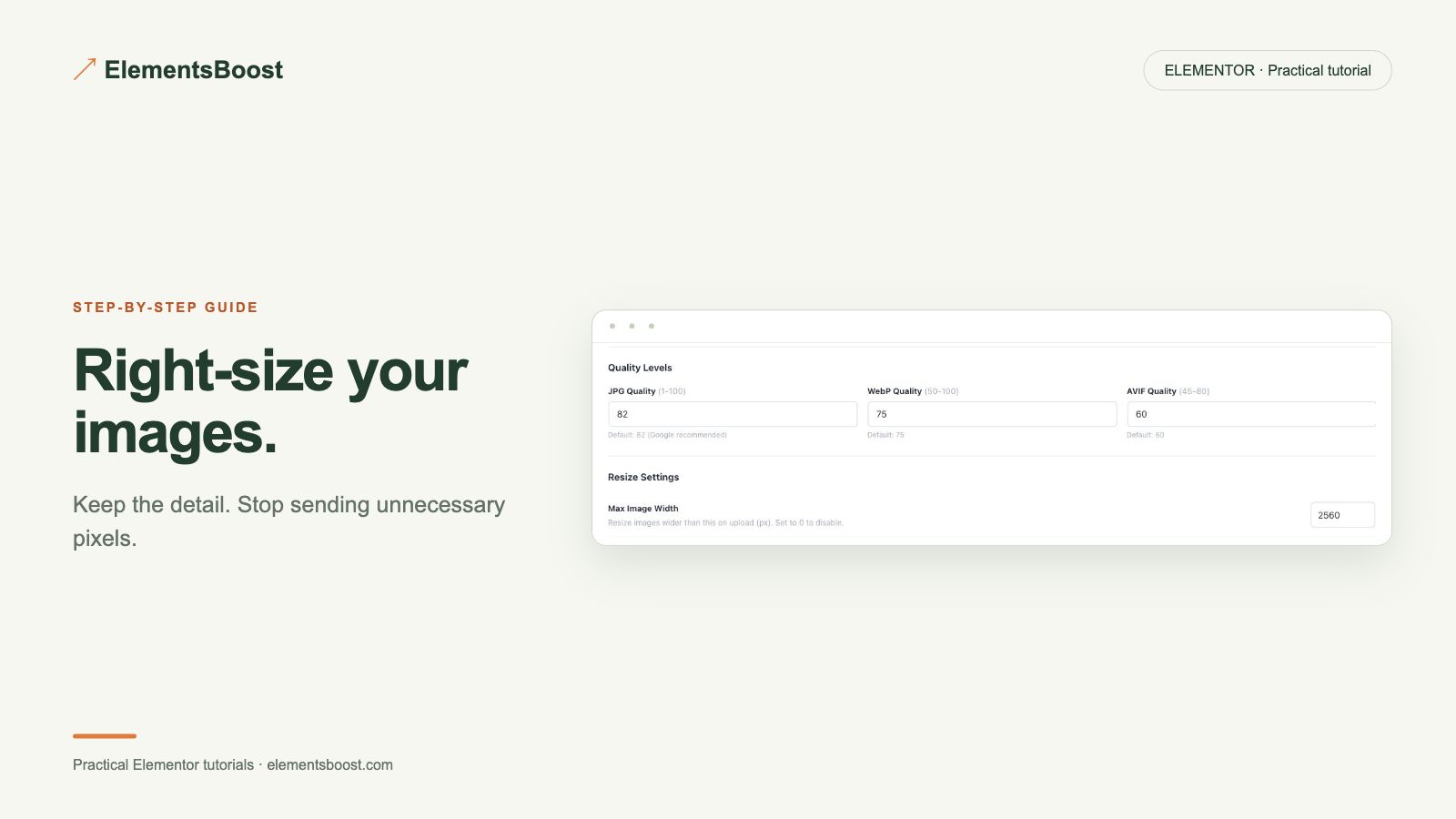
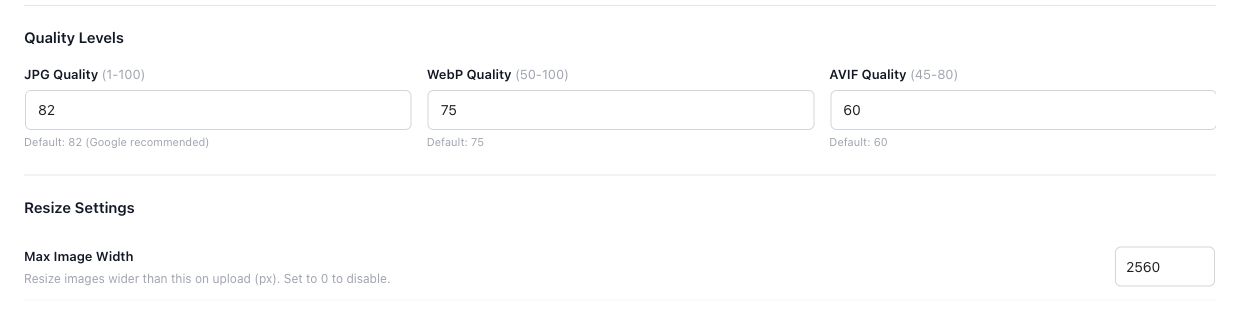
Edit the image widget in Elementor and inspect its image-resolution or size control; wording depends on the installed version. Try an available size that fits the layout. Keep the original backup and check whether a chosen size crops differently. If the right variant does not exist, prepare an appropriate source or registered size rather than stretching a smaller image until it blurs.
4. Check the resource the browser chose
Preview the public page at phone and desktop widths. Inspect currentSrc or the image request in Network. The src attribute alone may not tell you which responsive candidate was used. Compare downloaded dimensions and bytes with your baseline, then inspect faces, logos and lettering at their actual display size.
5. Compress only if the resized source is still heavy
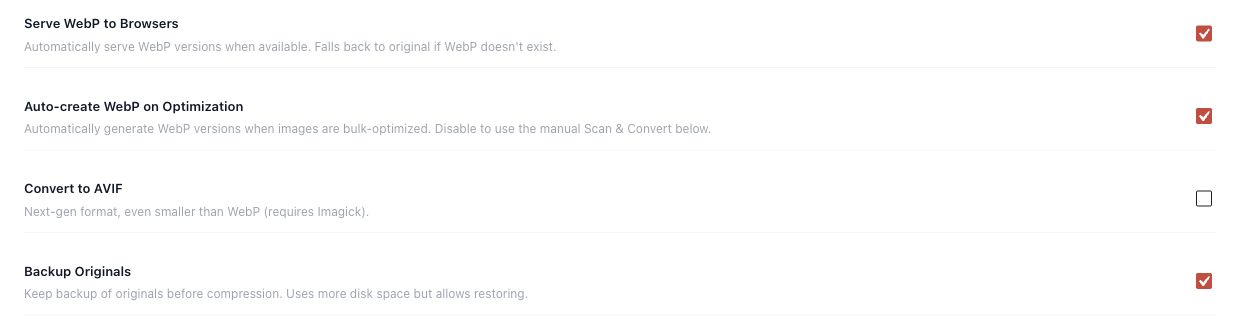
A correctly sized source may already solve the problem. If it is still expensive to download, use Pro local compression or a supported modern format as a separate change. Back it up first and verify the rendered result. Keeping the two changes separate tells you which one helped.
Check your result
- The correct widget and image URL changed.
- Mobile and desktop request a suitable source.
- The crop and sharpness remain acceptable.
- The download is smaller than the original baseline when a smaller source was the fix.
If the result is different
If the browser still downloads the original, check the widget settings, responsive candidates and cache. A background image follows CSS rules and needs the separate background-image workflow.
For supported settings, use the testing and recovery guide. A public scanner cannot measure a private Test Mode preview. Keep backups for persistent content or image changes.
Reference: Responsive images and reserved space.
Your next useful step
Buraq findings and X-Ray help locate the image; resizing/source selection happens in Elementor or WordPress.
Optional next step: compress the correctly sized local image. Pro is not required to select a smaller source.
When Pro is the useful next step
Already chose the right image size? Pro adds local compression and modern formats for files that are still heavy.
See Pro plans and included features →
Choose the license for the number of sites you manage. Check the feature comparison and license terms before buying.