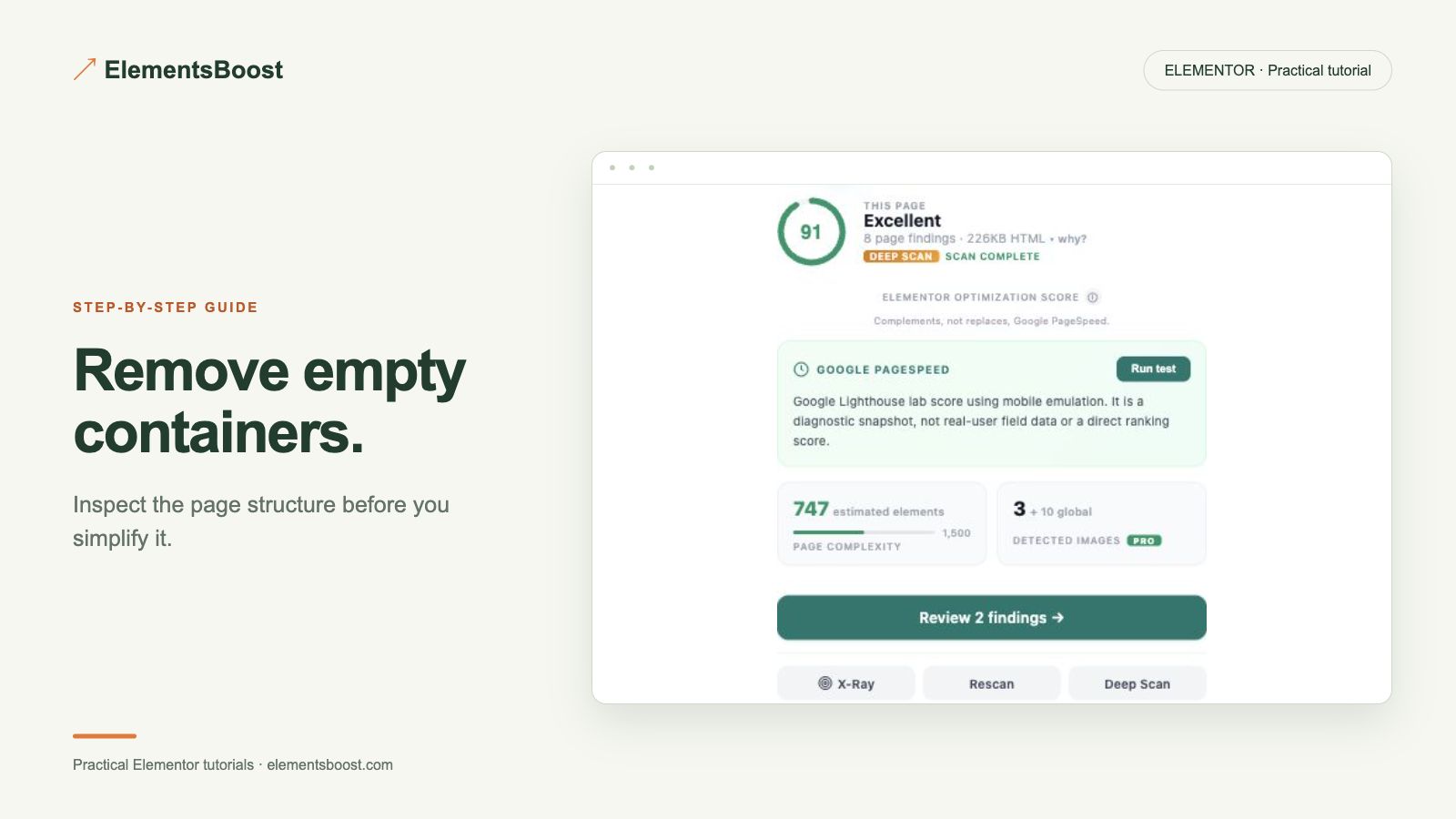
How to Remove Empty Elementor Containers With an Undo Option
Free-first · Practical Elementor tutorial
An empty-looking container can be leftover layout structure—or it can hold a background, spacing, dynamic content or a responsive element. ElementsBoost Free helps identify eligible empty containers. The useful result is cleaner structure with the same intentional design.
What you will achieve
Remove a genuinely empty container without guessing about hidden content.
Free: Supported empty-container action and scoped undo.
Pro: Optional next step: per-page asset cleanup if unnecessary files remain.
1. Locate the reported container
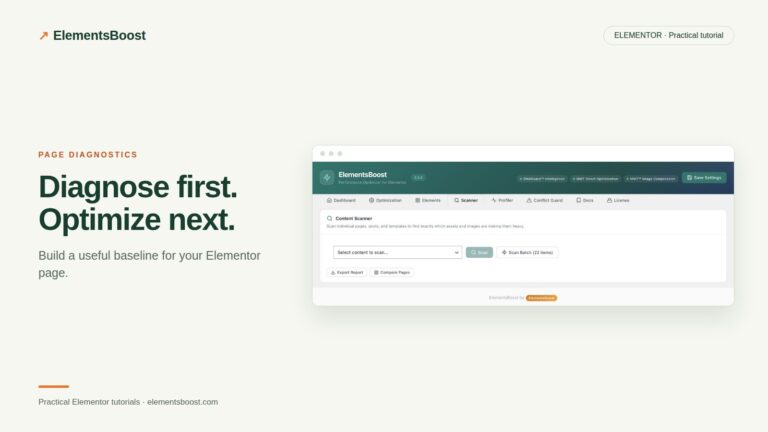
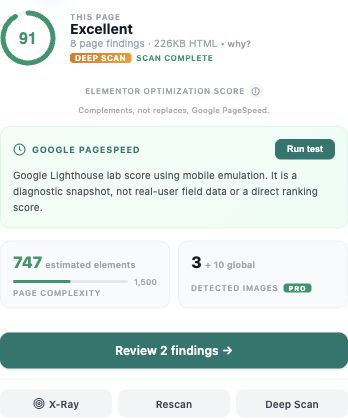
Run Buraq on the page and use the available highlight to find the reported element. Open Elementor’s structure or navigator view and match the container. Save a revision before any content action. Work on one candidate first so the effect of removal is easy to understand.
2. Check what “empty” means here
Review its background, minimum height, margins, responsive visibility and dynamic conditions. Switch between desktop and mobile views. Check whether a popup, template or script inserts content later. A spacer or decorative section may be intentional even when it contains no text, so keep it if it serves the design.
3. Remove only the eligible candidate
Review the supported Free removal action and its target. Apply it to the confirmed unused container, then save if the interface requires it. Do not bulk-delete every highlighted element. A guarded or unavailable action should lead to manual investigation, not disabling the guard.
4. Compare layout and navigation
Reload the public page at the same widths as the baseline. Check section spacing, anchor links, backgrounds and sticky behavior. Look near the removed container and at the sections that follow it. Cleaner markup is useful only if readers still see the intended content and can reach it.
5. Test the scoped undo
Use the supported undo for the sample change and confirm the container returns without replacing unrelated later edits. Then reapply the cleanup if desired. Keep before-and-after structure screenshots so you can verify exactly what changed.
If the result is different
If removing a container shifts the design, undo it and identify the spacing or background it supplied. This action does not automatically remove every stylesheet or script associated with the page. Pro per-page asset cleanup is a separate next step when evidence shows an unnecessary file.
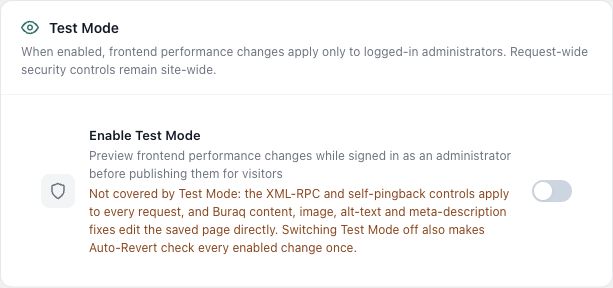
For supported frontend changes, follow the testing and recovery guide. Persistent content and image changes need their own backups; private Test Mode output cannot be measured by a public scanner.
Choose the next step that fits your page
Find eligible empty containers with Free. Investigate per-page Pro cleanup only if unnecessary assets remain.
When Pro is the useful next step
Remove eligible empty containers with Free. Pro Lean Mode is useful when the remaining issue is an unnecessary asset on one specific page.
See Pro plans and included features →
Choose the license for the number of sites you manage. Check the feature comparison and license terms before buying.