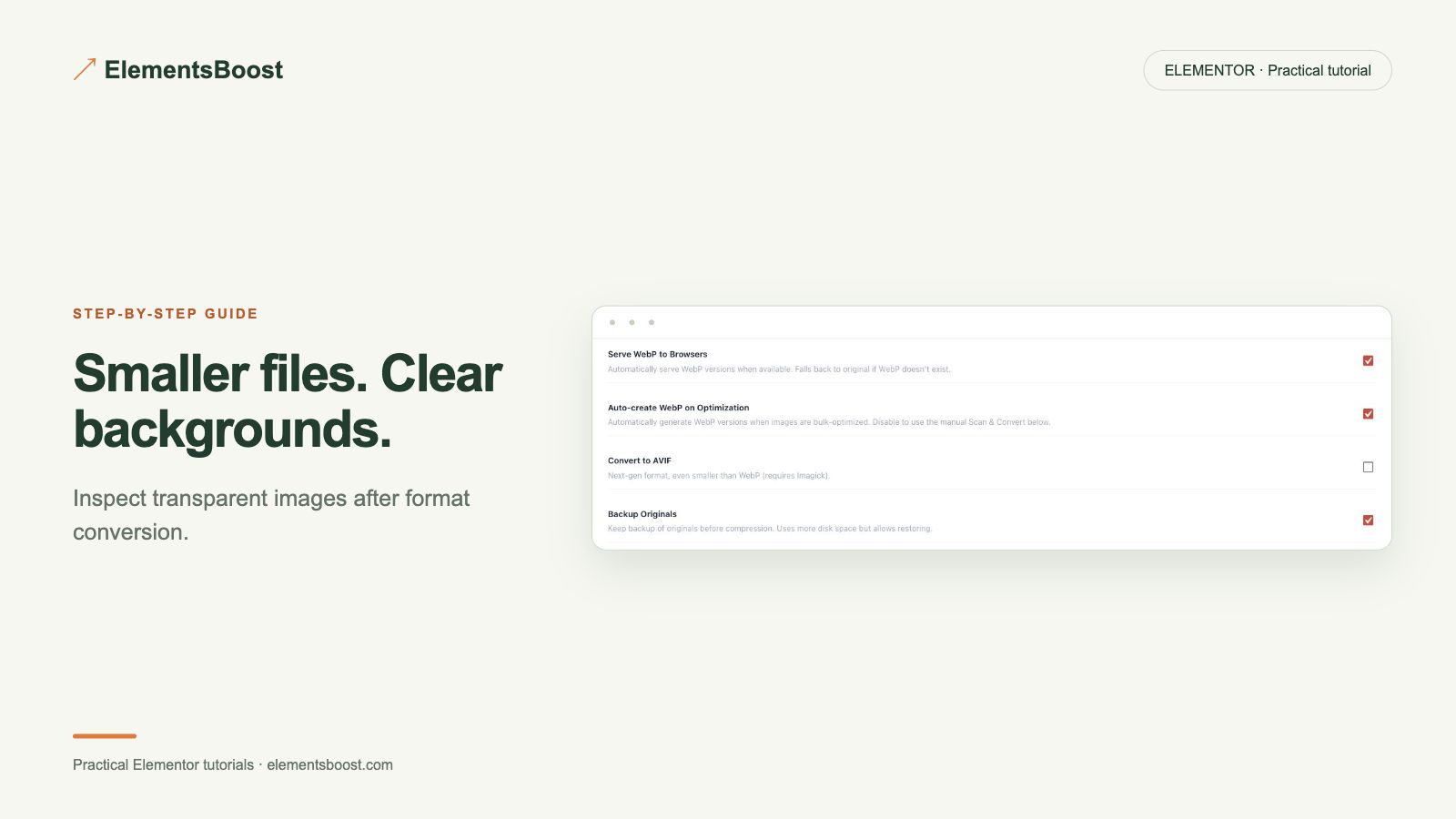
How to Make Transparent PNGs Smaller Without Losing Transparency
Pro-first · Practical Elementor tutorial
A transparent logo should stay transparent after optimization. Converting it to a format without alpha support would replace the background and ruin the design. This Pro workflow tests an eligible local PNG, its edges and the actual delivered result.
What you will achieve
Keep transparent edges while testing a smaller local format.
Free: Free helps locate the heavy image; format conversion is the Pro action.
Pro: Eligible alpha-preserving WebP conversion and restore.
1. Choose an alpha-sensitive sample
Select a local PNG with fine transparent edges, such as a logo or product cutout. Record dimensions and bytes. View it on both light and dark page backgrounds before conversion so existing halos are not mistaken for new artifacts.
2. Back up and check support
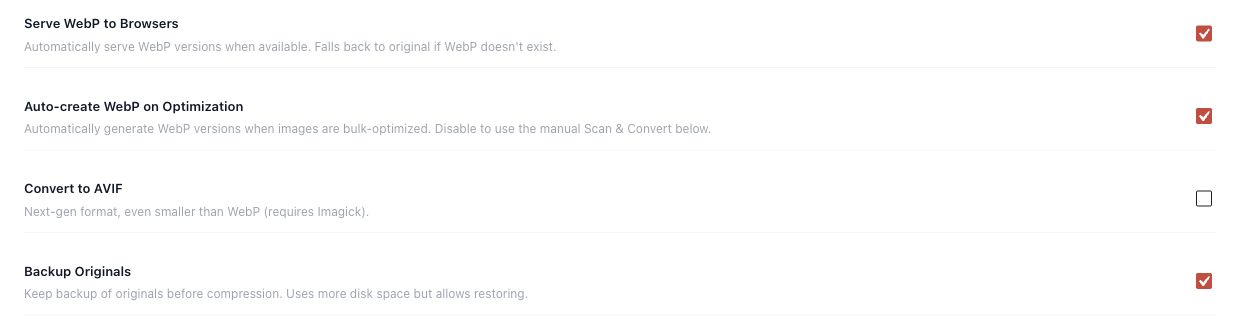
Open Image Optimizer and enable Backup Originals before routine processing. Confirm WebP encoder support. Keep the original file and note all responsive variants used by the page. Animated media and remote/offloaded sources require separate consideration; do not assume this static local PNG workflow covers them.
3. Generate the supported candidate
Use the Pro conversion workflow for the eligible file. Read its result rather than assuming conversion always saves bytes. A simple PNG may already be efficient. Retain only a beneficial candidate with the correct dimensions and acceptable appearance.
4. Inspect edges on two backgrounds
Compare the original and result at matching dimensions on white and a dark color. Look for halos, jagged edges and lost partial transparency. Zoom in to identify an artifact, then check normal display size. Text or brand marks deserve especially careful review.
5. Verify the served image
Reload the actual Elementor page and inspect its selected responsive resource and format. Check both desktop and mobile backgrounds. If the result is unsuitable, restore the image family and confirm the original delivery returns. Save real comparison screenshots with the byte counts.
If the result is different
If the background turns solid, stop and inspect the generated file and delivery path. Do not hide the defect by changing the page background to match it. Free can identify the heavy image; conversion and recovery in this workflow use Pro.
For supported frontend changes, follow the testing and recovery guide. Persistent content and image changes need their own backups; private Test Mode output cannot be measured by a public scanner.
Choose the next step that fits your page
Optimize eligible transparent images with Pro.
When Pro is the useful next step
Pro can create supported modern-format alternatives for eligible local PNGs. Check transparency and visual quality before keeping a conversion.
See Pro plans and included features →
Choose the license for the number of sites you manage. Check the feature comparison and license terms before buying.