
How to Reduce Excess CSS and JavaScript in Elementor
Content reviewed September 26, 2026 · Free 2.0.6 feature scope; Pro availability depends on the installed version and supported action.
A report listing unused CSS or JavaScript is a starting point, not a safe deletion list. A file may be unused during the initial recording but needed when someone opens a menu, form, popup or slider. Removing it can improve a score while breaking the page.
This guide covers remediation after you have identified candidate requests. Keep the diagnosis evidence beside you and change one asset family at a time.
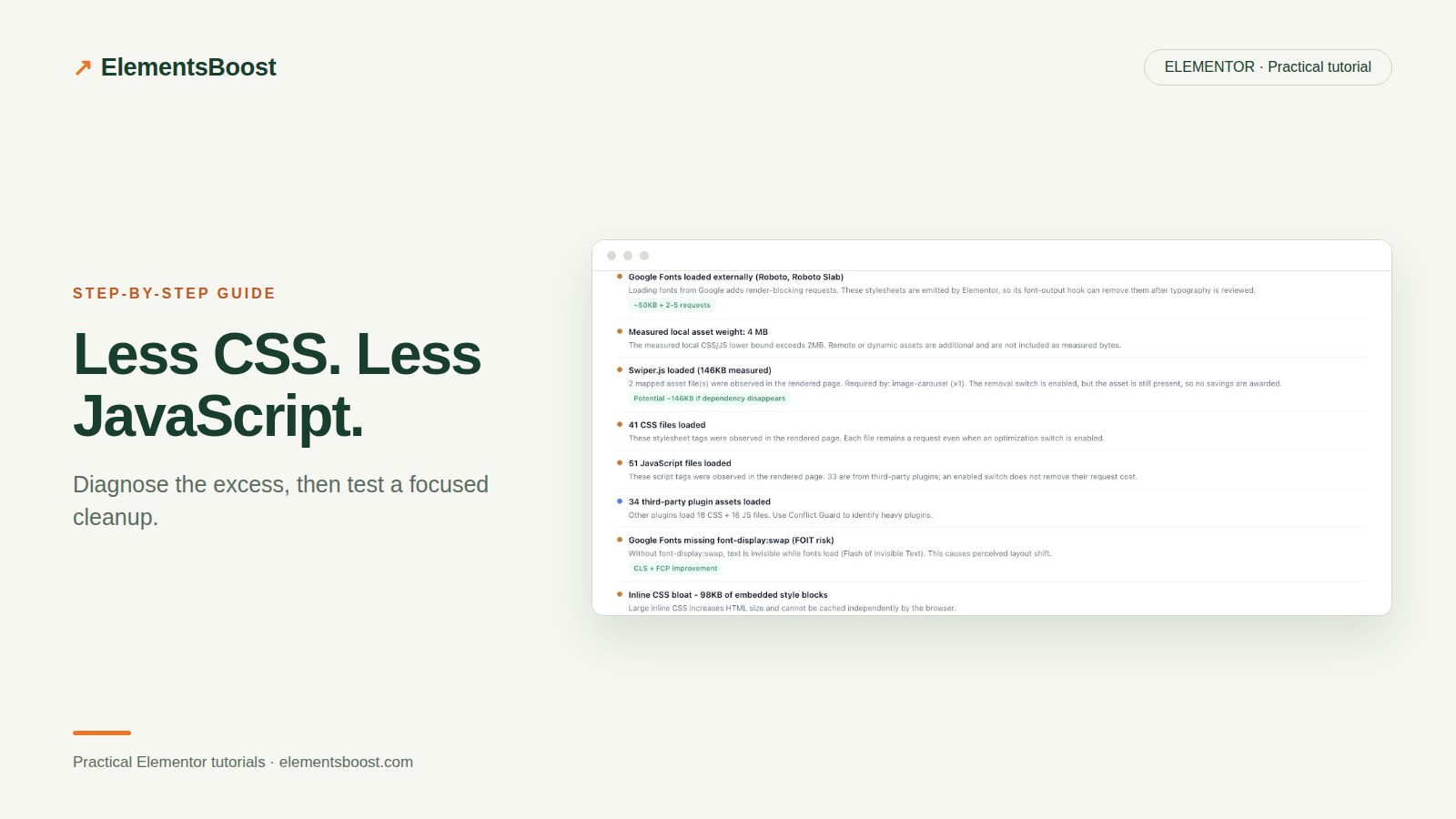
Workflow illustration: the steps to follow, not measured test results.
1. Select a confirmed candidate
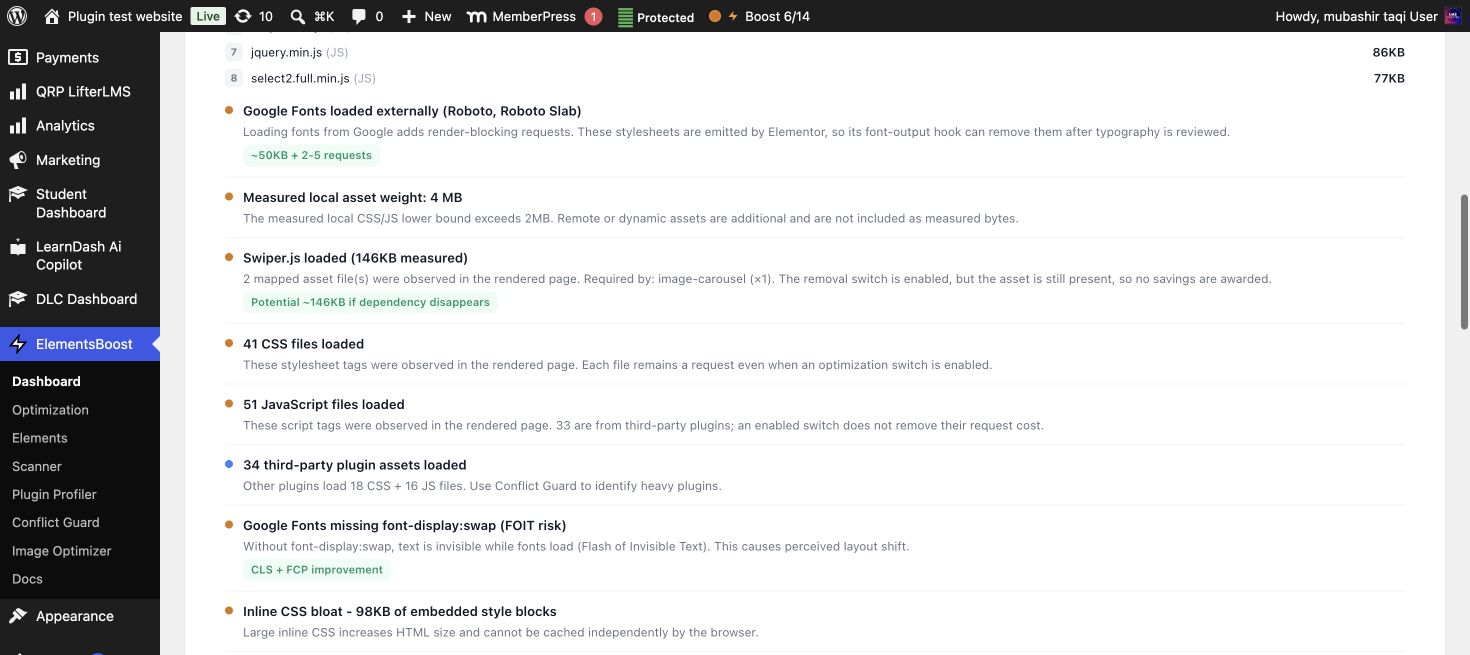
Use the browser network panel and ElementsBoost asset insights to identify the file, its owner and the pages that use it. Record its URL and size. Check interactive and responsive states before deciding it is unnecessary. If the owner is unclear, use the CSS/JS diagnosis guide rather than starting with removal.
2. Decide whether the rule is global or page-specific
Free global controls suit resources you have confirmed are unnecessary across the tested site. A library absent from a landing page may still be required by a product page or a shared popup. That is where Pro Lean Mode and supported per-page rules provide more precise control.
3. Preview the supported rule
In Pro, review the candidate in Lean Mode and use Safe Preview where available. Exercise every interaction that could depend on it: menu opening, form validation, tabs, sliders and popups. Check mobile and desktop. A preview is a test surface; it is not a guarantee that every hidden dependency has been detected.
4. Publish and inspect the visitor response
Release one reviewed rule, clear relevant caches and open the page logged out. Confirm that the exact request is absent and that no replacement or duplicated request appears. Test the same interactions again. If the rule causes a regression, disable it or use its supported recovery path before trying a different candidate.
5. Measure bytes and user-visible behavior
Compare matched runs of the same page and device. Record removed requests and transferred bytes separately from Lighthouse scores. A smaller response is real evidence even when the score moves little; it does not prove the entire page is fast. Keep an honest note of remaining image, rendering or server bottlenecks.
Before you call this fixed
- The exact candidate request is absent where intended.
- Pages outside the rule still work.
- Menus, forms and popups pass logged-out checks.
- Savings and lab results use matched conditions.
Further reading: Chrome DevTools documentation for CSS and JavaScript coverage.
2 Comments