How to Lazy-Load Elementor Images Below the Fold
Free-first · A practical Elementor tutorial
Images near the bottom of a long page do not all need to download before a visitor starts reading. Deferring them can reduce the work needed at the beginning.
The important distinction is location: defer lower-page images, but keep the main first-screen image available immediately. This walkthrough uses eligible Free image controls and checks what the visitor actually receives.
1. Mark the images visible on first load
Open the page at a phone width and a desktop width. Note which images are visible before scrolling. A layout can move an image into the first screen on mobile, so do not classify it using desktop alone. Keep the hero and other immediately visible content out of a blanket below-fold rule.
2. Inspect the Free finding
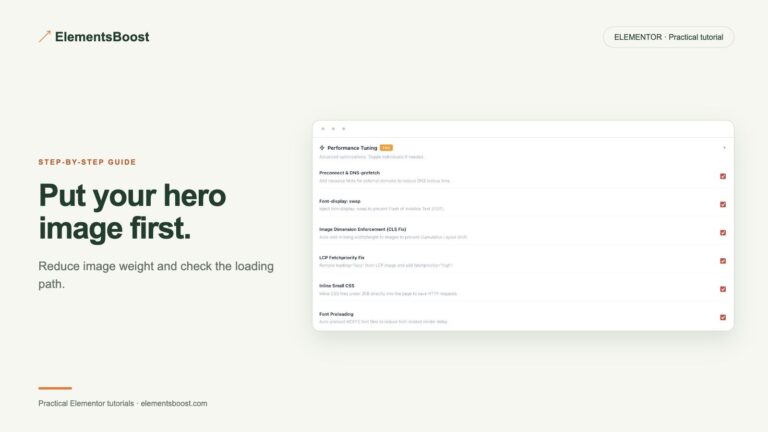
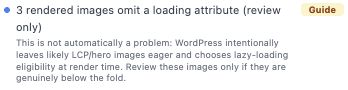
Open the page with Elementor, run ElementsBoost/Buraq and inspect the relevant lazy-loading finding. Confirm the target image and the supported action. If a cache or image plugin already manages lazy loading, decide which tool owns that job before adding another mechanism. Missing support for an image type should lead to a manual review, not an assumed fix.
3. Apply the supported helper
Test the eligible Free setting and inspect the page as an administrator. For supported frontend settings, Test Mode keeps its output private. It does not let a public scanner measure the private change. Use the existing controlled-release workflow before comparing visitor output; persistent content changes need their own recovery path.
4. Confirm the public image behavior
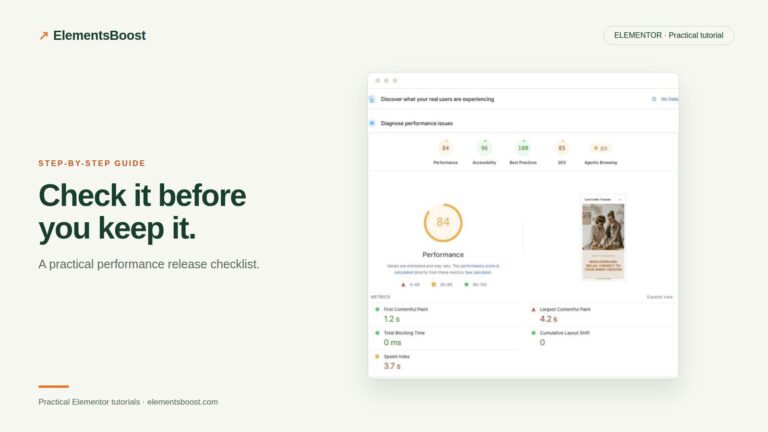
Reload the logged-out page with the browser Network panel open. Inspect loading attributes and watch what happens as you scroll. Browsers may fetch images before they become visible, so a lower image starting slightly early is not automatically a failure. The important check is that the initial work is reduced without blank content when the reader reaches it.
5. Keep the layout stable
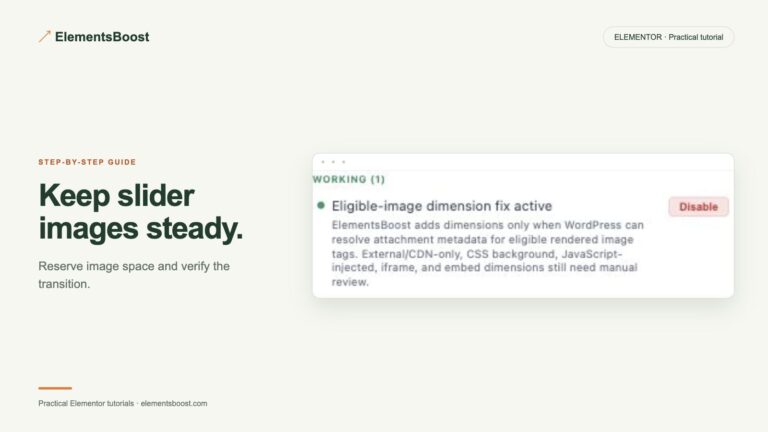
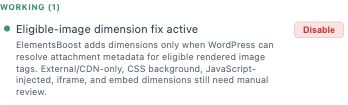
Check that each image has appropriate reserved space and still appears when reached by scrolling or keyboard navigation. Recheck the first-screen image after the change. If a lower image is still a large download, Pro compression can reduce its bytes, but compression and lazy loading solve different problems.
Check your result
- The hero has not accidentally been delayed.
- Lower images appear reliably when approached.
- Image space is reserved without a layout jump.
- The public output reflects the intended setting.
If the result is different
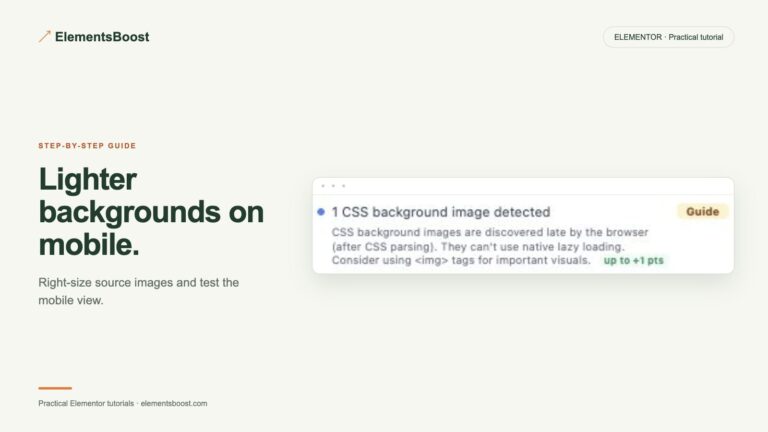
If an image never appears, check for two competing lazy loaders and restore the last change. If all requests still arrive immediately, inspect the image types and the actual helper scope rather than assuming every background or script-inserted image is covered.
For supported settings, use the testing and recovery guide. A public scanner cannot measure a private Test Mode preview. Keep backups for persistent content or image changes.
Reference: Browser-level image lazy loading.
Your next useful step
Free helps review loading behavior and provides supported actions for eligible images.
Optional next step: local compression when the deferred files are still large.
When Pro is the useful next step
Lazy loading changes when an image downloads. Pro compression can reduce how much it downloads—use both when lower-page images remain large.
See Pro plans and included features →
Choose the license for the number of sites you manage. Check the feature comparison and license terms before buying.