How to Remove Unused Swiper Files From an Elementor Page
Both · Practical Elementor tutorial
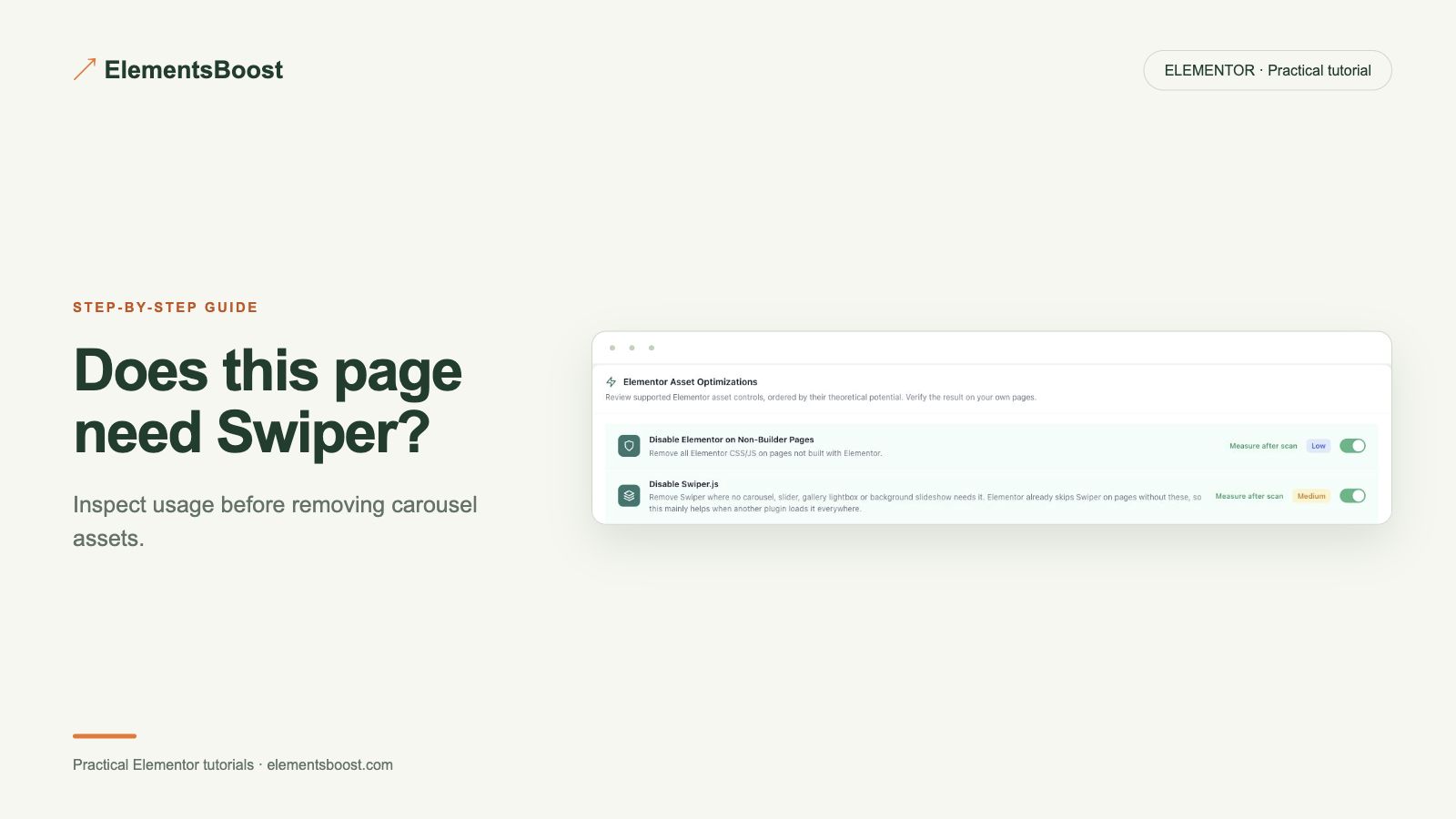
Swiper commonly supports slider interactions. A page without a visible carousel may still need it through a template or addon. Compare a plain page with a real slider page before choosing global Free cleanup or a supported Pro per-page rule.
What you will achieve
Keep slider assets on pages that need them and remove them where eligible.
Free: Guarded global control and usage checks; show when Free is sufficient and when a guard correctly prevents removal.
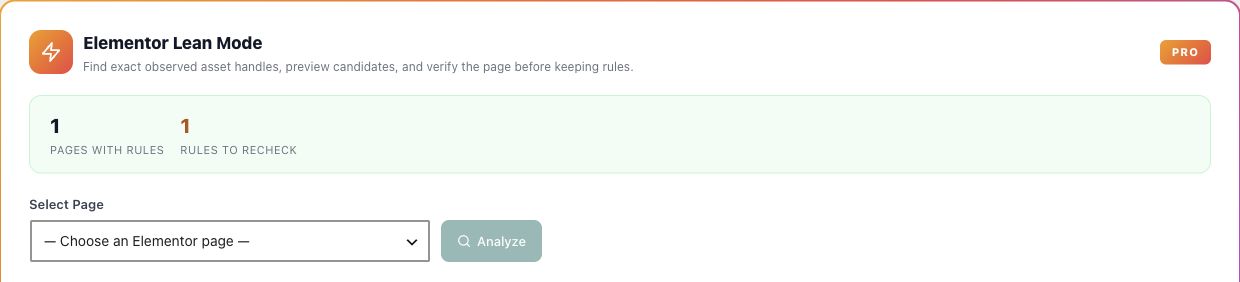
Pro: Per-page Lean Mode/Safe Preview for supported selective removal.
1. Choose the two comparison pages
Record one page that appears not to use a slider and one that definitely does. Inspect headers, footers, popups and mobile-only content on both. Keep a screenshot and interaction baseline for the working slider.
2. Review Free usage evidence
Use ElementsBoost’s usage checks and inspect the Swiper-related requests. Read the guard on the corresponding global control. If the site depends on the library, a guard that retains it is protecting functionality. Do not disable the slider design just to make the control applicable.

3. Pick the appropriate scope
Use the Free control only when its scope and usage checks fit the site. If the asset is unnecessary only on one page, review the supported Pro Lean Mode rule and Safe Preview. Confirm the selected page and dependency handling before applying anything.
4. Exercise both pages
In the preview, scroll through the plain page and open any dynamic content. On the slider page, test all arrows, touch gestures and responsive states. Some dependencies appear only when a hidden widget opens, so a first-screen screenshot is insufficient.
5. Verify public requests and recovery
After the controlled release and relevant cache clear, confirm the intended request is absent on the eligible page and retained where required. If a slider fails, revert immediately and identify the missing dependency. Keep the tested page pair in your notes for future changes.
If the result is different
If Swiper remains, inspect whether another plugin enqueues its own copy or the file is combined by a cache layer. Avoid broad filename blocking. Free is useful for suitable global cleanup; Pro adds supported selective scope.
For supported frontend changes, follow the testing and recovery guide. Persistent content and image changes need their own backups; private Test Mode output cannot be measured by a public scanner.
Choose the next step that fits your page
Use Free when global scope fits, or Pro for supported per-page control.
When Pro is the useful next step
Use Free when a supported global rule fits. Pro Lean Mode is the next step when an unnecessary asset needs page-specific scope.
See Pro plans and included features →
Choose the license for the number of sites you manage. Check the feature comparison and license terms before buying.