How to Compress Elementor Images Without Blurring Text or Logos
Pro-first · A practical Elementor tutorial
A smaller file is not a better result if your logo develops rough edges or the text in a screenshot becomes unreadable. Compression needs a visual check as well as a byte count.
Use three representative images—a photograph, a logo and a screenshot—to find what works for your content. The actual processing uses ElementsBoost Pro; Free helps identify the heavy images first.
1. Choose images that reveal different problems
Select a photo with texture, a logo with clean edges and a screenshot with small text. Use local Media Library images you own. Record the source dimensions and current bytes. First fix an obviously oversized source: compression should not be used to disguise an unnecessarily large image choice.
2. Keep recoverable originals
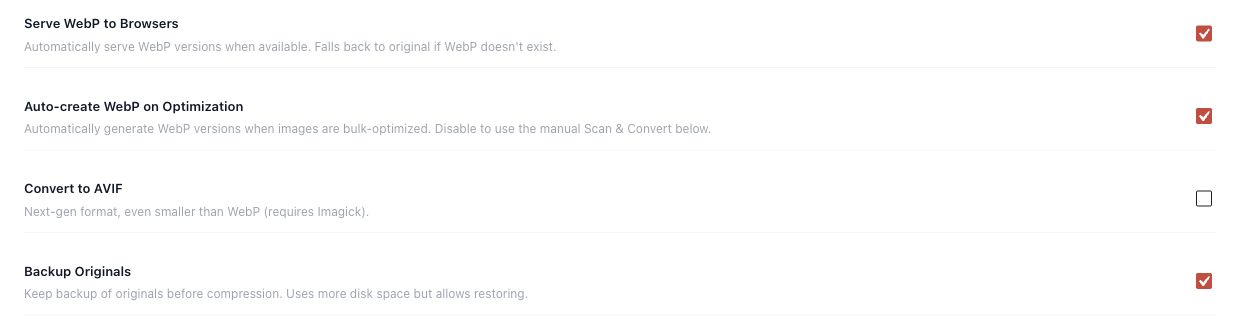
Turn on Backup Originals in the Pro image tools before routine processing. Confirm that backups cover the relevant generated sizes. Keep the same source for each comparison so you do not accidentally compare a new photograph with an old result. Work on a small sample before applying settings across the library.
3. Change one available quality control
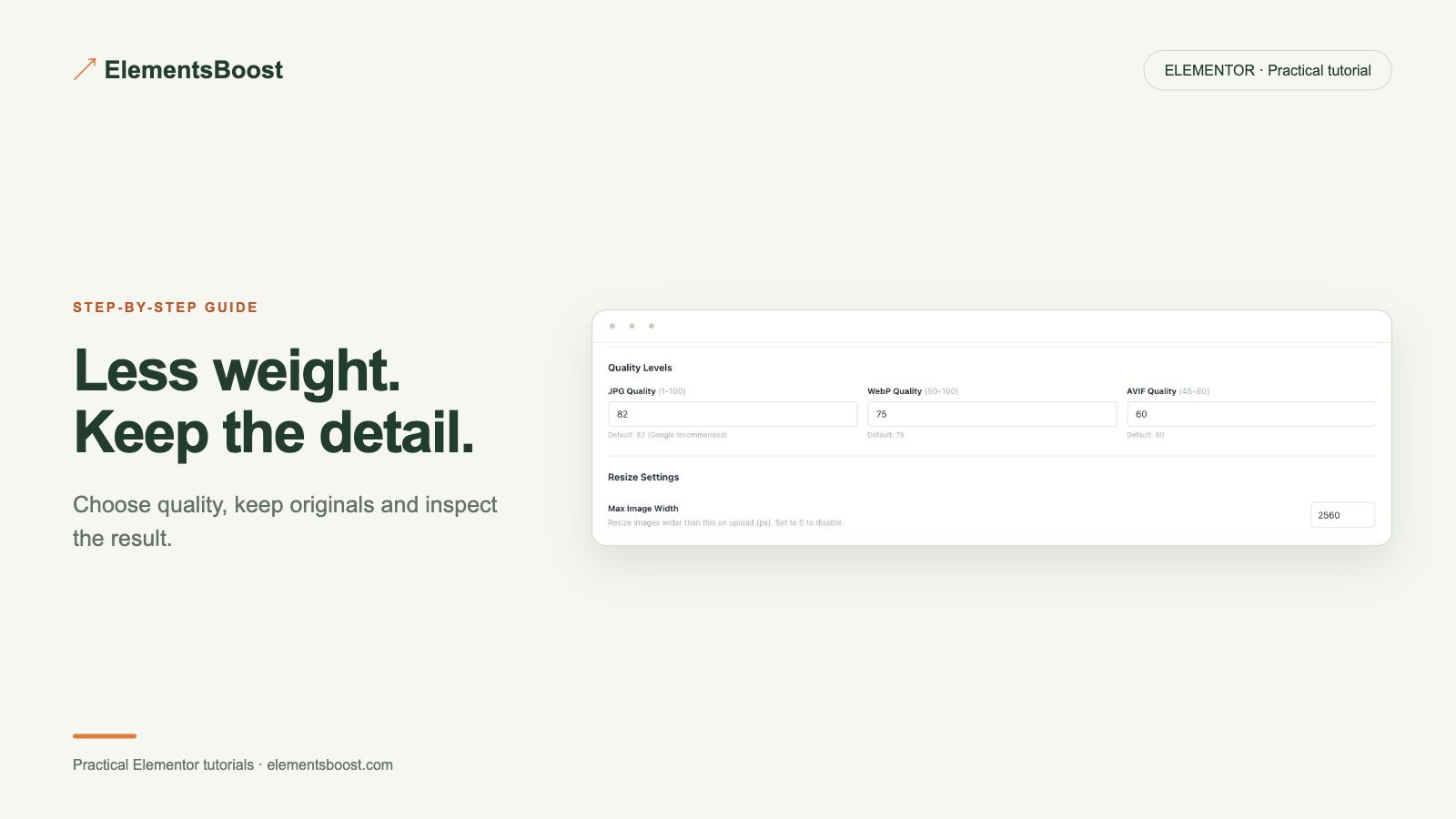
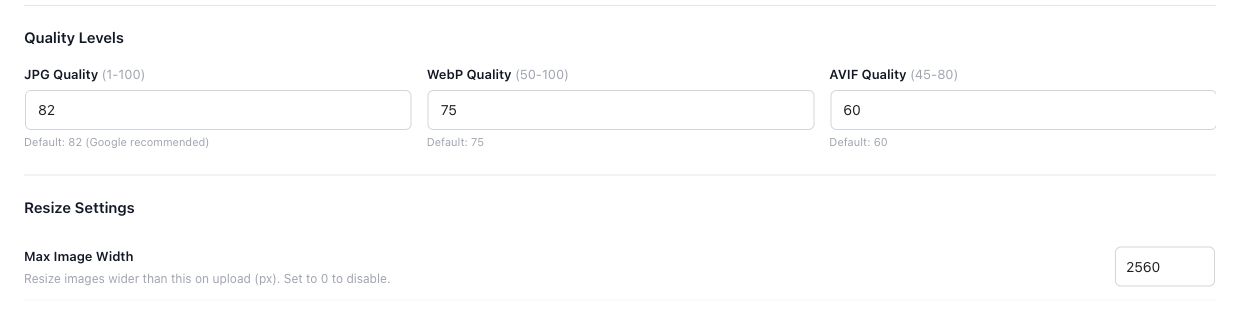
Inspect the format and quality controls in the installed Pro version. Test one setting at a time and read whether processing was beneficial, skipped or failed. Quality scales differ between encoders and formats; the same number does not mean identical quality everywhere. Avoid treating a single setting as perfect for all content.
4. Compare at the size readers will see
Place the original and candidate at matching dimensions. Examine lettering, transparent edges, gradients and detailed photo areas. A close-up can help locate an artifact, but also inspect normal page display. Capture the real comparison and record the associated file sizes so another person can understand the tradeoff.
5. Keep, adjust or restore
Keep a candidate only when its savings and appearance are acceptable for the intended use. If it fails, restore the relevant image family or retest a less aggressive setting. Finally check the public page: the delivered variant may differ from the original file you inspected in the library.
Check your result
- The compared images use the same dimensions and crop.
- Text remains readable and logos retain clean edges.
- The actual public resource reflects the tested result.
- A restore path has been tested on the sample before a larger batch.
If the result is different
If a file barely shrinks, it may already be optimized. If it is still very large, check source dimensions and the selected responsive variant. A useful tutorial reports a no-benefit result honestly instead of inventing a successful compression percentage.
For supported settings, use the testing and recovery guide. A public scanner cannot measure a private Test Mode preview. Keep backups for persistent content or image changes.
Your next useful step
Free diagnosis helps choose which images deserve attention.
Local compression and backup/restore.
When Pro is the useful next step
Pro puts local compression, quality controls and backups together so you can reduce file weight while retaining a recovery copy.
See Pro plans and included features →
Choose the license for the number of sites you manage. Check the feature comparison and license terms before buying.