How to Remove Unused Font Awesome Files Without Breaking Elementor Icons
Free-first · Practical Elementor tutorial
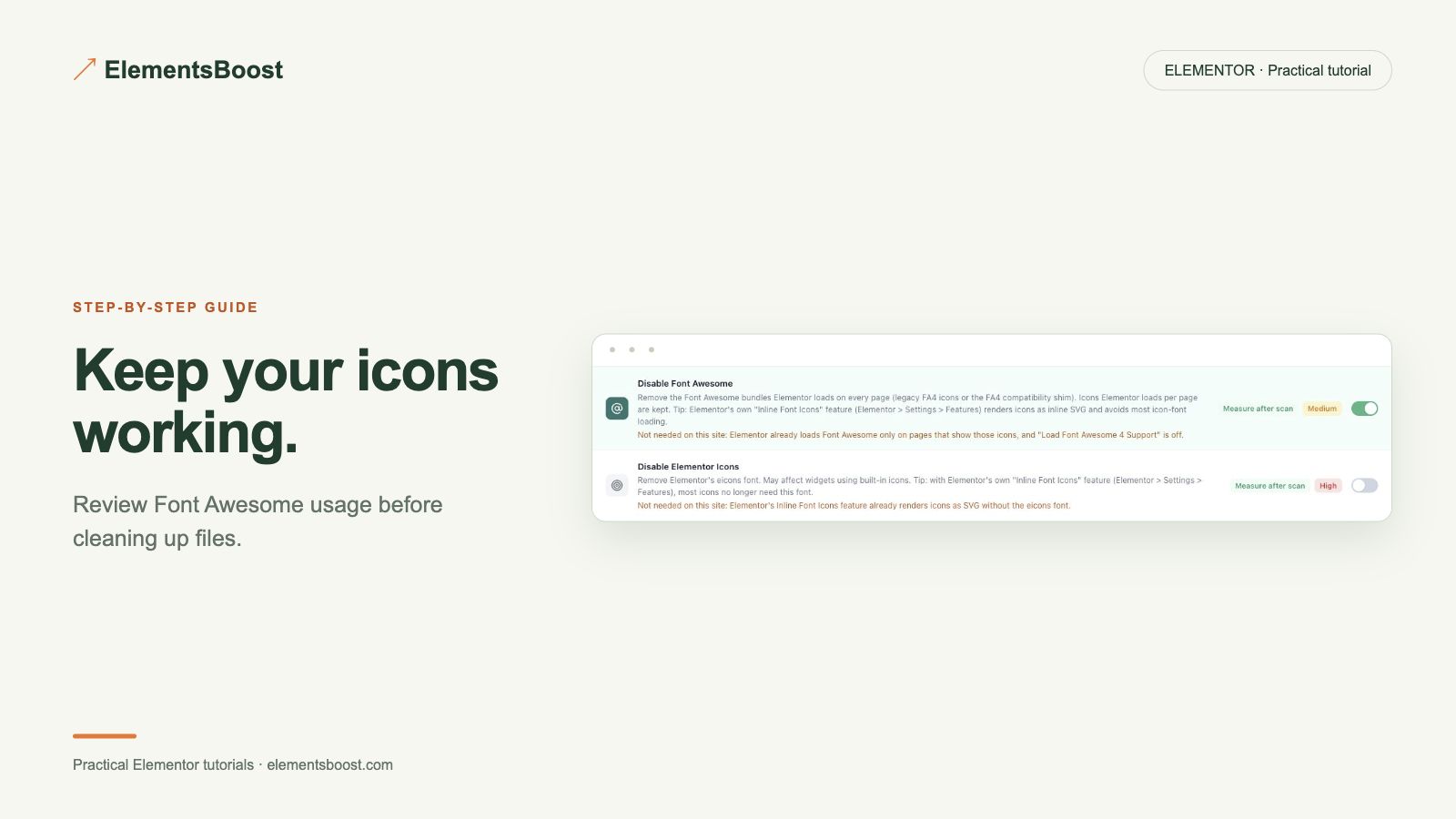
An icon library can be unnecessary when a page uses SVG icons, but menus, forms and templates may still rely on its font files. The goal is to remove unused requests while keeping every meaningful icon visible.
What you will achieve
Keep visible icons while removing a genuinely unnecessary icon library.
Free: Guarded global asset control and usage evidence.
Pro: Optional selective approach: Pro per-page asset rules.
1. Check every icon location
Inspect buttons, navigation, social links, forms, accordions and footer widgets. Include mobile menu toggles and controls visible only after interaction. Record which icons use SVG and which use a font. A page with only SVG content can still inherit a font icon from its theme.
2. Match the library to the request
Use ElementsBoost Free usage findings and the Network panel to identify the Font Awesome CSS and font requests. Confirm ownership and version where visible. Different addons may enqueue their own copies, so removing one handle does not necessarily remove every icon library.

3. Test the guarded Free control
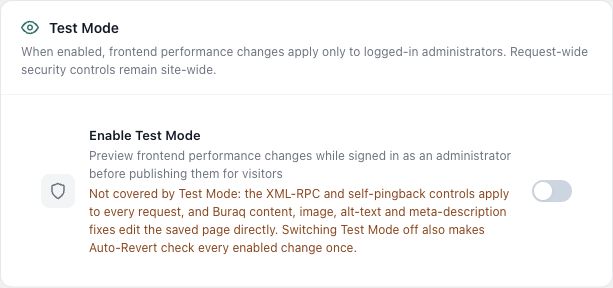
Open the relevant asset setting and read any usage warning. Use supported Test Mode and retain the previous configuration. If the site needs the library on some pages, consider a supported Pro per-page rule only after confirming that a narrower target has no dependency.
4. Check function as well as appearance
Reload at desktop and phone widths. Open the menu, toggle an accordion and inspect form feedback without sending a real submission. A blank square, missing arrow or invisible close control is a reason to restore the file. Also confirm that icon-only controls still have accessible labels.
5. Verify removal after release
After the controlled change and cache clear, inspect the public requests. Confirm the intended library is absent where unnecessary and present where needed. Keep the baseline and result next to a screenshot of the working controls.
If the result is different
If an icon disappears, restore the setting first. Identify the exact widget or template before replacing icons or adding exclusions. Do not hide broken controls to make the performance report look cleaner.
For supported frontend changes, follow the testing and recovery guide. Persistent content and image changes need their own backups; private Test Mode output cannot be measured by a public scanner.
Choose the next step that fits your page
Use Free to check whether the icon library is needed before testing removal.
When Pro is the useful next step
Free helps you review icon-library use. Pro becomes useful when a supported unnecessary asset needs a page-specific rule.
See Pro plans and included features →
Choose the license for the number of sites you manage. Check the feature comparison and license terms before buying.