How to Compress Elementor Images Without Blurring Text or Logos
Compress Elementor images while checking text, logo edges and photo detail. Test real file sizes and restore originals when needed.

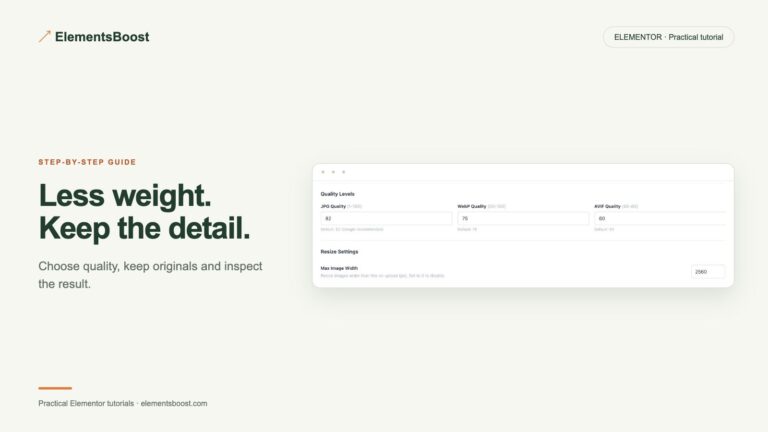
Compress Elementor images while checking text, logo edges and photo detail. Test real file sizes and restore originals when needed.
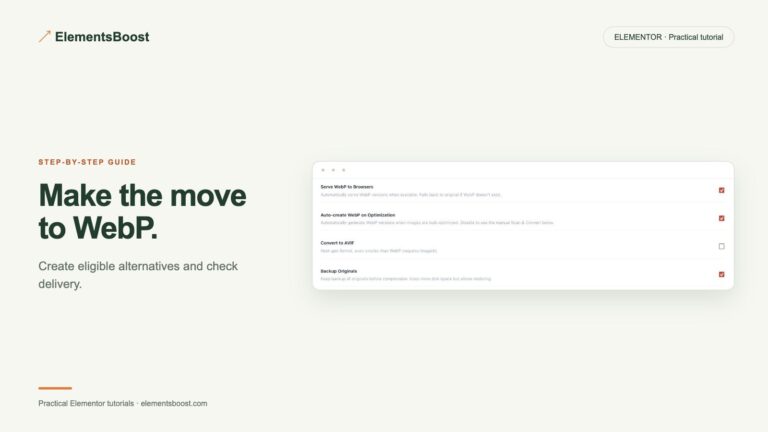
Convert eligible Elementor Media Library images to smaller WebP files with ElementsBoost Pro, then verify quality and public delivery.
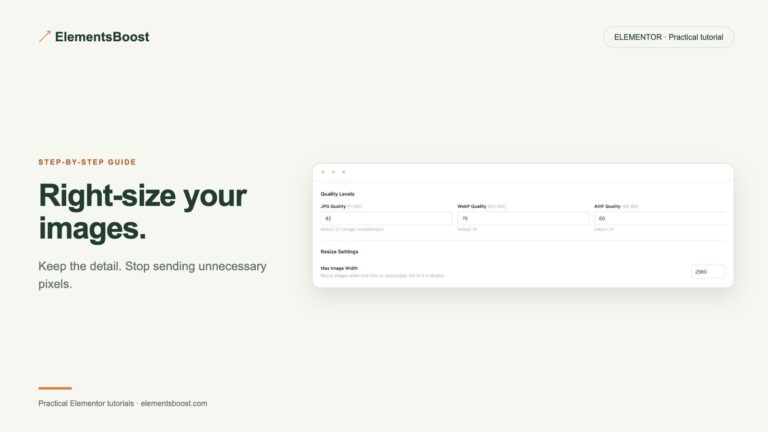
Fix oversized Elementor images by choosing a suitable source, checking responsive delivery and keeping important detail sharp.
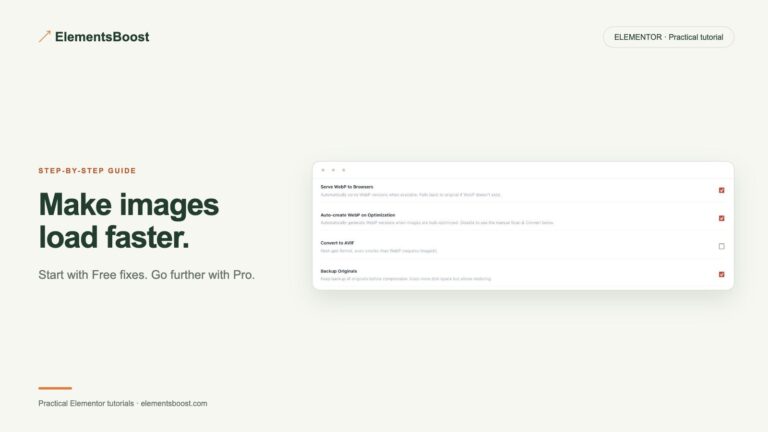
Make Elementor images load faster with a practical workflow: choose the right size, reserve space, lazy-load lower images and optimize local files.
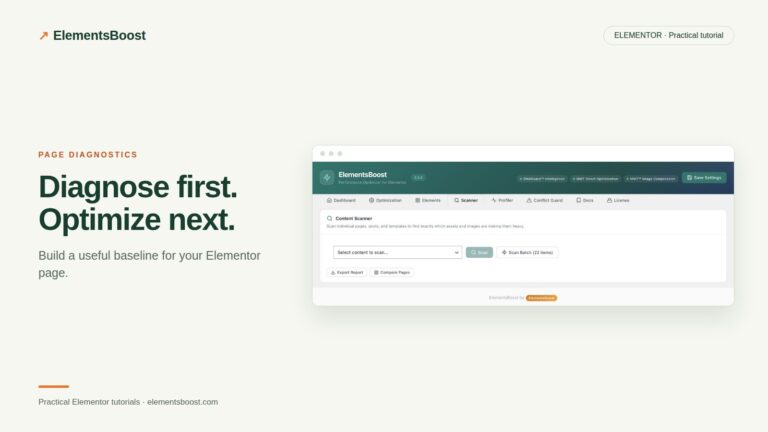
Build an Elementor performance baseline, identify the main bottleneck and choose a measurable next action with ElementsBoost.

Choose safe candidates for ElementsBoost global controls, check dependencies across templates and use Pro when page-specific scope is needed.
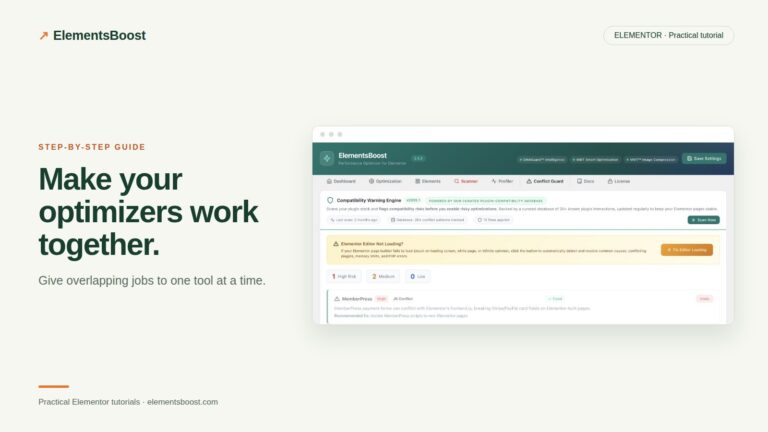
Keep caching and Elementor cleanup coordinated, assign overlapping optimizations to one tool and verify the public response.
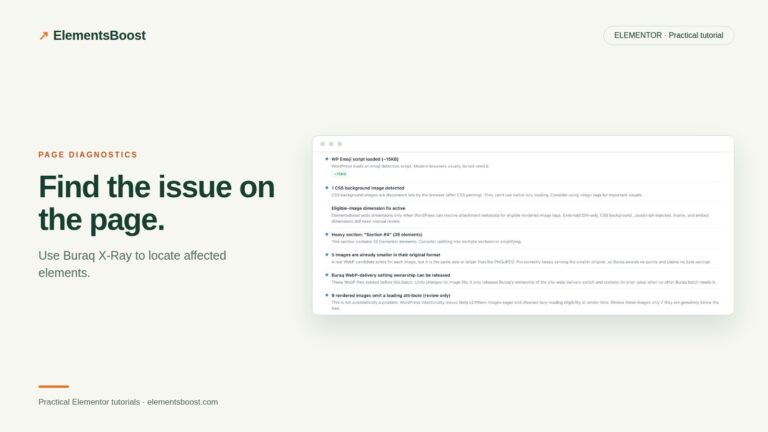
Use ElementsBoost X-Ray Show and Hide controls to match a finding to an Elementor element, then verify the right fix.
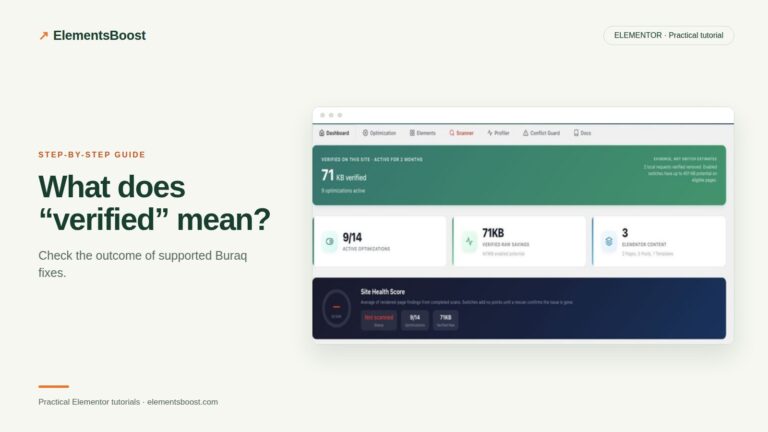
Understand Buraq verified fixes, public rescans and the difference between applied settings, confirmed output and measured speed.
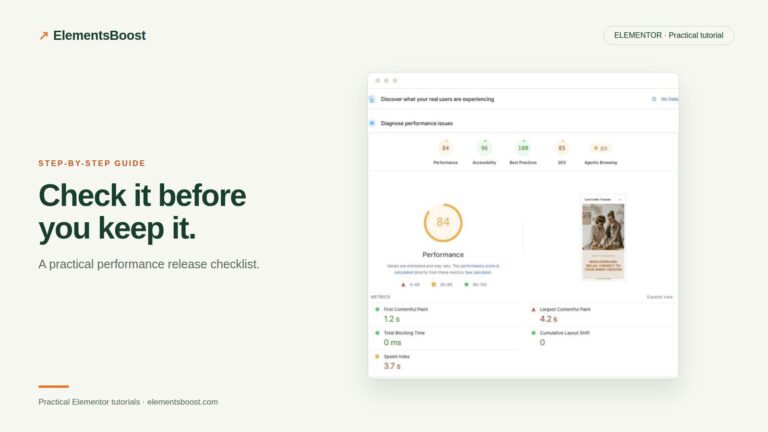
Use a practical release checklist for Elementor performance changes: scope, recovery, visitor output, interactions and measurements.