
ElementsBoost Test Mode, Auto-Revert and Settings History: Safe Use
Content reviewed September 26, 2026 · Free 2.0.6 feature scope; Pro availability depends on the installed version and supported action.
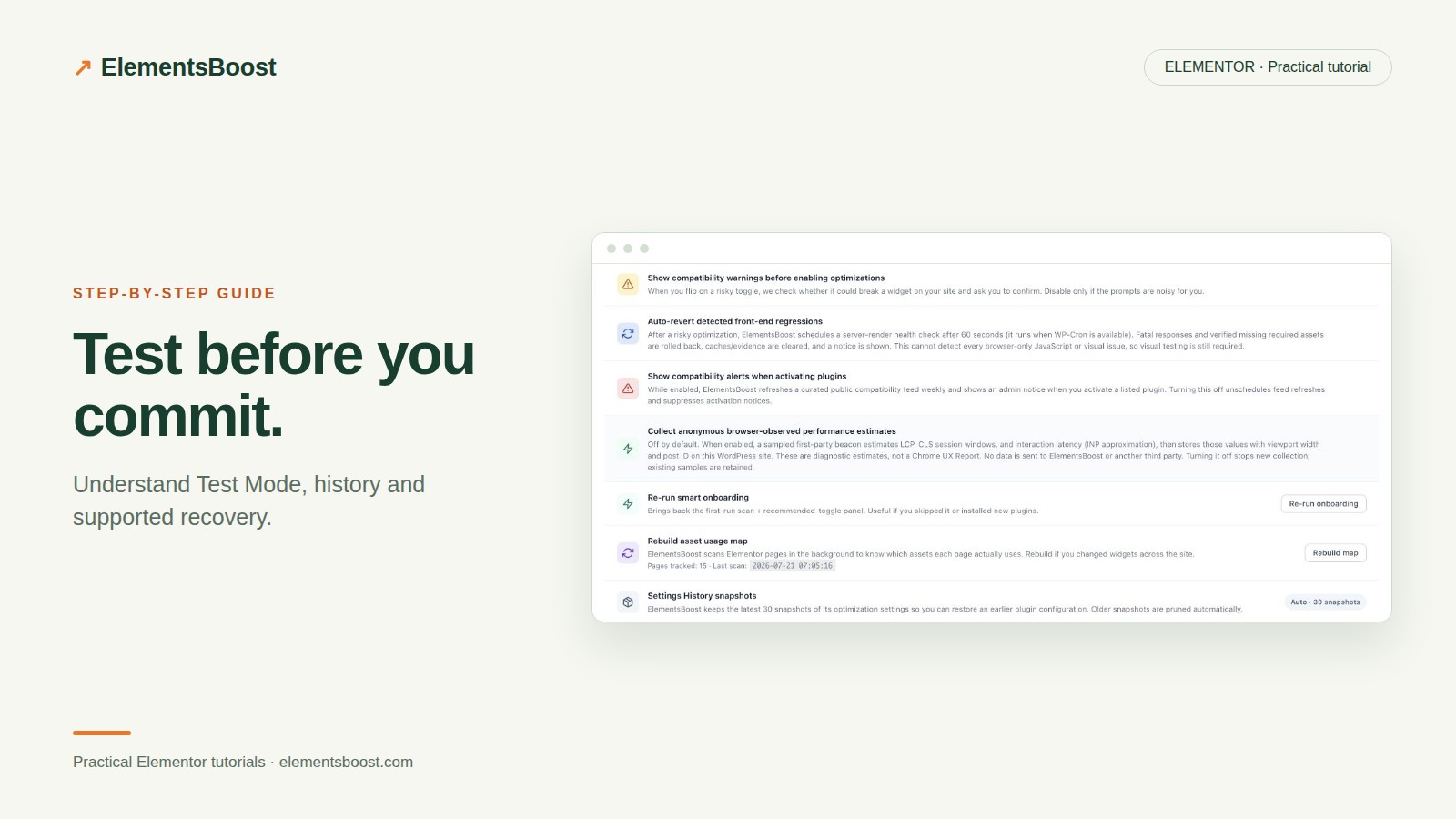
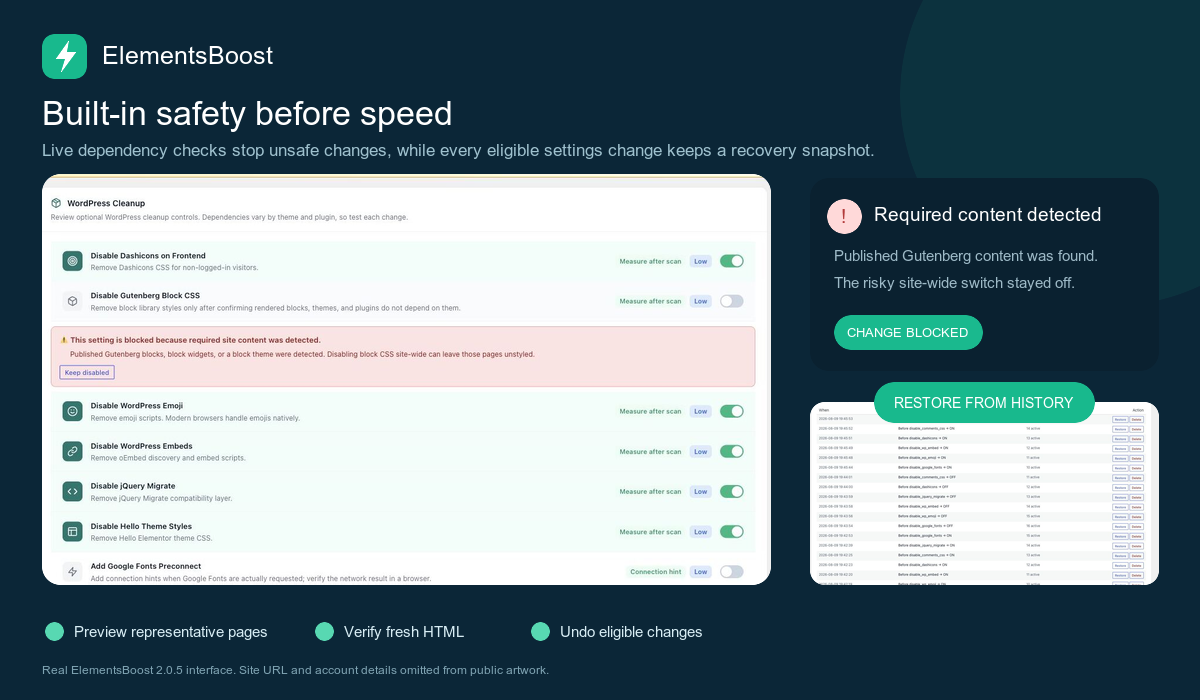
ElementsBoost has several safety tools, but they solve different problems. Test Mode isolates supported frontend controls, Settings History restores supported settings, and Auto-Revert watches supported signals after certain changes. None is a complete backup or an automatic visual test of your whole website.
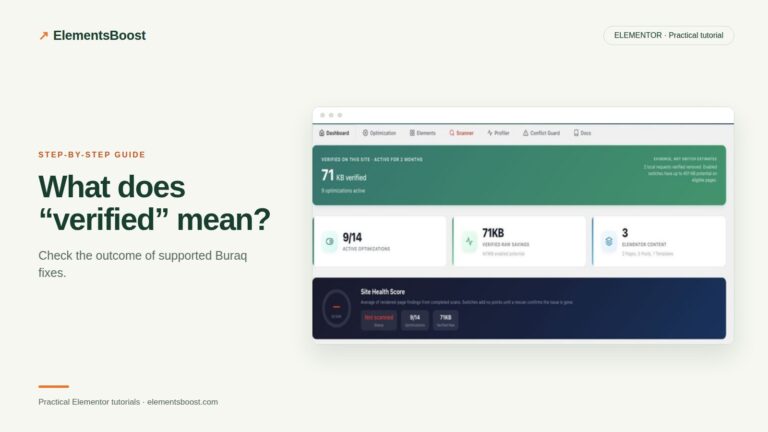
The distinction matters because Buraq and external PageSpeed tests inspect public output. They cannot confirm an optimization that exists only in your administrator’s private test view.
Workflow illustration: the steps to follow, not measured test results.
1. Classify the action before enabling it
A frontend setting, a persistent Elementor content edit and an image-file transformation have different recovery paths. Back up production content and media before persistent changes. Check whether the specific action supports Test Mode, scoped undo, settings restoration or image-family restoration; do not assume one mechanism covers all four.
2. Preview supported frontend controls
Enable Test Mode before trying a supported control, then inspect the page as the logged-in administrator. Supported font, image-dimension and lazy-loading hooks are included in current Free versions. Persistent content edits and request-wide security behavior are not generally isolated by this mode. Check the scope text for the control you are using.
3. Understand the public scanner boundary
While a candidate is visible only through Test Mode, the public scanner may correctly report the original visitor output. Do not repeatedly enable the control or treat that as proof of failure. Either test on staging without Test Mode or publish the candidate through a controlled transition.
4. Release a reviewed candidate deliberately
For a supported setting, turn the candidate OFF while Test Mode remains ON. Then turn Test Mode OFF. Finally enable the candidate once for the public page. This creates a deliberate public setting change instead of merely exposing a privately enabled configuration. Clear the relevant caches and verify the logged-out response and interactions immediately.
5. Know what recovery can and cannot confirm
Auto-Revert uses supported signals and scheduled WordPress work; it is not continuous browser testing and timing depends on WP-Cron. Settings History retains up to 30 snapshots for supported settings. Use the relevant recovery mechanism, then inspect the public result. Neither a completed scan nor an available Restore button proves that every form, popup or visual state is healthy.
Before you call this fixed
- The action’s isolation and recovery scope is understood.
- The public scanner is testing published output.
- The candidate has a documented recovery path.
- Important interactions were checked manually.
Further reading: ElementsBoost’s current Free feature documentation on WordPress.org.
28 Comments